

IPTV not working fix is often easier than you think. If your streaming service keeps freezing or buffering, this guide explains the main causes and what you can check first to get it running smoothly again.
Start by testing your internet speed and checking for peak-time slowdowns from your provider. Many disruptions happen when bandwidth is limited during busy evening hours. You can also inspect device settings and local network load to find the root cause.
This introduction previews clear, hands-on steps to stabilize streaming and reduce buffering. You will learn how to spot ISP throttling, adjust your local setup, and keep your service steady so you can enjoy shows with less interruption.
Table of Contents
Key Takeaways
- Check your internet connection first when you face persistent buffering.
- Peak evening time can cause ISP throttling that affects streaming quality.
- Small device and router tweaks often restore smooth playback.
- Understanding external network limits helps you troubleshoot faster.
- This guide gives practical steps to keep your viewing consistent.
Common Reasons Your IPTV Service Is Failing
Most playback problems come from either backend server overloads or simple account and connection issues at home.
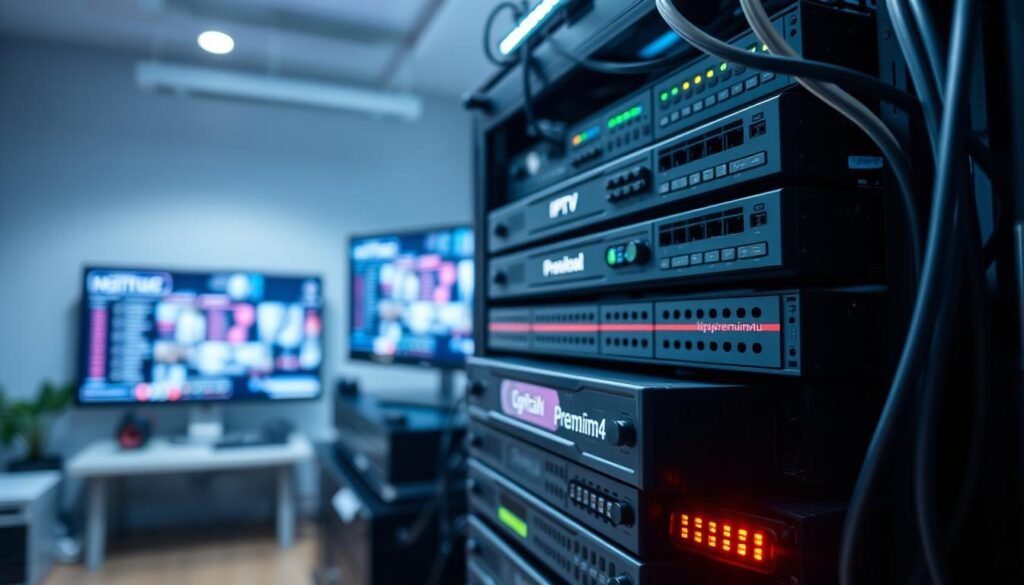
Server Overload and Connectivity Issues
High traffic on provider servers can overload resources during peak time and cause buffering or black screens.
A slow or unstable internet line will ruin picture quality even if the iptv server is fine. Check your speed and reconnect your router.
Subscription and Account Status
Expired accounts, failed payments, or shared logins often block channel access or cause login errors on your home device.
- Apps may crash if they are outdated or buggy; update iptv apps and the device firmware.
- ISPs sometimes throttle specific streaming traffic, which makes services look offline while other online services still work.
- Verify your subscription with the iptv provider and test other apps like YouTube to isolate the issue.
Immediate Steps for an IPTV Not Working Fix
Start with quick checks you can do right now. Fully close the app, then restart your streaming device. This clears temporary memory errors and often restores channels within minutes.

If buffering or login errors continue, unplug your modem and router for 30 seconds. Power cycling refreshes the connection to your internet provider and clears minor network glitches.
- Reopen or reinstall the app if it still fails to load; corrupted files can stop apps from communicating with the server.
- Check the provider’s website or social feed for outage notices that explain broader service problems.
- Test a phone hotspot to see whether the issue is with your home network or the service itself.
Also verify your account status on the provider portal and confirm device limits. If these steps don’t help, contact support and share exact error messages and the day/time the issue started.
Optimizing Your Internet Connection for Streaming
A steady internet link is the single biggest factor that keeps live streams smooth.
Before changing apps, check how your home network handles traffic during peak time. Small tweaks to wiring and device settings often deliver the biggest gains in quality.
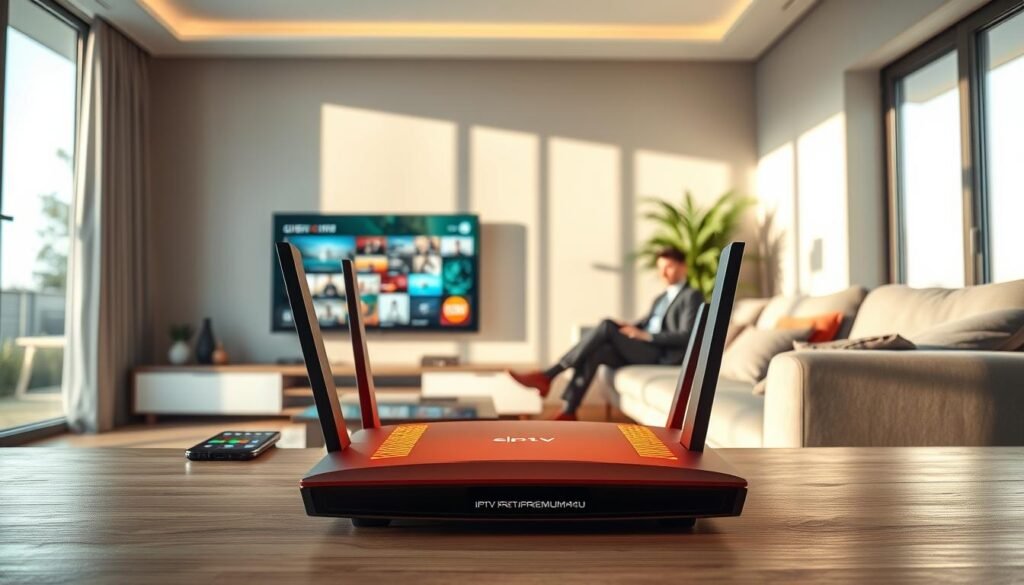
The Importance of Wired Connections
Use Ethernet whenever possible. For HD you need at least 10 Mbps and for 4K aim for 25 Mbps of dedicated bandwidth.
Wired cables cut interference and latency that wireless devices face. A dedicated streaming device on a cable will usually beat a phone or tablet on a crowded Wi‑Fi band.
- Make sure your internet plan meets minimum speed needs for the resolution you want.
- Close background apps on other devices so your available speed prioritizes the stream.
- Watch router temperature; overheating can slow down your connection to a remote server.
- If you see constant iptv buffering, check overall household traffic during your viewing time.
| Content | Recommended Speed | Best Connection | Quick Tip |
|---|---|---|---|
| Standard HD | 10 Mbps | Ethernet | Close background devices |
| 4K / Ultra HD | 25 Mbps | Wired LAN | Use a dedicated streaming device |
| Live High-Bitrate | 30+ Mbps | Gigabit Ethernet | Prioritize streaming traffic |
| When server is distant | Higher speed helps | Wired + low-latency ISP | Test speed at viewing time |
Advanced VPN Configurations for Better Performance
Advanced VPN settings can make a dramatic difference when you need smoother, lower-latency streaming. Use specific protocols and routing tools to limit extra load and keep your connection steady.
Selecting the Right Protocol
Choose WireGuard where available for top speed and low overhead. It reduces latency and helps high-bitrate streams start faster.
If censorship is a concern, consider StealthVPN or OpenWeb to hide VPN traffic from an ISP and restore access to geo content.
Server Location Strategy
Pick a server close to your home or the content server to shorten the data path. Testing several servers at viewing time reveals which one gives the best speed.
Using App and Site Filters
Route only your streaming app traffic through the VPN. App and site filters keep other services running at full speed while the selected app uses the protected tunnel.
- Prefer UDP over TCP for faster transfers and reduced iptv buffering.
- Use a quality VPN to access iptv content that is geo-restricted and to bypass ISP throttling.
- Always test different server locations and protocols to match your device and internet environment.
Managing Your IPTV App and Device Settings
Keep your app and device software current to avoid many common playback glitches. This simple habit removes bugs and improves performance for most users.
On Android, go to App Settings > IPTV App > Storage > Clear Cache to remove temporary files that cause playback errors. For FireStick, open Settings > Applications > Manage Installed Applications > IPTV App > Clear Cache to improve responsiveness.
“Clearing cache and running the latest version of an app often fixes lag and crashes quickly.”
Make sure you keep both the app and the device OS updated. Updates include bug fixes, codec improvements, and better handling of high-bitrate streams.
- Regularly clear the cache so accumulated data won’t crash the app.
- Close background apps so your streaming app has enough memory.
- If problems persist, reinstall iptv software to reset corrupted files and settings.
| Action | Where to Do It | Why It Helps |
|---|---|---|
| Clear app cache | Android / FireStick storage | Removes temp files that cause freezes |
| Update app & OS | App store / Device settings | Adds fixes and improves decoding |
| Close background apps | Task manager / Recent apps | Frees memory for smoother playback |
| Reinstall app | Uninstall then reinstall | Restores default configuration files |
When to Contact Your Service Provider
Persistent problems that return every day mean you should contact your provider. If local checks and router resets fail, the issue may lie with remote servers or account settings.
Before you call or open a support ticket, collect key details: the device model, exact error text, time and frequency of the issue, and a short summary of steps you already tried.
Check the provider’s website or status site first. Many services post maintenance windows and outage alerts there. This saves time and avoids unnecessary troubleshooting.
- If your iptv working status stays poor, ask support for a server-side account reset or session clear.
- Have your account number handy when you call so the team can verify subscriptions quickly.
- Ask whether other customers report similar problems; widespread reports point to weak servers or overloaded services.
- If trouble persists and service quality remains low, consider switching to a provider with stronger infrastructure.
“A short call with clear device and error details often speeds up resolution.”
Best Practices for a Stable Streaming Experience
A few network and device habits will keep your streaming sessions steady. Start with your internet plan and make sure it matches the quality you want.
Use a wired Ethernet link from router to device for the most consistent bandwidth, especially for 4K. This avoids wireless interference that often causes an iptv buffering issue.
Set your device to use Google DNS (8.8.8.8) or Cloudflare (1.1.1.1) to speed up server lookups and reduce initial load times for the service.
- Keep apps and software on the latest version to prevent bugs and compatibility problems.
- Prioritize network traffic so your streaming device gets the needed speed during peak hours.
- Reboot your router and devices periodically to clear temporary memory and minor glitches.
- Choose reputable providers that maintain reliable servers and offer clear support when issues arise.
“Small, consistent steps—like wired connections and DNS tuning—deliver the biggest gains in playback quality.”
Conclusion
Conclusion: Finish with a short checklist to keep your streaming stable and predictable.
Confirm your internet connection, update the app, clear cache, and verify your account to restore an iptv service quickly.
If your iptv working status still shows errors, gather device details and contact support for a server-side check.
Regular maintenance — like app updates and occasional router reboots — prevents many interruptions. These small steps protect your viewing time and reduce future troubleshooting.
Follow these tips and you’ll have a smoother app experience and fewer playback interruptions.
If you’re still facing issues, it might be related to how your app is set up. Follow our full guide on how to install IPTV on Firestick to make sure everything is configured correctly.