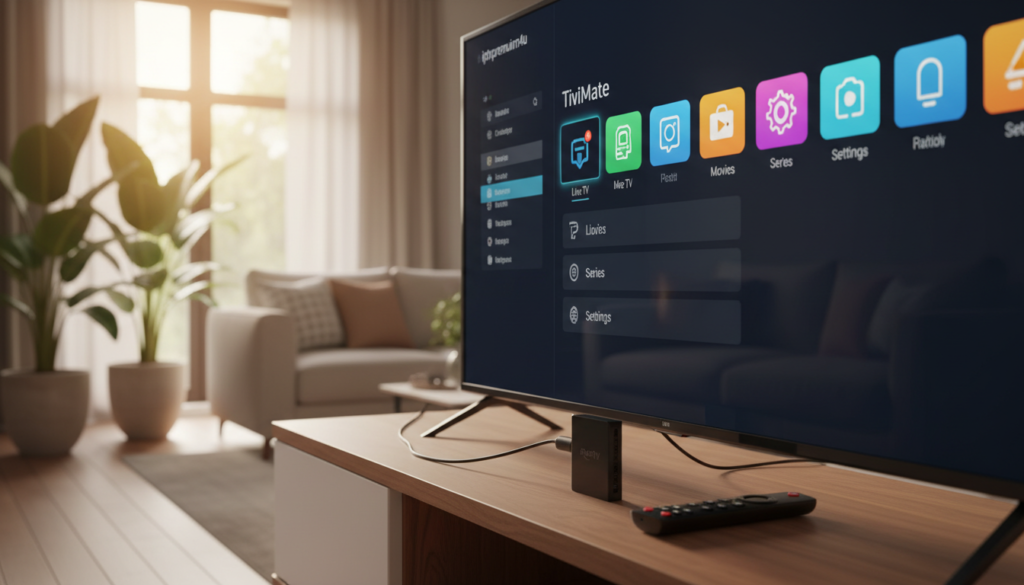

Looking to fix IPTV buffering? Having trouble getting apps to play smoothly on your Firestick? You are not alone. Many users face slow streaming, confusing setup steps, or a service that stops mid-show.
Common causes include an unstable internet connection, ISP throttling during peak evening hours, or a device using Wi‑Fi instead of ethernet. Streaming 4K reliably needs at least 25 Mbps of stable bandwidth.
This short guide promises a clear, step-by-step path to resolve the most frequent playback issues. We cover testing your internet speeds, checking router and cache settings, and how using a vpn and ethernet can help keep your streams steady.
Table of Contents
Key Takeaways
- Verify your internet speed — 25 Mbps or more for smooth 4K streaming.
- Try ethernet over Wi‑Fi to stabilize your connection and reduce lag.
- Use a vpn to avoid ISP throttling during peak times.
- Clear the app cache and review router settings to fix common issues.
- Run a speed test to find if your plan or provider limits performance.
- Our step-by-step guide walks through every setting to optimize home streaming.
Understanding the Causes of IPTV Buffering
Many playback interruptions come from factors outside your TV. Your home player may be fine, yet the route your video takes and the remote servers can cause poor quality. Below we explain the two most common culprits so you can target the real issue quickly.
ISP Throttling and Bandwidth Limits
ISP throttling happens when providers slow certain traffic during busy hours. If your plan is limited or the isp detects high-volume streaming, your speeds can drop and cause buffering.
“When the network is busy, providers often prioritize traffic, which can lower video quality for heavy streams.”
Running a speed test can show if your internet meets the mbps needed for HD. Switching to ethernet or checking router settings may also help.
Server Congestion and Peak Usage Times
Overloaded servers cause unstable streams even with good home internet. Overseas servers often route poorly, adding delay and packet loss.
Use a vpn to hide stream type from the provider or switch server locations in the app. Clearing cache on the device and testing at different times can reveal if the provider’s servers are the issue.
Essential Network Tweaks for a Stable Connection
A few targeted network tweaks will give your streaming device a stronger, steadier signal.
Enable Quality of Service (QoS) on your router to prioritize video traffic over background downloads. This helps reduce iptv buffering during peak home usage.
Use a wired ethernet link when possible. A direct cable delivers full bandwidth from your plan and improves speed for 4K streams.
If Wi‑Fi is necessary, place the device on the 5 GHz band. That reduces interference from other electronics and boosts signal quality.
“Prioritizing the streaming device in router settings often stops pauses and stutters.”
- Update router firmware regularly to handle streaming data better.
- Run a Waveform Bufferbloat Test to spot router queuing that causes lag.
- Close background apps on the device so the service gets full bandwidth.
- Try a vpn to reroute traffic around congested provider nodes for steadier streams.
Power cycling your modem and router clears temporary errors fast. These small steps cut common network issues and lift playback quality for all users at home.
Optimizing Your Device and App Settings
Small changes inside your player and device can cut most playback pauses and make streams smooth.
Clearing cache and app data is the first step. Removing stale files frees storage and often stops repeated stalls on Firestick devices.
Open the app settings, clear cache, and if needed clear data. Restart the device after this to ensure memory is reclaimed.
Adjusting buffer size for smoother playback
Many players let you change buffer size. Increase the buffer slightly to pre-load more video when your internet is inconsistent.
Set it one step at a time and test playback. Larger buffers use more memory but can reduce pauses on slower connections.
Switching between hardware and software decoding
Toggling decoder modes can solve stuttering. Some devices handle hardware decoding best, while others run smoother on software decode.
Try both modes in your iptv app and note which gives better video quality and lower cpu load on your device.
- Keep apps and firmware updated for compatibility and speed.
- Try a different player if issues persist; some players manage streams better on certain chips.
- Use a vpn in device settings to help avoid ISP throttling when needed.
- Lower video quality from 4K to 1080p to reduce buffering on limited bandwidth.
“Clearing cache and testing decoder modes often solves the most common playback issues.”
Why Premium IPTV Services Outperform Free Apps
Premium providers focus on reliability over ad-driven shortcuts. A true iptv service builds and maintains high-capacity servers to keep streams up and running. That infrastructure reduces downtime and cuts common buffering issues caused by overcrowded sources.

IPTVPremium4U is an example of a provider that offers stable servers and fast delivery. The service includes 10,000+ channels with Sports, Movies, and Series in HD and 4K. It works on Firestick, Smart TV, and Android devices for easy setup.
Free apps often rely on shaky feeds and overloaded hosts. Premium services pay for bandwidth, technical support, and regular updates, so the overall quality and speed stay higher. Using a vpn with a paid plan adds privacy and can help around ISP throttling during peak hours.
“Investing in a reliable provider removes many technical headaches and delivers a professional-grade viewing experience.”
- Stable servers and fewer interruptions
- Large channel libraries and HD/4K options
- Compatibility with common devices and simple setup
Advanced Strategies to Fix IPTV lag issues
For persistent streaming issues, targeted VPN settings and protocol choices can make a big difference.
Using a VPN for Stability and Privacy
A modern vpn can hide traffic patterns so your isp cannot throttle video. Encrypting streams helps maintain steady speeds and protects privacy on shared networks.

Protocol and routing tips
Choose WireGuard for fast throughput, or try UDP over TCP to lower latency and improve video delivery. If you face region limits, StealthVPN masks vpn use so servers remain reachable.
Advanced users can enable app filters to route only streaming apps through the vpn. This preserves home bandwidth for other devices and reduces unnecessary load.
- Pick a vpn server near your provider to cut latency and avoid freezes.
- Use a vpn with a kill switch to prevent leaks if the connection drops.
- Test OpenWeb or other protocols to find the best balance of speed and stability.
“Using a close, fast vpn server and the right protocol often stops repeat stalls during live events.”
Choosing IPTVPremium4U for Reliable Streaming
A reliable service starts with strong servers and clear setup steps for every device. IPTVPremium4U combines scalable infrastructure with easy instructions so you get smooth playback on Firestick, Smart TV, or Android.
Key Features and Benefits
10,000+ channels with sports, movies, and series in HD and 4K give you wide choice without constant interruptions.
Server reliability and fast delivery reduce common buffering and keep live events stable.
Use a vpn with the service to protect privacy and help around ISP limits. The provider supports common router and app settings for plug-and-play setup.
Getting Started with Your Subscription
Try IPTVPremium4U now to compare performance on your device. Start your free trial and test channel loads, speed, and playback during peak hours.
- Get a premium subscription to unlock the full channel lineup.
- Use the supplied iptv app and follow clear setup steps for your device.
- Contact 24/7 support if you need help adjusting settings or vpn routing.
“Join thousands who switched to a professional provider for a steadier streaming experience.”
Conclusion
In short, steady connections and a reliable provider are the fastest way to fix iptv buffering. Keep a wired link when possible and choose a strong service like IPTVPremium4U for stable channels and fast delivery.
Using vpn tools can help bypass isp throttling and protect privacy, but pair that with clearing app cache and tuning your router for the best results. These simple steps improve streaming on every device and reduce repeated buffering.
In conclusion, fixing streaming issues doesn’t have to be complicated if you follow the right steps. And if your IPTV service stops working completely, you can check this detailed guide on how to fix IPTV not working for more advanced solutions.
If problems persist, upgrade your plan or provider. Consistent bandwidth matters more than raw speed. Take these steps now and enjoy smoother, high‑definition viewing with fewer interruptions.