Is your IPTV not working or constantly buffering? If you’re tired of apps crashing, missing channels, or slow streaming, you’re not alone. Buffering, freezing, and lag usually trace back to a handful of issues: unstable internet connections, ISP throttling, overloaded IPTV servers, device limits, and buggy apps.
This guide shows you how to fix iptv buffering causes quickly and with clear steps for Fire TV Stick, smart TVs, Android phones, and iPhones. You’ll learn how to identify iptv buffering issues tied to internet speed, server problems, app compatibility, and device performance. You’ll also get practical iptv buffering solution steps you can try right now.
We’ll cover a roadmap: what buffering is, root causes like slow internet and congestion, hardware and software factors, network configuration, speed testing tools, home network tips, how to pick a reliable IPTV provider such as IPTVPremuim4U, quick troubleshooting (reboot, clear cache, check Ethernet), and long-term prevention tips.
Try a stable IPTV service to reduce buffering and upgrade your IPTV experience with a reliable subscription for smoother streaming.
Table of Contents
Key Takeaways
- Buffering often comes from internet speed problems, ISP throttling, or overloaded servers.
- Device limits and app bugs can cause freezing or crashes on Firestick, smart TVs, Android, and iOS.
- Quick fixes include rebooting devices, clearing app cache, and switching to Ethernet for stability.
- Test your connection with speed tools and use QoS or router placement to improve performance.
- Choosing a reputable IPTV provider and keeping hardware updated reduces future iptv buffering issues.
Understanding IPTV Buffering: What It Is and Why It Happens
IPTV sends TV content over the internet, not through traditional means. You can watch live TV, sports, and more through apps like IPTV Smarters and TiviMate. These apps work on devices like Smart TVs and Amazon Fire TVs.
IPTV needs a steady flow of data to work well. If this flow stops, you’ll see pauses. Most problems come from delays in getting data from the server to your device.
IPTV sends compressed video and audio over the internet. It uses packets that your player assembles for smooth playback. Apps like IPTV Smarters buffer content to hide small delays.
The Buffering Process Explained
Buffering happens when your player pauses to fill its memory. This is due to slow data arrival. Common causes include packet loss and high latency.
Streaming protocols affect buffering. HLS and MPEG-TS are designed to handle network changes better. RTMP is fast but depends on server quality.
Server issues also cause problems. Overloaded servers and long routes can lead to more buffering. A good VPN can help by avoiding ISP blocks.
To avoid buffering, ensure stable data flow and low latency. Adjusting app settings or your network can help. This makes for a better viewing experience.
Common Causes of IPTV Buffering Issues

Streaming can feel choppy due to a few common reasons. Learning to spot these issues can help you fix IPTV buffering and enjoy smooth playback.
Slow Internet Connection
Streaming HD content usually requires at least 10–20 Mbps. Experts suggest 20 Mbps for reliable HD streaming. For 4K, you’ll need 25–50+ Mbps.
Symptoms of a slow connection include stuttering audio or video, long load times, and constant buffering. To start troubleshooting, run a speed test on Speedtest.net or a similar tool. Try restarting your router and modem.
Pause large downloads or cloud backups. If possible, switch from Wi‑Fi to an Ethernet cable for a direct, stable connection to your set‑top box or smart TV.
If you’re already experiencing constant interruptions, check our complete guide on how to stop IPTV buffering fast.
Insufficient Bandwidth
Bandwidth is more than just speed. It’s the share of capacity when many devices are connected. Phones, gaming consoles, and smart home backups can quickly use up bandwidth.
To manage household traffic, set device priorities or enable Quality of Service in your router. This will favor streaming devices. If your family often streams multiple things at once, consider upgrading your ISP plan for more bandwidth.
Network Congestion
Peak hours can cause slowdowns, making daytime streaming smooth but evenings frustrating. ISP networks get busy during prime time. Some providers throttle video traffic when the network is congested.
Server congestion at the IPTV provider also causes issues. Overloaded servers show the same symptoms as a slow connection. Try switching provider servers if the app permits or contact support to report repeated buffering.
Using a quality VPN can help bypass ISP throttling and fix poor routing. But choose a reputable, well-provisioned service. Avoid free or overcrowded VPNs, as they may worsen playback instead of improving it.
Network congestion can also lead to IPTV connection problems that affect streaming stability.
Hardware-Related Issues That Cause Buffering

Hardware problems can cause streaming issues. Old network equipment and bad cables can lead to packet loss and heating. These problems can make your stream buffer.
Outdated routers and modems
Old routers and modems can leak memory and overheat. They also can’t handle high speeds well. This leads to buffering, drops, and stutters.
Use devices made for streaming like Amazon Fire TV Stick 4K or NVIDIA Shield TV. For your network, choose routers that support MU-MIMO and Quality of Service. Android TV boxes with 2GB RAM are better than old set-top boxes.
Keep your router’s firmware up to date and reboot it often. This clears temporary errors. Replace routers that can’t handle gigabit speeds or have thermal or memory issues.
Poor quality cables
Bad cables can cause latency and packet loss, making buffering worse. Old Cat5 wiring can slow down speeds and cause buffering on wired connections.
Use Cat5e or Cat6 for faster connections and short, good HDMI cables for stable audio-video. Check coax or DSL lines for damage or loose connections. Secure connections help avoid errors.
Wi-Fi can be disrupted by microwaves, baby monitors, and other networks. Move devices to the 5 GHz band or use Ethernet for better streaming and fewer drops.
Software Factors Affecting IPTV Performance
Your streaming experience is more than just speed and cables. Software choices and updates play a big role. They affect how well live TV plays and how often you see pauses.
Streaming App Compatibility
App design and optimization are key. Apps like IPTV Smarters, TiviMate, and XCIPTV are made for live streams. They handle playlists, EPGs, and variable bitrates well.
Using a generic player can lead to stuttering or failed channel loads. Choose a player made for IPTV. Try different streaming formats, like switching between HLS and MPEG-TS. Clearing app cache or data often fixes slowdowns and crashes.
Device Software Updates
Keep your device OS, app versions, and router firmware up to date. Updates fix bugs, improve protocol support, and boost performance. This reduces iptv buffering issues.
On an Amazon Fire TV Stick, clear an app cache via Settings > Applications. On Android phones, go to App Settings > Storage > Clear Cache. Many smart TV brands let you clear cache or update firmware through Settings > Apps or System Update.
Outdated apps can cause login errors, stream incompatibility, and crashes. These issues make troubleshooting iptv buffering harder.
After updating apps and firmware, test playback right away. This simple step often solves iptv buffering problems and prevents future playback issues.
The Role of Network Configuration in Buffering
Network settings on your router and modem are key. Small mistakes can cause iptv buffering, making it seem like your internet is slow or channels are dropping. You can tweak a few areas to stop iptv buffering and make streaming better without buying new equipment.
Firewall and Security Settings
Too strict firewall rules or ISP blocks can stop IPTV apps from working. This leads to errors, frozen screens, or missing channels.
Look at your router’s firewall logs for denied connections to your IPTV device. Try disabling strict rules to see if it helps. If your ISP blocks IPTV domains or ports, a VPN might get around it legally.
Use a VPN with an App Filter or Site Filter. This routes only IPTV traffic through the VPN. It keeps your network fast while solving iptv buffering issues.
Incorrect security settings can sometimes make your IPTV app stop working properly.
Quality of Service (QoS) Settings
Quality of Service, or QoS, lets your router focus on important traffic. Setting your IPTV box or app to high priority helps when other devices are using bandwidth.
- Log in to your router admin page.
- Find QoS settings, often under Advanced or Traffic Management.
- Add your IPTV device by MAC or IP address.
- Set high priority for the TCP/UDP ports your app uses.
- Save changes and reboot the router and IPTV device.
Try different priority levels while watching live streams. Wired Ethernet with QoS works best for busy homes to prevent iptv buffering and improve streaming.
| Issue | What to Check | Quick Fix |
|---|---|---|
| ISP blocking ports | Router logs, ISP policy on streaming | Test with VPN or contact provider |
| Router firewall rules | Blocked outbound/inbound rules for app ports | Temporarily disable rule for testing |
| No QoS configured | Router lacks traffic prioritization | Enable QoS and prioritize IPTV device |
| All devices on Wi‑Fi | High network congestion during peak use | Use Ethernet for IPTV device and enable QoS |
Checking Your Internet Speed for Optimal Streaming
Before you start tweaking apps or swapping cables, check your internet speed. A quick speed test shows download and upload Mbps, ping in milliseconds, and jitter. These numbers help you figure out if the problem is with your ISP, local network, or device setup.
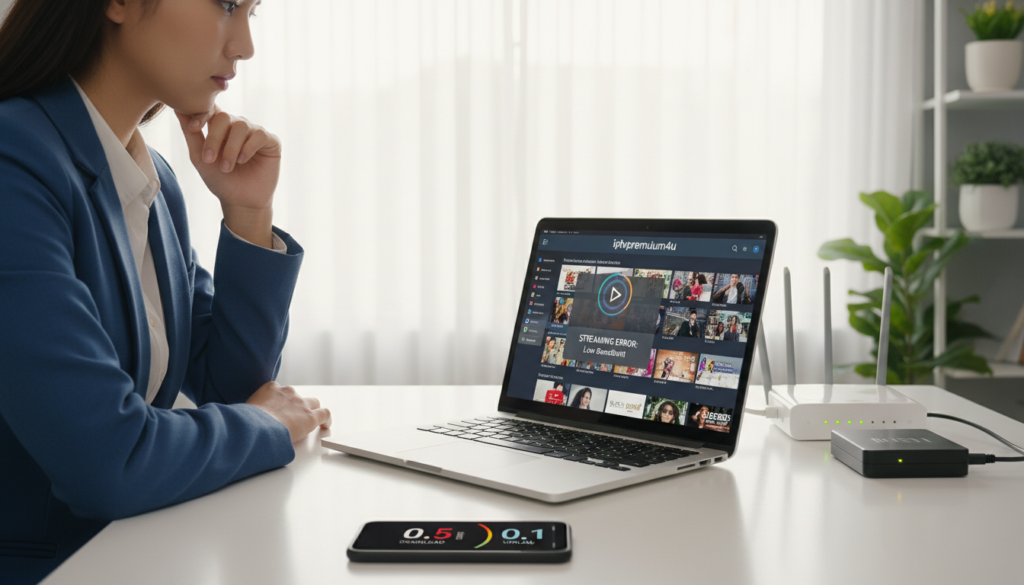
Run tests at different times to catch peak-hour drops. If results show low Mbps, high latency, or spiking jitter, you’re seeing signs of congestion or poor routing. Repeating tests helps you decide whether to change your setup or call your provider.
Tools to Test Your Speed
Use proven tools for reliable data. Try Speedtest.net (Ookla) for detailed metrics, Fast.com from Netflix for a simple download check, Google Speed Test for a quick baseline, and your router’s built-in diagnostics for on-network numbers.
When you test, watch three values closely:
- Download Mbps — how fast streams arrive to your device.
- Ping/latency (ms) — delay that affects live content and trick plays.
- Jitter — variance in packet timing that causes stutter.
If you find high latency or jitter, you can narrow down iptv buffering issues to routing or congestion. Low or inconsistent Mbps across tests suggests your plan or local network needs fixing to reduce iptv buffering.
Recommended Speed for IPTV
Use these practical speed targets to plan upgrades or adjustments. For stable 720p–1080p HD streams, aim for a minimum of 10–20 Mbps per stream. Many sources recommend 20 Mbps for dependable HD viewing.
For 4K or households with several simultaneous users, aim for 25–50+ Mbps per device cluster. Add a 20–50% buffer above theoretical needs to cover short-term drops and network noise.
If measured speeds fall below those recommendations, try these steps: switch to a wired Ethernet connection, cut back other devices using bandwidth, upgrade your ISP plan, or test a VPN to avoid ISP throttling and poor routing. These actions can help you how to fix iptv buffering and reduce iptv buffering in many real-world cases.
Enhancing Your Home Network for Better Streaming
Good placement and the right connections are key to better iptv streaming and stopping freezing. Small changes at home can cut interference and ensure steady bandwidth. Start by checking your router’s spot and which devices are wired.
Positioning Your Router
Put your router in a central spot for better signal reach. Elevate it on a shelf, avoiding cabinets and heavy furniture. Metal objects, fish tanks, and microwaves can cause big interference.
Use the 5 GHz band for devices near the router for better speed and less noise. Save the 2.4 GHz band for devices farther away or needing longer range. Check your router’s channel settings to avoid crowded channels during busy times.
Using Ethernet Connections
Wired Ethernet is the most reliable way to prevent iptv buffering. Connect your Fire TV Cube, Android TV box, or Smart TV directly to the router for lower latency and no packet loss. This steady connection often fixes problems that Wi‑Fi can’t.
If running a cable is not practical, consider Powerline adapters or a MoCA coaxial solution. Both options offer near-Ethernet stability and are great for rooms with weak Wi‑Fi.
| Upgrade Option | Benefits | Best Use |
|---|---|---|
| Reposition Router | Better coverage, fewer dead zones | Whole-home signal improvement |
| Switch to 5 GHz | Higher speed, less interference | Devices close to router (HD/4K) |
| Wired Ethernet | Lowest latency, consistent bandwidth | Streaming boxes and Smart TVs |
| Powerline Adapters | Easy installation, stable link | Rooms without direct cabling |
| MoCA (Coax) | High throughput, reliable | Homes with existing coax wiring |
Choosing the Right IPTV Service Provider
Choosing a provider is key to a good streaming experience. You need a service that keeps streams running smoothly and tells you about server locations and quality. Use a checklist to compare before you decide.
Key Features to Look For
Look for providers with high uptime and low downtime. Having servers all over the world helps with fast streaming. Make sure they use technologies to handle network changes.
Check the channel list and on-demand features like catch-up and VOD. Ensure they work with devices like Roku and Android TV. Ask about stream bitrates and server locations to avoid surprises.
Try out trial periods to see how the service works on your network. This helps you avoid committing to a service that might not work well.
Customer Support and Reliability
Good 24/7 support is important, as it helps when streams fail. Look for providers that offer clear updates during outages. Service consistency during busy times shows they’re well-prepared.
Server load balancing helps with smooth streaming. Look for providers that report on uptime and listen to customer feedback. If you see many buffering issues online, try a different service.
Consider IPTVPremuim4U as a provider to test. Many users praise its smooth streaming, uptime, and support. Try a stable IPTV service to see if it improves your streaming experience.
If buffering is caused by provider-side issues, you should first verify whether the IPTV server is down.
| Criteria | Why It Matters | What to Test |
|---|---|---|
| Uptime / Reliability | Less downtime means fewer interruptions | Monitor streams across several hours and peak times |
| Server Distribution | Reduces latency for distant viewers | Ask for server locations and test ping times |
| Adaptive Streaming | Automatically adjusts bitrate to your network | Run streams while toggling network load |
| Compatibility | Works with your existing devices and apps | Try on your phone, smart TV, and set-top box |
| Support Hours | Faster help reduces downtime impact | Contact support during off-hours to test response |
| Trial Period | Low-risk way to evaluate real performance | Use the trial to check for iptv buffering causes and iptv buffering solutions on your network |
Troubleshooting Common Buffering Problems
When streaming stutters, take a calm, step-by-step approach to resolve the issue. The steps below focus on practical fixes for Fire TV Stick, Android TV/boxes, Smart TVs, and iOS devices. These actions help with troubleshooting iptv buffering and address many iptv buffering issues quickly.
Rebooting your devices
Start by restarting both the streaming device and your router or modem. For Firestick, unplug the power or use Settings > My Fire TV > Restart. For Android TV or boxes, go to Settings > Device Preferences > Restart, or simply power-cycle the box. On many Smart TVs use the menu to restart or unplug the TV for 30 seconds, then plug back in and check for firmware updates.
On iOS, close the IPTV app by swiping it away from the app switcher, then relaunch. If problems persist, restart the iPhone or iPad. Rebooting clears temporary memory leaks, refreshes DHCP assignments, and can re-establish better network routes, which often fixes how to fix iptv buffering in minutes.
Clear cache in streaming apps
Cached data can slow apps and corrupt streams. On Firestick navigate to Settings > Applications > Manage Installed Applications, pick the IPTV app, then Clear Cache and Clear Data. For Android devices use Settings > Apps > choose the IPTV app > Storage > Clear Cache/Clear Data.
Smart TV menus differ by brand. If a Clear Cache option exists, use it. If not, uninstall and reinstall the app. On iOS offload and reinstall the app via Settings > General > iPhone Storage > select the app > Offload App, then reinstall from the App Store. Clearing cache often resolves sluggish app performance, login errors, and corrupted streams so you can stop iptv freezing.
If clearing cache does not help, check the app’s stream format options and switch between HLS and MPEG-TS when available. Try alternative server endpoints if your provider offers them. For persistent connection errors, test streaming with a VPN using a fast protocol and a nearby server to see if routing improves playback.
These hands-on steps cover the most common fixes for iptv buffering issues. Apply them in order and retest playback after each change to pinpoint what resolved the problem.
Tips to Prevent Future Buffering Issues
Keep your streaming setup in top shape to avoid buffering. First, check your hardware: update your router and modem, and replace them every 3–5 years. Use devices like the Fire TV Stick 4K Max or NVIDIA Shield for better streaming. Also, use Cat5e or Cat6 Ethernet cables to boost stability and prevent buffering.
Watch your network closely to improve streaming on the fly. Use your router’s device list or apps to see who’s using bandwidth. Run speed tests at different times and set QoS rules to favor your IPTV device. Schedule big downloads and backups for off-peak hours and close apps on streaming devices to avoid interruptions.
Regularly update your IPTV apps and choose providers with strong uptime and multiple servers. If one stream lags, try another. If your ISP slows down video, a VPN might help, but it could cost more and add complexity.
These steps can lead to fewer interruptions, better picture quality, and work on various platforms. But, they might require buying new hardware, paying for a VPN or faster plans, and spending time fixing issues. For more help, check out the IPTV setup guide, Best IPTV apps, and IPTV reviews and comparisons. Try a stable IPTV service to enhance your viewing experience and get a reliable subscription.
You can also test your internet speed using Speedtest by Ookla before troubleshooting IPTV buffering issues.
For a complete overview of streaming problems and solutions, read our IPTV troubleshooting guide.