IPTV freezing fix solutions are essential when your streams keep buffering, apps crash, or channels stop loading during live viewing. Many users experience IPTV freezing issues on Firestick, Smart TVs, Android TV, and other streaming devices due to weak internet, overloaded servers, or outdated apps. In this guide, you’ll discover proven ways to stop IPTV freezing, improve streaming quality, and enjoy a smoother viewing experience without interruptions.
Before you switch services, try a few targeted steps to fix iptv freezing issues. Slow or unstable internet, overloaded provider servers, outdated firmware, and full app caches are common problems. A good approach is to check your connection, device settings, app health, and network configuration.
At a network level, multicast and IGMP settings can block streams or cause delayed channel switching. Simple fixes can make a big difference. Confirm your internet speed, use wired Ethernet when possible, clear app cache, update firmware and apps, and consider a reliable VPN like ExpressVPN to reduce ISP throttling and improve privacy.
Table of Contents
Key Takeaways
- Start with internet checks: speed and stability are essential for any iptv freezing solution.
- Use wired connections or optimize Wi‑Fi placement to reduce buffering and drops.
- Keep device firmware and apps up to date and clear app cache regularly.
- Review router multicast and IGMP settings for managed networks to avoid stream interruptions.
- When provider issues persist, consider a stable IPTV service or a VPN to help stop iptv freezing.
Understanding IPTV and Its Common Freezing Problems
IPTV sends TV and video over the internet, not through cable or satellite. You can watch live channels, on-demand videos, and catch up on smart TVs and devices. This guide helps you understand symptoms like buffering and freezing to find the cause.
What is IPTV?
IPTV means Internet Protocol Television. It uses the internet for TV, like browsing and streaming. Because it relies on your internet, you can easily find problems when streams freeze.
IPTV Freezing Fix – Common Causes and Easy Solutions
Many things can cause IPTV to freeze. Slow internet or ISP throttling can stop high-quality streams. Also, overloaded servers and old devices can cause problems.
Network issues like dropped messages or wrong settings can block channels. Too much traffic can also freeze your screen.
Buffering and freezing are closely related. Read our IPTV Buffering Fix Guide for additional solutions.
IPTV Freezing Fix and User Experience Factors
Your home setup affects how well IPTV works. Too many devices using the internet at once can cause buffering. Being far from the Wi-Fi can also lead to problems.
App issues like slow channel changes and crashes can also be frustrating. This guide will help you fix these problems and improve your IPTV experience.
| Symptom | Likely Root Causes | Where You’ll Fix It |
|---|---|---|
| Buffering during live TV | Insufficient bandwidth, ISP throttling, peak-hour server load | Checking your Internet connection; Router and network configuration |
| Freezing or black screen | IGMP drops, multicast misconfig, VLAN errors, server overload | Exploring streaming protocols; External factors affecting performance |
| IPTV stuttering or low frame rate | Device CPU/RAM limits, outdated firmware, app bugs | Device compatibility and updates; Troubleshooting IPTV apps |
| Slow channel change / login errors | App UX bugs, authentication timeouts, backend problems | Troubleshooting IPTV apps; Contact provider support |
| Intermittent lag on Wi‑Fi | Distance to AP, 2.4 GHz congestion, many clients on one AP | Using a wired vs. wireless connection; Router position and QoS |
IPTV Freezing Fix by Checking Your Internet Connection
Before you start fixing issues, make sure your internet can stream well. A quick check can save a lot of time. Use these steps to check bandwidth, latency, and packet stability. This helps you fix iptv freezing or lag problems.
Speed Requirements for IPTV
Streaming quality depends on your internet speed. You need about 5 Mbps for SD, 10 Mbps for 720p, 20 Mbps for HD, and 30 Mbps for 4K. If you have many devices streaming, add more speed. Meeting these requirements helps avoid buffering and handles network spikes.
How to Test Your Internet Speed
Use tools like Speedtest.net, Fast.com, or iPerf to test your speed. Check download, upload, and ping values at different times. Repeat tests during busy hours to see if your connection is enough. Knowing your speed helps you decide if you need a better plan or network setup.
Identifying Connectivity Issues
Look at more than just Mbps. Packet loss, jitter, and high latency can cause streaming problems. Use ping and traceroute to find delays and Wireshark to check multicast traffic.
Network instability can also cause complete service interruptions. Check our IPTV Not Working Guide.
Compare wired and wireless speeds. If wired speeds are good but Wi-Fi isn’t, the problem is with Wi-Fi. Try restarting your modem and router, stop big downloads, and test again. If problems persist, contact your ISP to check for throttling or outages.
- Test both wired and wireless to find the problem.
- Run multiple checks at different times.
- Watch for packet loss and jitter as signs of trouble.
- Try a VPN if you think your ISP is slowing you down, but compare results.
Follow these steps to understand if your network meets IPTV speed needs. This helps you fix freezing or lag issues. Use this info to improve your router, move devices, or upgrade your plan for better streaming.
Router and Network Configuration
Start by tuning your home network for smooth streaming. Small changes to your router can stop drops and buffering. Follow this checklist to optimize your setup for live TV and VOD playback.
Optimal hardware and basic routing
Use a gigabit router or a modern mesh system for shared bandwidth. Connect your IPTV box or Smart TV with wired Ethernet to reduce interference. If Wi-Fi is needed, use the 5 GHz band for lower latency and place the router near your streaming device.
Key protocol and multicast tweaks
For multicast IPTV, enable IGMP Snooping on switches and routers. Set a single IGMP Querier on the core and enable IGMP Proxy or PIM on gateway routers as needed. Confirm VLAN passthrough for your IPTV VLANs to avoid dropped multicast traffic. Use IGMP Query Interval ~125s, IGMP Snooping Interval ~60s, and membership timeout around 260s for reliable channel joins.
Quality of Service settings
Enable QoS to prioritize real-time video. On managed networks, set DSCP EF/46 for IPTV streams for the highest priority. On consumer routers, use the streaming or media preset, or set manual priority for the IPTV device’s IP or MAC. These steps help you enable qos for iptv and reduce jitter and packet loss that cause freezes.
Practical configuration tips
- Reserve a static IP or DHCP lease for your IPTV device so QoS rules always apply.
- Limit low-rate clients on Wi‑Fi. Move cameras and IoT devices off the main band to free airtime.
- Choose non-overlapping channels and lower channel width on 2.4 GHz when the band is crowded.
Positioning for best performance
Place the router centrally in your living space at an elevated position. Keep it away from microwaves, cordless phones, and large metal objects. Clear line of sight between router and streaming device when using Wi‑Fi to further optimize router for streaming.
Quick iptv freezing hacks and solutions
If you notice stuttering, reboot the router and the IPTV device, then test wired playback. Tweak QoS priorities and confirm IGMP settings if channels fail to load. These iptv freezing solutions can quickly restore smooth viewing without complex changes.
When to upgrade or call a pro
If freezes persist after adjustments, consider a higher‑grade router, managed switch, or professional network audit. Upgrading hardware and fine‑tuning multicast and QoS remains the most reliable path to permanently resolve buffering and implement iptv freezing hacks that actually work.
Device Compatibility and Updates
Having the right hardware and software is key for smooth streaming. Many brands support IPTV, like Amazon Fire TV Stick and Android TV boxes. Also, LG webOS and Samsung Tizen smart TVs, iPhones and iPads, Android phones and tablets, and some Roku models are supported.
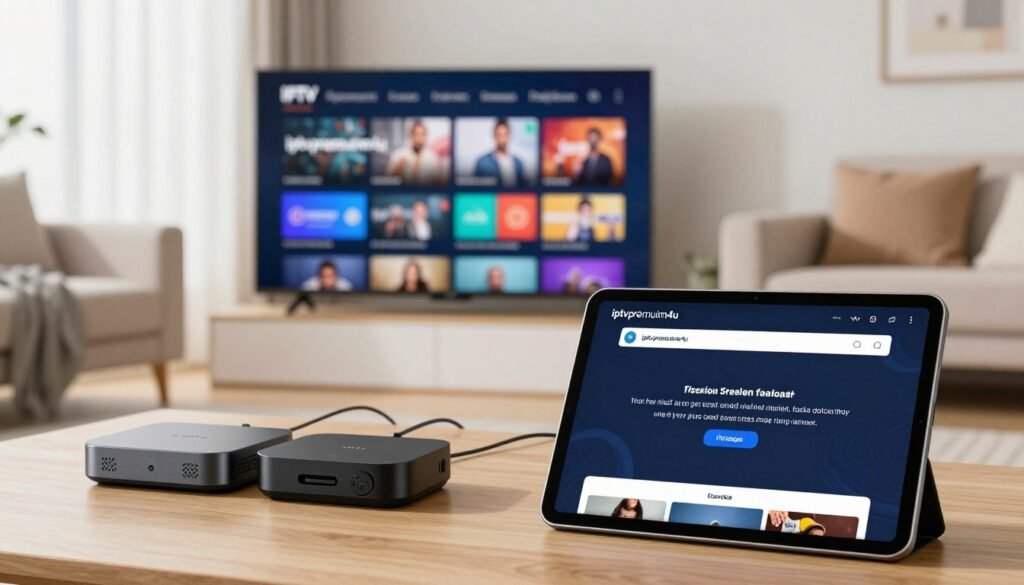
Supported devices iptv can vary by app and provider. Use official apps like IPTV Smarters Pro and TiviMate. Make sure your device meets the app’s minimum OS requirements. The app you choose can affect how well it works.
Regularly updating firmware is important for stability. Manufacturers like Amazon and Google release updates to fix bugs and add support for new codecs. Make sure to update both the device OS and the IPTV app to avoid problems.
Here’s how to update firmware for IPTV devices:
- Open your device settings and check for system updates.
- Update installed IPTV apps from the platform store.
- Restart the device after updates to finalize changes.
If freezing happens after an update, check for known issues on forums or the app’s changelog. Smart TVs rarely allow rolling back updates. Test updates during low-traffic hours and have a recovery plan ready.
App compatibility is important for long-term streaming. Watch out for background app refresh, battery-saver settings, and permission rules. Aggressive battery optimization can harm your IPTV app, so disable it.
Use this guide to fix IPTV freezing issues:
| Issue | Quick Check | Action |
|---|---|---|
| Playback freezes | Device CPU and RAM usage | Close background apps, restart device, try a lighter player |
| Stuttering or audio lag | App version and firmware age | Update app and firmware, lower stream bitrate if possible |
| App crashes | App permissions and cache status | Clear cache/data, reinstall app, switch to a supported player |
| Intermittent buffering | Network type (Wi-Fi vs. wired) | Use wired Ethernet or move closer to router, test connection speed |
| Post-update issues | Recent system or app update | Check provider forums, rollback if possible, contact support |
Check your device and network settings, and try solutions for stuttering. If basic steps don’t work, use this guide and provider logs for deeper help.
Using a Wired vs. Wireless Connection
Choosing between wired and wireless for IPTV affects stream stability and picture quality. This guide compares options, gives practical steps, and helps you pick the best path to stop buffering and improve playback.
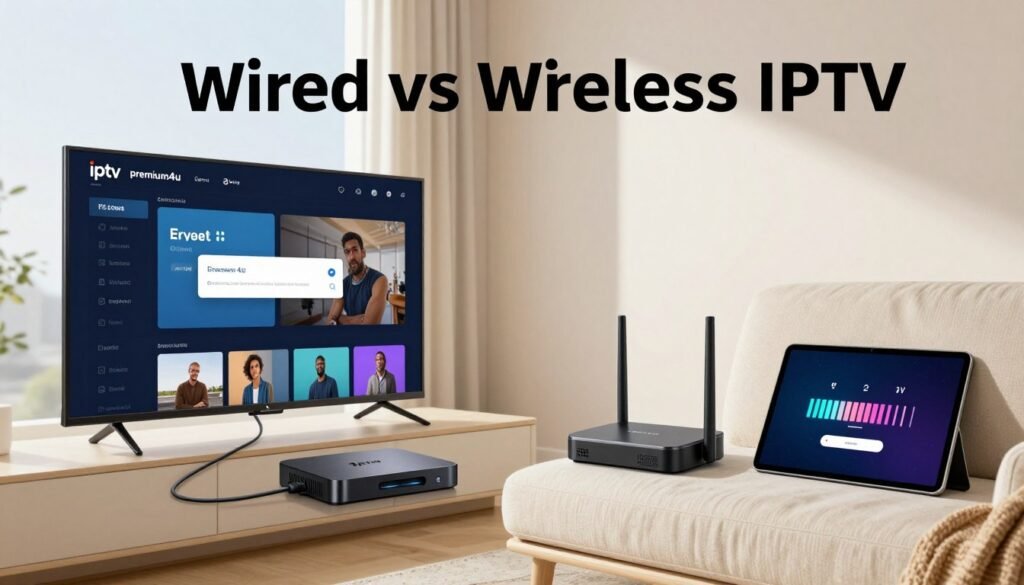
Benefits of wired connections
Ethernet offers lower latency and steadier throughput than Wi‑Fi. For HD and 4K IPTV, wired links reduce packet loss and jitter. This means fewer frame drops and freezes. Gigabit Ethernet or quality Powerline adapters keep multiple streams smooth across rooms.
When to use wireless connections
Use Wi‑Fi when devices move or running cable is impractical. Choose the 5 GHz band to cut interference and boost throughput. Limit active clients on the network and avoid crowded 2.4 GHz channels to reduce congestion.
Steps to set up wired connection iptv
- Run an Ethernet cable from your router or switch to the IPTV device’s Ethernet port. For Fire TV devices without a port, use a USB-to-Ethernet adapter made for Fire TV.
- On the device, confirm the network status shows Ethernet and run a speed test to verify link quality.
- Disable Wi‑Fi on that device so traffic uses the wired interface exclusively.
- If a direct cable is not possible, install HomePlug AV2 Powerline adapters or use a wired backhaul between mesh nodes for a stable connection.
- Check link speed on both ends; aim for 1000 Mbps for gigabit performance when streaming multiple HD or 4K channels.
Balancing wired vs wireless iptv comes down to location and use. When you set up wired connection iptv properly, you get one of the most effective ways to stop iptv freezing and deliver an iptv lag fix that lasts.
Troubleshooting IPTV Apps
Your IPTV app can be the weakest link when playback stutters or freezes. Start with basic checks to see if the problem is with the app, device, or service. Follow these steps to reduce interruptions and enjoy smooth streaming again.
For a complete overview of IPTV buffering, freezing, login issues, and connection problems, visit our IPTV Troubleshooting Guide.
Common app issues
Cache and data buildup often cause sluggish behavior and app crashes. Corrupted temporary files or outdated app versions can also freeze your app. Wrong login details or app conflicts can lead to authentication failures, stopping playback. If you’re experiencing freezing or crashes, check if they started after an update or new install.
How to clear app cache and data
On Android and Amazon Fire TV, go to Settings > Apps > select the IPTV app > Clear Cache and Clear Data. Remember, clearing data will remove saved credentials and profiles. On iOS, offload the app or uninstall and reinstall to purge stored data. Smart TVs often have app management or storage options to clear cache or uninstall updates. Clearing cache can fix many common errors and is a key step in iptv freezing troubleshooting.
Uninstall and reinstall
If clearing cache doesn’t fix iptv freezing issues, uninstall the app, reboot your device, then reinstall the latest release. Sign in and test playback after reinstalling. If the app fails again, try an alternative player like TiviMate or VLC to see if the issue is app-specific or provider-side.
When to test another device
If the network looks fine, play the same stream on a phone, tablet, or another TV. Testing another device helps you confirm whether the issue is with the app, your device, or the IPTV provider. Persistent app crashes across devices usually point to provider or stream problems, not local app faults.
| Problem | Quick Fix | Next Step |
|---|---|---|
| App slows or buffers | Clear cache and restart app | Monitor for recurrence; update app |
| Login errors | Re-enter credentials; clear app data | Contact provider support if blocked |
| App crashes on launch | Uninstall, reboot device, reinstall | Try alternative player to isolate issue |
| Playback fine on other device | Check device firmware and free space | Reset device settings if required |
| Multiple devices affected | Test with different app or stream | Contact IPTV provider about server-side issues |
Exploring Streaming Protocols
Choosing the right protocol can make your streams better. It can cut down on buffering and latency. This guide helps you pick the best option fast.
How Each Protocol Affects Streaming
Multicast sends one stream to many devices, saving bandwidth for live channels. But, it needs correct network settings like IGMP. Unicast sends a stream to each user, perfect for on-demand content.
Adaptive streams like HLS and DASH use TCP and adjust to your connection. They help reduce stuttering. But, UDP’s live multicast can cause freezes or pixelation.
Understanding UDP vs. TCP
UDP sends packets fast with little overhead. It’s great for live events because it has low latency. But, it doesn’t retransmit, so you might see stuttering or freezing.
TCP, on the other hand, retransmits and controls congestion. It’s reliable and can fix lag in home networks. It might add a bit of buffering and latency, but it’s okay for on-demand content.
Choosing the Right Protocol for IPTV
If you manage your network, use UDP and set up IGMP and QoS rules. This helps prioritize UDP streams and reduces freezing. Use routers from brands like Cisco, Netgear, or Asus.
For consumer IPTV services, choose apps that support HLS or DASH. Switching to a TCP feed can fix lag if you see packet loss.
For mixed environments, try these steps:
- Test a TCP/HLS stream to check if freezing solutions improve.
- Enable QoS for multicast UDP if you manage the LAN to reduce stuttering.
- Choose devices with solid network stacks and frequent firmware updates.
External Factors Affecting IPTV Performance
Things outside your home can affect your IPTV streaming just as much as your local settings. Knowing when freezing is caused by outside factors helps you fix it quickly.
Impact of Network Congestion
Slowdowns during busy hours at your ISP or IPTV provider’s servers can cause buffering. Check if freezes happen more during peak times like evenings or weekends.
To fight network congestion, try not to download big files at the same time. Schedule backups for when it’s less busy. Or, get a faster internet plan. Also, turn on storm control and multicast filtering on your network gear to block traffic that can mess with your streams.
Effects of VPN on Streaming Quality
Try turning your VPN on and off while watching to see its impact. A good VPN, like ExpressVPN, can help avoid ISP slowdowns and keep your data private. But, it might also slow down your connection based on server load and distance.
Choose a VPN server that’s close to you and known for fast speeds. Make sure your IPTV provider allows VPN use before counting on it to fix freezing issues.
VPN settings can also affect IPTV applications. Read our IPTV App Not Working Guide for additional troubleshooting steps.
Addressing Server Issues with IPTV Providers
If freezes happen even when your local network is light, check if your provider is experiencing outages or heavy traffic. Look at their status pages, support channels, or forums for any patterns of downtime.
Ask your provider to switch you to a different server or give you an alternate playlist. If support is bad or problems keep happening, think about switching to a more reliable service with better uptime and streaming quality.
If the freezing is caused by provider outages, follow our IPTV Server Down Guide.
- Quick actions: watch for peak times, test with and without VPN, and reach out to your provider for server changes.
- Long-term steps: use multicast protections on your network, plan for more bandwidth, and pick a reliable IPTV service to avoid future problems.
Advanced Solutions for Persistent-Freezing Issues
If simple fixes don’t work, try more advanced steps. These target network issues and provider limits. A VPN can help with ISP throttling and keep your data safe. But, make sure it doesn’t slow down your speed too much.
ExpressVPN is a good choice for Fire TV Stick and other devices. It’s easy to use and comes with a 30-day money-back guarantee. When using a VPN for IPTV, pick a fast server close to you. Then, compare how it works with and without the VPN.
To set up a VPN for IPTV, choose a trusted provider. Install their app on your streaming device or router. For coverage in your whole home, flash a compatible router with OpenWRT or use one that supports VPNs natively.
Connect to the fastest server in your area. Turn on split tunneling if you only want IPTV to go through the VPN. Then, test your channels. Remember, using a VPN might make things a bit slower.
Other advanced tips include looking at multicast, switching, and Wi-Fi. For multicast IPTV, check IGMP joins and enable IGMP Snooping and an IGMP Querier on switches. Use PIM or an IGMP proxy on gateways. On access points, use multicast-to-unicast conversion and limit clients per AP.
If freezing keeps happening, try a few more things. Enable QoS and make sure your IPTV device gets priority. Use Ethernet or Powerline backhaul. Run a packet capture to check for UDP loss. Test with and without a VPN, and reach out to your provider’s support.
If your provider is the problem, think about switching. IPTVPremium4U is known for being reliable and having less buffering. This approach helps you tackle iptv freezing problems in a detailed way.
If you still experience buffering or freezing, read our complete guide on IPTV Connection Problems? Fix Internet & Streaming Issues for more advanced troubleshooting tips.