
Is your IPTV not working or constantly buffering? If apps crash, channels disappear, or streams stutter, start with the basics. IPTV needs three things: your internet, your device, and the provider’s servers. A weak Wi‑Fi signal, router hiccups, or an outage on the provider side often causes the message that the iptv app not working.
Quick checks can resolve most issues. Run an internet speed test — IPTV generally needs about 15 Mbps for smooth HD — try a wired Ethernet link if possible, restart the device, and reboot your modem or router. These simple actions will often fix iptv app problems without extra steps.
Playback errors like “Playback Error,” “Unable to play stream,” or “Server not responding” are common across Smart TVs, Android, iOS, and browsers. They usually point to unstable internet, outdated apps, corrupted cache, incorrect M3U/Xtream codes, or provider limits. Use this iptv app troubleshooting guide to methodically test each element and identify the weak link.
If basic steps don’t work, test the same stream on another device and check your provider’s status page or support. Persistent failures can indicate poor provider quality or ISP restrictions. Knowing how to troubleshoot iptv app issues helps you decide whether to change settings, contact support, or switch to a more reliable service.
Table of Contents
Key Takeaways
- IPTV issues usually involve your internet, device, or provider.
- Run a speed test and prefer Ethernet over Wi‑Fi for stable HD streaming.
- Restart the app, device, and router to resolve many errors.
- Check for expired accounts or device limits with your provider.
- Use the iptv app troubleshooting guide to isolate the problem before contacting support.
Common Causes of IPTV App Malfunctions
When your stream freezes or channels fail to load, the problem often lies outside the app. You need a quick way to spot the most likely problems. This way, you can fix the issues and get back to watching.
Network Connectivity Issues
Weak Wi‑Fi, too many devices on the same network, distance from the router, or ISP throttling can cause buffering and disconnections. Switching to a 5GHz band or using an Ethernet cable usually reduces interruptions.
If your streaming app keeps disconnecting, check this guide on IPTV Connection Problems to diagnose network-related issues.
VPNs can help bypass geo‑blocks from providers like Comcast or AT&T. A VPN may also add latency. Test performance with and without it to see which option fixes common iptv app error messages on your device.
Outdated Application Version
Running an old build of an IPTV app often causes playback failures and crashes. Update from Google Play, the Apple App Store, or the official app site to apply bug fixes and security patches.
If you install APKs on Android boxes, use the official source to avoid corrupt installs. Many playback errors clear after a single update. This update helps resolve iptv app glitches tied to compatibility with streaming protocols.
Device Compatibility Problems
Older Smart TVs, Fire TV Sticks, or Android TV boxes might not support the latest app features. If one device works while another fails, the issue is likely device‑specific. It’s not the service.
Corrupted cache or app data can crash apps on Firestick and Android boxes. Clearing cache or reinstalling the app often fixes the error. These steps address many common iptv app error messages and reduce recurring iptv app issues.
Troubleshooting IPTV on Android Devices
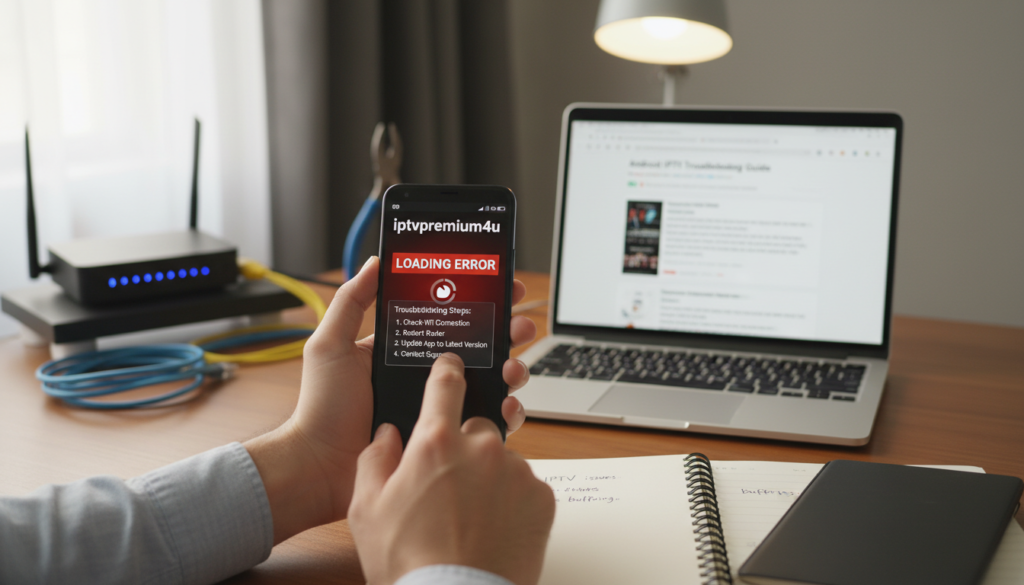
When your stream stutters or the IPTV app crash interrupts playback, start with quick checks that fix most issues. Below you will find clear steps to follow so you can get back to watching without guesswork. This guide focuses on Android and Fire TV devices where simple maintenance often solves the problem.
Check for Software Updates
Outdated apps and firmware commonly cause app instability. Open Google Play or the Amazon Appstore and update the IPTV app. Next, go to your device Settings and install any pending Android or Fire OS updates. New firmware can restore compatibility and stop an iptv app crash from repeating.
Clear App Cache and Data
Temporary files can slow playback and trigger errors. On Android, go to Settings > Apps > [your IPTV app] > Storage. Tap Clear cache first. If problems persist, use Clear data, but be aware you will need to log in and reload playlists afterward.
Cache corruption is one of the most common reasons for playback issues. You can also review our complete IPTV Troubleshooting Guide for additional fixes.
Reinstall the IPTV App
If clearing cache does not resolve the issue, uninstall the app and reinstall it. Use Google Play on Android or the Amazon Appstore for Fire TV. For sideloaded apps, obtain the official APK from the provider and reinstall carefully. After reinstall, re-enter M3U or Xtream credentials and test playback.
Try switching video players within the app if options exist. Selecting VLC, ExoPlayer, or the native player can bypass codec or rendering conflicts and often prevents an iptv app crash. Use this guide step sequence to fix iptv app problems on android with minimal downtime.
If reinstalling does not solve the issue, follow our complete IPTV Not Working Guide for advanced troubleshooting steps.
Fixing IPTV on Smart TVs
Fixing IPTV on smart TVs is easy with a few quick steps. If your iptv app not working on smart tv, these tips will help you find and fix the problem fast.
Restart the Smart TV
First, turn off the TV and unplug it. Wait 20–30 seconds, then plug it back in and turn it on. This full restart clears any temporary issues that cause problems like freezing and crashes.
Check Internet Connection
Try streaming on YouTube or the TV browser. If videos buffer, use Ethernet for a better connection. Or, move your router closer. If Wi-Fi is crowded, switch to 5GHz or disconnect other devices to improve streaming.
Slow internet often causes app failures and playback interruptions. Learn more in our IPTV Buffering Guide.
Update the App
Ensure the IPTV app and your TV firmware are updated. Brands like Samsung and LG often release updates that fix playback issues. If the built-in app fails, try external players like IPTV Smarters or TiviMate. Or, use an Android TV box to solve iptv app problems and troubleshoot issues on tv.
Resolving IPTV Issues on iOS Devices
If your streams freeze or crash on an iPhone or iPad, a few steps can help. This guide will show you how to fix iptv app on iphone. It also helps prevent future problems with iptv app on ios.
Restart the Device
First, force-close the IPTV app by swiping up and flicking it off. Then, restart your iPhone or iPad. This clears memory and stops tasks that can cause problems.
Verify App Permissions
Go to Settings and find the IPTV app. Check its permissions. Make sure it has access to cellular data and Local Network. Denied permissions can block streams. Giving the right permissions often fixes issues without reinstalling.
Reinstall the App
If issues continue, delete and reinstall the app from the App Store. Sign in again, add your playlists, and test playback. Turn off VPN first, then try a nearby server for geo-blocking or latency. Reinstalling fixes corrupted installs that cause ongoing problems.
IPTV Providers: Confirm Service Status
When your stream cuts out, the problem can sit with the provider. Start by checking the provider’s website, system status page, and social feeds for outage notices. Confirming iptv provider status helps you rule out wider server problems before making device changes.
Next, verify your account details. Make sure your subscription is active, recent payments cleared, and device limits were not exceeded. Login blocks or expired plans are common causes when channels appear locked or the iptv app not working due to server-side account restrictions.
Follow these steps when you suspect provider-side maintenance.
- Check scheduled maintenance windows listed on the provider dashboard.
- Look for announcements from major services such as Sling, Hulu Live, YouTube TV, or local ISPs.
- Note the timestamps of outages so you can report exact times to support.
If you’re seeing errors, contact customer support with clear details. Tell them your device model, app version, exact error messages, and the troubleshooting steps you already tried. Good providers can reset sessions, confirm if the iptv app not working due to server load, or help you resolve iptv app glitches remotely.
If outages repeat often, consider moving to a more stable provider with documented uptime and responsive support. Keeping records of downtime and support replies gives you leverage when choosing a replacement service.
Using a VPN to Enhance IPTV Performance
A VPN can solve IPTV buffering and regional blocks. It hides your IP and can dodge ISP throttling. Choose fast servers like NordVPN, ExpressVPN, or ProtonVPN to keep streams smooth.
Benefits
VPN for IPTV stops geo-restrictions and ISP throttling. Match the VPN server to your IPTV provider’s location to reduce lag. This ensures a better viewing experience.
When a VPN causes problems
A VPN can increase latency or slow down if the server is far. If IPTV app issues arise, try a closer server or a different protocol. Faster protocols like WireGuard or OpenVPN UDP work better for streaming.
Setup steps
Get the VPN app from Google Play, the App Store, or sideload to Fire TV if needed. Sign in, choose a nearby server, then open your IPTV app. On routers, set up VPN firmware or use built-in settings to protect all devices.
Troubleshoot tips
- First, toggle the VPN off to see if playback returns if you’re troubleshooting IPTV app issues.
- Switch servers if streams stutter or error out while the VPN is active.
- Update both the VPN and IPTV apps to the latest versions to avoid compatibility faults.
Quick comparison
| Task | VPN On | VPN Off |
|---|---|---|
| Bypass geo-blocks | Yes | No |
| Risk of added latency | Possible | No |
| Protects all devices (router) | Yes | No |
| Troubleshoot iptv app issues | Switch server or protocol | Check ISP and network |
Resetting Your Router for Better Performance
Network problems can cause buffering and app crashes when streaming. A simple router reset can fix these issues quickly. Start with basic steps and move to deeper changes if needed.
How to Reset Your Router
First, turn off both your modem and router. Wait for 30 seconds, then turn them back on. Wait until all lights are steady before checking your stream. This often solves short-term problems that make apps lag or disconnect.
If issues continue, try a factory reset. Use the reset button on your router, following the manual’s instructions. Then, reconfigure your Wi-Fi settings. Remember to back up settings like static IP or port-forwarding before resetting to avoid losing custom rules.
Configuring Router Settings for IPTV
After resetting, adjust settings for better streaming. Enable the 5GHz band for devices that support it to reduce interference. Set DNS servers to Google (8.8.8.8 / 8.8.4.4) or Cloudflare (1.1.1.1) for faster name resolution.
Turn on Quality of Service and prioritize your streaming device or IPTV app traffic. Assign a static IP to your set-top box, smart TV, or Android box if guides recommend it. Use port forwarding if your IPTV provider specifies ports to avoid blocked streams.
If you’re troubleshooting iptv app issues, reboot devices after making changes and test the app. Keep your router’s firmware up to date from trusted manufacturers like Netgear, Linksys, Asus, or TP-Link. This keeps your network stable and secure.
| Step | Action | Expected Result |
|---|---|---|
| 1 | Power-cycle modem and router | Clears transient connection drops; reduces buffering |
| 2 | Factory reset (backup first) | Removes corrupt settings; requires reconfiguration |
| 3 | Enable 5GHz band and QoS | Improves throughput and prioritizes IPTV traffic |
| 4 | Set DNS to Google or Cloudflare | Faster name lookups and fewer lookup failures |
| 5 | Assign static IP or use port forwarding | Stabilizes connections required by some IPTV services |
| 6 | Update router firmware | Fixes bugs and improves compatibility with streaming apps |
Advanced Troubleshooting Techniques
When basic steps don’t fix your IPTV problems, it’s time for deeper checks. These advanced tips can help find and fix playback issues. They ensure your streaming stays smooth.
Checking firewall and security software
Firewalls and security software can block IPTV streams. Try disabling your antivirus or firewall to see if it works. If it does, add the IPTV app and your provider’s IP addresses to your security settings.
Test the app on both your device and router. Some routers have built-in security features. Adjust these settings, restart your router, and try the app again to fix any glitches.
DNS settings adjustments
Slow channel loading or failure to access provider portals often means DNS issues. Try using Google (8.8.8.8), Cloudflare (1.1.1.1), or your ISP’s DNS. After changing, flush your DNS cache or reboot your router to apply the changes.
If changing DNS fixes the problem, keep the new settings or test other providers. This helps avoid common errors related to DNS failures.
Isolation testing
Try running the IPTV app on another device or over a mobile hotspot. If it works elsewhere, check your home router, ISP, or local firewall. If problems persist, contact your IPTV provider with logs and error messages.
Use these steps as a checklist to fix IPTV app glitches. Targeted changes make troubleshooting faster and reduce downtime for live and on-demand content.
Alternatives to IPTV Apps
If an IPTV app isn’t working right, looking for other options can save you time. You might switch to a more reliable service, try different players, or add special hardware for better playback. This guide will help you find the best choice for smooth streaming.
Recommended IPTV services focus on being always available, having clear support, and honest feedback. If your current provider keeps dropping channels or buffering, look for services that share device limits and refund policies. IPTVPremuim4U is known for its smooth streaming and high uptime, making it a good choice for better viewing.
Some streaming platforms come with apps and backends that work well and have good support. Look for reviews on forums and Reddit to see how they perform in real life. Choose services that offer trial periods so you can test them before you commit.
Hardware options for streaming can help fix app problems. The latest Amazon Fire TV Stick, Apple TV, and Android TV boxes support many players. Using a wired Ethernet connection can give you a more stable bitrate and fewer drops.
External players like TiviMate and IPTV Smarters handle playlists and EPGs better than some TV apps. If your Smart TV is old or not compatible, a dedicated streaming box can be a reliable fix instead of constantly fixing the app.
If you’d like to fix the app instead of switching, try an iptv app fix. It can target cache, permissions, and playlist integrity to quickly fix the issue without changing hardware or providers.
| Option | Best For | Pros | Cons |
|---|---|---|---|
| IPTVPremuim4U | Stable day-to-day viewing | High uptime, smooth streams, clear support | Subscription required for best features |
| Amazon Fire TV Stick (latest) | Affordable hardware upgrade | Wide app support, easy setup, Ethernet adapter available | May need occasional updates |
| Apple TV | Users in Apple ecosystem | Polished interface, strong app library, wired option | Higher upfront cost |
| Android TV box | Power users and sideloaders | Flexible, supports TiviMate and IPTV Smarters | Quality varies by brand |
| TiviMate / IPTV Smarters | Playlists and EPG management | Better channel management, reliable playback | Requires compatible device or box |
| Wired Ethernet | Maximum stream stability | Lower latency, fewer dropouts | Less convenient than Wi-Fi |
When to Seek Professional Help
If simple fixes don’t work, it’s time to get help. Look for professional assistance if problems keep happening every day. This includes channels dropping during big events, apps crashing on different devices, or login issues that won’t go away.
Start by reaching out to your IPTV provider’s support. They can check if there’s a server issue and reset your account or device sessions. If they find no problem, a local network or AV technician can check your wiring and router setup. They can also test your internet speed and latency to solve network-related issues.
Find a technician with experience in streaming platforms and devices like IPTV Smarters and Amazon Fire TV Stick. Make sure they have good references and won’t promote unauthorized IPTV sources. They should also know how to improve your network’s Quality of Service (QoS).
Before hiring someone, write down all the problems and steps you’ve tried. This will help them diagnose the issue faster. It also means you won’t have to keep trying to fix it yourself.
Still experiencing access issues? Check out our complete IPTV Login Error guide for more advanced troubleshooting steps. It covers login failures, incorrect credentials, server issues, and quick fixes for different IPTV apps and devices.