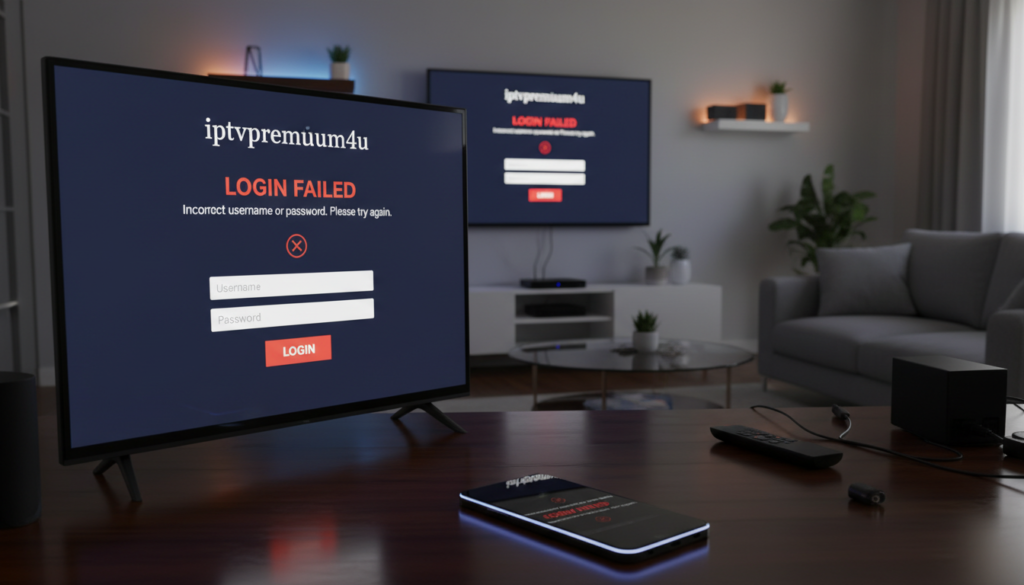
If your IPTV login error stops your streams, this guide will help you watch again soon. It shows how to fix issues like slow internet, server downtime, wrong login details, or app problems.
Authentication checks your login info with the provider. Errors like “Invalid Username” or “Login Failed” mean it didn’t work. This guide makes fixing these errors easy and quick.
It offers tips for different devices like Fire TV Stick, Samsung and LG Smart TVs, Android, and iOS. First, check your network. Then, look at app settings. If problems continue, contact your provider.
For better streaming, choose a reliable provider like IPTVPremuim4U. They offer high uptime and smooth streaming. If issues keep happening, consider a better IPTV service or subscription.
Table of Contents
Key Takeaways
- Start with network and speed checks to rule out connectivity issues.
- Confirm your username, password, and portal URL are correct.
- Clear app cache or reinstall the app if authentication fails.
- Test on a different device or network to isolate the problem.
- Contact your IPTV provider with error messages and device details for faster support.
Understanding IPTV Login Errors
IPTV brings live TV and on-demand content over the internet. It uses streams instead of traditional broadcast or cable. Apps like IPTV Smarters and TiviMate load M3U playlists or use portal URLs for authentication.
When you face an iptv login problem, it often involves authentication. Your device sends a username, password, and URL to the provider. The server checks your subscription status, device limits, and security rules before allowing a stream.
Common causes of iptv login problems include wrong login details, expired subscriptions, or outdated M3U or portal URLs. Server downtime or maintenance can also cause issues, even with correct credentials.
App bugs, corrupted cache or data, and device compatibility issues can block authentication. Internet service provider blocking and regional restrictions can prevent access in some countries, leading to an iptv login not working error.
You can often fix issues by confirming your credentials and checking the portal URL. Make sure your subscription is active. If you need further help, contact the provider with your account details and device information for targeted support.
Checking Your Internet Connection
Before you try changing app settings or reaching out to support, test your internet. A weak connection can make it seem like the app is the problem. Look for signs like streaming stalls, freezes, or login failures.
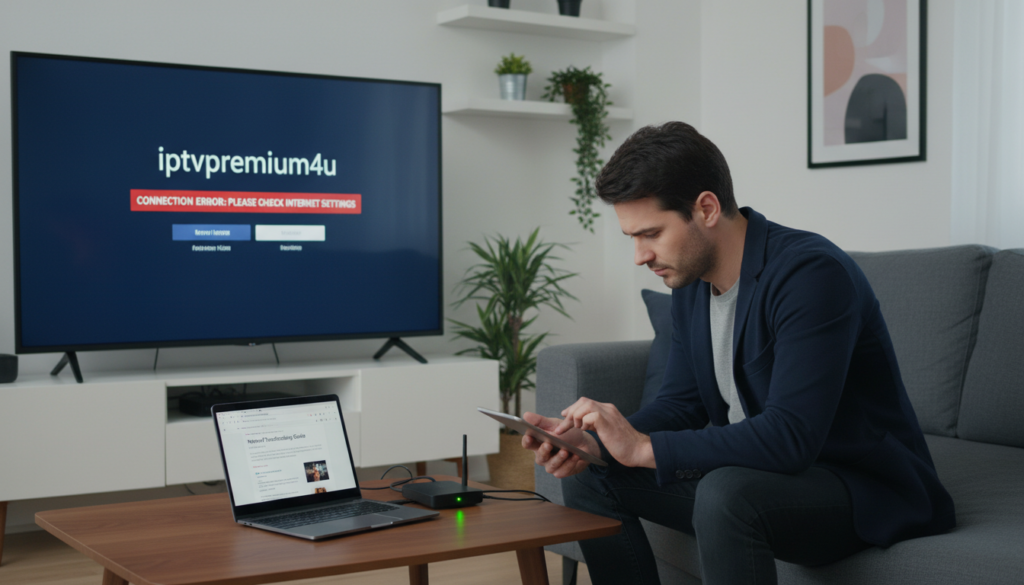
Testing your network speed
Do a speed test on your phone or PC. Check download, upload, and latency speeds. For HD streaming, aim for 15–25 Mbps per stream. If your speeds are low, try switching to a different Wi‑Fi band.
If IPTV works on mobile data but not Wi‑Fi, it might be ISP throttling or a router problem. Use mobile data to find out.
Restarting your router
Restarting your network gear can fix many issues. Turn off your IPTV device, unplug your modem and router for 60 seconds. Then, plug them back in, wait for the lights to settle, and reboot your streaming device.
If problems continue, try a wired connection for a more stable link. Changing DNS to Google (8.8.8.8) or Cloudflare (1.1.1.1) can also solve DNS errors that cause login issues.
- Check for packet loss or high latency during the speed test.
- Try a wired connection to rule out Wi‑Fi interference.
- Switch DNS servers if the service shows URL or lookup failures.
If IPTV login issues persist, record your speed test results and device behavior. This information is helpful when you need to troubleshoot with your provider or find more advanced solutions.
Verifying Your IPTV Credentials
If you see an iptv login error, first check your credentials. Make sure they match what your provider gave you. A small typo or extra space can cause problems fast.
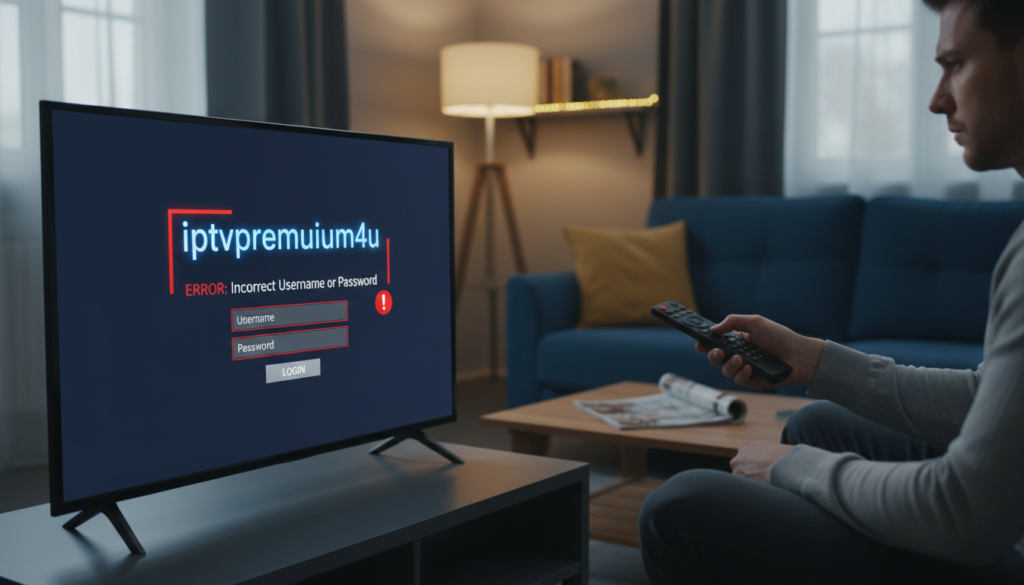
Copy and paste your login details from the provider’s email or portal. If typing, be careful with caps and avoid extra spaces. These can make your login fail.
Double-Checking Username and Password
Open the original account email or the provider app and copy your login details. Use a phone or computer to paste them into your device. This helps avoid mistakes when entering your login manually.
If you keep getting login errors, check your account status online. Issues like expired subscriptions or device limits can look like login problems but are actually account issues.
If your IPTV account still cannot authenticate, check our IPTV App Not Working Guide for additional app-related fixes.
Resetting Your Password
If you think your password is wrong or has been hacked, use the provider’s reset tool or contact support. After resetting, clear the app’s data and cache before logging in with your new password.
Choose a strong, unique password and save it in a secure password manager. This helps avoid future login issues and makes signing in easier on different devices.
| Step | Action | Why it Helps |
|---|---|---|
| 1 | Copy/paste credentials from provider email or portal | Prevents typos, invisible spaces, and case errors that cause iptv login error |
| 2 | Verify subscription status on provider account page | Detects expired or disabled accounts that mimic an iptv login problem |
| 3 | Use password reset or contact support for iptv login help | Restores access when passwords are forgotten or compromised |
| 4 | Clear app cache/data after password change | Ensures the app uses the new credentials and avoids cached failures |
| 5 | Store credentials in a password manager | Reduces repeated instances of iptv username password not working across devices |
Configuring IPTV Settings Correctly
Before you start tweaking app options, always check your provider’s instructions. Small mistakes in portal URLs, protocols, or ports often cause an iptv login problem. A quick URL test in a browser or VLC can show whether the link returns a playlist or an error page.
Next, pick the right playlist type and streaming method. Many apps ask for M3U or Xtream API. Your provider may prefer HLS or MPEG-TS. Using the wrong choice can trigger a login failure or a stream error.
Best Settings for Popular IPTV Apps
For IPTV Smarters, use the provider-recommended portal URL and select Xtream API when offered. Increase player buffer if your network is unstable to reduce stalling and to help fix iptv login issue that appears as timeouts.
TiviMate performs best with an accurate M3U or Xtream entry. Confirm the playlist type and sync channel groups. Adjust the buffer and stream priority to match your router and ISP limits.
VLC is a good reach test. Paste the playlist URL into Media > Open Network Stream. If VLC plays the list or shows playlist text, you have a working link, which helps with iptv fix login steps.
Understanding Port and Protocol Settings
Check whether your provider requires http:// or https:// in the portal URL. Using the wrong protocol can return “Server Not Found” or URL errors that mimic credential problems.
Incorrect portal URLs and connection settings can also trigger connectivity issues. See our IPTV Connection Problems Guide.
Some portals use custom ports like :8080. Add the port exactly as given. Remove trailing slashes or stray spaces. Small URL typos are common causes of iptv login problem and how to fix iptv login error often begins with correcting the portal string.
Use this checklist when you update settings:
- Confirm playlist type: M3U or Xtream API.
- Verify protocol: http or https.
- Include custom port if required, for example :8080.
- Remove extra spaces and trailing slashes.
- Test the URL in a browser or VLC before entering it into the app.
| App | Playlist Type | Recommended Stream | Common Fixes |
|---|---|---|---|
| IPTV Smarters | Xtream API / M3U | HLS for adaptive streaming | Correct portal URL, increase buffer, verify credentials |
| TiviMate | M3U / Xtream API | MPEG-TS for stable LAN playback | Match playlist type, adjust buffer, check EPG links |
| VLC | M3U | HLS or MPEG-TS testing | Test URL reachability, view raw playlist to confirm active link |
If you’re seeing errors after checking settings, repeat the URL test and then contact your provider. Provide the exact portal string and any error messages. This information helps speed up any further help to fix iptv login issue or to iptv fix login when provider-side changes are needed.
Device Compatibility Issues
If your IPTV login is not working, it might be your device’s fault. Not all TVs, streaming sticks, or phones can run the same apps. Make sure your device and its software match what your IPTV provider needs before you try to fix login or network issues.
First, check if your device is on the list of supported ones. Amazon Fire TV and Firestick can run many IPTV apps if you sideload the right APK. Android TV boxes work well with apps like TiviMate. Smart TVs from Samsung and LG might have provider apps, but older models might struggle.
iOS and Android phones and tablets can download apps from the App Store or Google Play. PCs can use VLC or Kodi players.
If you’re having trouble with your Smart TV, try updating its firmware. If the app is not working, use an Android TV box or a compatible player. On Firestick, install the APK version your provider recommends. On iOS, make sure the App Store version matches what your provider suggests.
Many IPTV subscriptions only allow a certain number of streams at once. If you’re sharing a login with others, you might hit this limit. Log out devices that are not in use or plan your viewing times. If you need more streams, consider upgrading your plan.
Here’s what to do if you’re having trouble logging in on a new device:
- Check if your device model and OS are compatible with the provider’s requirements.
- Install the app version that your provider recommends.
- Restart your device after installing the app.
- If you’re having trouble logging in, try removing and re-adding your account.
Dealing with multiple devices can often solve login issues. Check how many devices your provider allows, log out unused sessions, and make sure family members aren’t using the account at the same time.
| Device Type | Common Issues | Quick Fix |
|---|---|---|
| Amazon Firestick | Sideloaded APK version mismatch; app crashes | Install provider-recommended APK; clear app cache; restart Firestick |
| Android TV Box | App compatibility with custom ROMs; remote control mapping | Use TiviMate or official app; update box firmware |
| Samsung / LG Smart TV | Old firmware; limited app store availability | Update TV firmware; use external HDMI player if needed |
| iOS / Android Phones & Tablets | App store version differs from provider recommendation | Install correct App Store/Play Store version; check provider notes |
| PC (VLC, Kodi) | Playlist or URL format errors; protocol mismatches | Use provider-supplied playlist; update VLC/Kodi; check network |
Software Updates and Compatibility
Keeping apps and device software current fixes many login glitches. Outdated IPTV applications can lose compatibility with provider servers. This may make your iptv login not work. Before digging deeper, check for updates in the app store or on the provider’s help page.
Updating IPTV Applications
Open the app store on your Fire TV, Android TV, iPhone, iPad, Samsung, or LG set. Install pending updates for your IPTV client. If an update creates new errors, clear the app cache or reinstall the application.
Reinstalling often resolves stubborn errors when iptv login not working or when you need to troubleshoot iptv login error.
Ensuring Device Software is Up to Date
Firmware matters. Fire OS on Firestick, Android TV OS, Tizen on Samsung, webOS on LG, and iOS on Apple devices receive fixes that affect app authentication. Check system updates in Settings and install them when available. Older firmware can block app sign-in.
When updates fail to solve the problem, uninstall the IPTV app and reinstall it. After reinstalling, enter your username and password carefully, then test the connection. This step often clears corrupted credentials or misconfigured settings so you can successfully fix iptv login issue and move on to streaming.
Firewall and Security Settings Impact
Your security tools might block IPTV traffic, leading to login issues. Antivirus suites, Windows Defender, and third-party firewalls can flag IPTV server addresses. This stops outgoing connections.
Router-level protections like parental controls or intrusion prevention can block streaming ports or specific URLs. This makes iptv login not work on some devices.
How firewalls affect access
Firewalls check packets and apply rules that can interrupt the handshake between your IPTV app and provider servers. On a PC, security software might block the app executable or the ports it uses. On a router, traffic shaping or aggressive QoS settings can degrade streams and create intermittent login failures.
These behaviors are common causes when you try to resolve iptv login error and keep seeing connection timeouts.
Adjusting your security software
First, test by temporarily disabling antivirus or firewall for a short time. If the app logs in when protection is off, add your IPTV player to the allow or exception list. For router settings, check parental controls, URL filters, and any streaming-related blocks.
Changing your DNS to Google (8.8.8.8) or Cloudflare (1.1.1.1) can bypass some ISP filters. If router-level traffic shaping is the issue, consider factory resetting custom rules or updating firmware from brands like Netgear, ASUS, or TP-Link.
Use a trusted VPN only if your provider allows it and you need to bypass ISP-level restrictions. Always re-enable protections after testing. Only add verified IPTV apps to exceptions to get reliable iptv login help without exposing your network.
Using VPNs with IPTV
If your IPTV login is not working, a VPN can help. It can block network issues and protect your privacy while streaming. ISP throttling, regional restrictions, or routing problems might cause the issue. A VPN test can show if the problem is with your network or the provider.
Why use a VPN?
A VPN encrypts and reroutes your traffic. This way, your ISP can’t slow down or block IPTV streams. It’s useful in places with strict ISP rules or geo-blocks, like the UAE. You also get more privacy when using public Wi‑Fi or shared networks.
If you see an iptv login problem only on Wi‑Fi but not on mobile data, a VPN test can help. It shows if your home network is the problem. Some IPTV providers don’t allow VPNs, so check their terms before using one.
If your provider is throttling your traffic, you may also experience buffering. Read our IPTV Buffering Guide.
Configuring your VPN for IPTV
Choose a fast, reliable VPN with servers close to your IPTV provider. Install the VPN app on Firestick, Android box, or Smart TV if it supports it. Or, set it up on your router to cover all devices.
If the VPN causes playback issues or the problem persists, try different server locations. Or, temporarily disable the VPN to compare results. Only switch UDP to TCP if your VPN suggests it; this can affect stability and speed.
Practical tip: if you’re wondering how to fix an iptv login error, first test with a VPN on the same network. Use short tests and note which server works best for speed and reliability.
Clearing Cache and Data
Clearing cached files can solve many common issues with IPTV login errors. Sometimes, temporary files get corrupted and block access. Removing cache and restarting your device often fixes the problem.
Steps to clear cache on different devices
- Firestick and Android TV: Go to Settings > Applications > Manage Installed Applications > select the IPTV app > Clear Cache, then Clear Data. Restart the device and re-enter credentials to check if the iptv login error is gone. This method often gives quick iptv login help.
- Samsung/LG Smart TV: If an in-app cache option exists, use it. If not, uninstall and reinstall the app or reset the app data. You can use an external Android box for easier cache management and to troubleshoot iptv login error more effectively.
- Android phones: Open Settings > Apps > [IPTV App] > Storage > Clear Cache/Clear Data. Restart the phone and sign in again to see if the issue cleared and to iptv fix login attempts.
- iPhone and iPad: Offload the app or delete and reinstall it to remove cached data. Make sure you have your login details before you remove the app so you can easily access iptv login help after reinstalling.
- PC and browsers: For standalone players like VLC, clear temporary files or reinstall the player. For browser portals, clear the browser cache and cookies, then log in again to troubleshoot iptv login error that stems from stored site data.
Benefits of regularly clearing cached data
Removing cached data gets rid of corrupted temporary files that can cause login failures or app crashes. You free up storage space and reduce the chance of UI glitches. After clearing cache you must re-enter credentials, so keep your username and password handy to avoid delays while you seek iptv login help.
If clearing cache does not resolve the issue, combine this step with checking credentials and network settings to fully troubleshoot iptv login error. Proper cache management is a simple, practical step toward a reliable IPTV experience and often the fastest way to iptv fix login problems.
Contacting Your IPTV Provider
If you can’t fix the iptv login error, it’s time to contact your provider. Explain the problem clearly and list the steps you’ve tried. Quick and accurate information helps them find the issue faster.
When to reach out for support
Call for help after checking your network speed and restarting devices. Also, clear the app cache, check your credentials, and try a VPN if needed. If the service works on other devices but not yours, or if you see server errors, get help immediately.
What information to provide for assistance
Share your username, the exact error message, and your device model. Mention the app name and version, and any portal or M3U URL if asked. List the steps you’ve taken and when the issues occurred. This helps them solve the problem faster.
How providers can help
Your provider can check if your subscription is active, give you updated portal URLs, and reset your account. They can also check server health or maintenance schedules. They might suggest device settings or if service limits apply. If limits cause issues, ask about upgrading your plan to avoid future problems.
Conclusion: Final Steps to Resolve IPTV Login Errors
When you see iptv login error messages, stay calm and follow a simple plan. First, check your network and restart your router. Try using Ethernet or switching to a different band. Then, run a speed test.
Next, make sure your login details are correct. If not, reset your password. Clearing the app cache or reinstalling the IPTV app often solves the problem quickly.
For network diagnostics, you can also use Fast.com to quickly measure streaming performance.
Also, keep your apps and device firmware up to date. Check the portal URLs and review any firewall or security settings that might block access. If your ISP is blocking streams, a VPN can help with routing or DNS issues.
For a more stable service, consider reputable providers like IPTVPremuim4U. They offer higher uptime and reliable support. If you’re having ongoing issues, try a different IPTV service or upgrade your experience.
Many fixes are simple: just restart your devices, correct a URL, or clear cached data. Be patient and test one problem at a time. Keep your login details safe in a password manager and try an alternate network to find the issue.
If all else fails, contact your provider. Give them your device details, the exact error messages, and the steps you’ve taken. They can check your account or server status.
Pros: many fixes are fast and easy for users to do, VPNs or DNS tweaks can bypass ISP blocks, and reputable services like IPTVPremuim4U tend to have less downtime. Cons: some outages are beyond your control, technical steps like router/DNS changes may be needed, and low-quality or unauthorized services can cause recurring issues.
For a complete overview of all IPTV issues, visit our IPTV Troubleshooting Guide.
Still having issues after trying these fixes? Read our complete IPTV Not Working guide for more troubleshooting tips and advanced solutions. It covers buffering problems, login errors, connection issues, and step-by-step fixes for different devices.