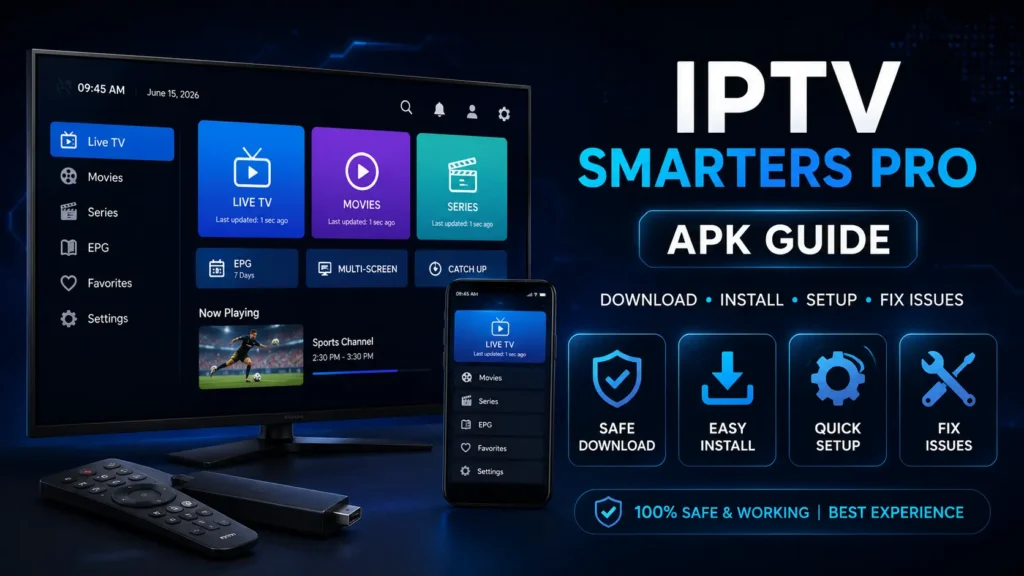
Are you looking for the safest way to download and install IPTV Smarters Pro APK without ending up on fake download pages or confusing tutorials? This guide explains exactly what the APK is, when you may need it, how to install it on Android devices, and how to set it up with your own IPTV provider details.
The important thing to know first is simple: the APK is an Android installation file for the app. It is not an IPTV subscription, it does not include channels, and it does not provide live TV by itself. To watch content, you still need a valid IPTV service that gives you Xtream Codes API login details, an M3U URL, or playlist information.
In this 2026 guide, you will learn how to use the Android installer safely on Android phones, tablets, Android TV, Google TV, and TV boxes. You will also find safety tips, installation steps, setup instructions, troubleshooting fixes, and internal links to related IPTV Smarters guides on our site.
Quick answer: IPTV Smarters Pro APK is an Android app installer for an IPTV player. Use it only from trusted sources, avoid modified APK files, and always connect it to a legal IPTV provider or playlist.
Key Takeaways
- The APK is useful when the app is not available directly from your device store.
- It does not include TV channels, movies, subscriptions, or premium content.
- You should avoid mod, cracked, or unknown APK files because they may be unsafe.
- Android phone installation is easier than Android TV or TV box installation.
- Most setup problems come from wrong login details, blocked permissions, expired accounts, or weak internet connections.
Table of Contents
What Is IPTV Smarters Pro APK?
IPTV Smarters Pro APK is the Android package file used to install the IPTV Smarters player on Android-based devices. APK files are common on Android because they allow users to install apps manually when the app is not available through the device store or when a user needs a compatible version for a specific device.
The app works as a media player for IPTV playlists. After installation, you can add your own provider details, such as a server URL, username, password, M3U link, or playlist URL. Once the data is accepted, the player can organize live TV, movies, series, catch-up content, favorites, and EPG information in one interface.
This does not mean the Android installer gives you free channels. The file only installs the player. Your IPTV provider is responsible for the content, account access, and streaming servers. If you want a broader explanation of the player itself, read our complete IPTV Smarters Pro guide.
APK in simple words
An APK is like an installer file for Android. On Windows, you may install software with a .exe file. On Android, apps can be installed with APK files. The main difference is that Android may block manual installation by default for security reasons, so you may need to allow installation from trusted sources.
Is IPTV Smarters Pro APK Safe?
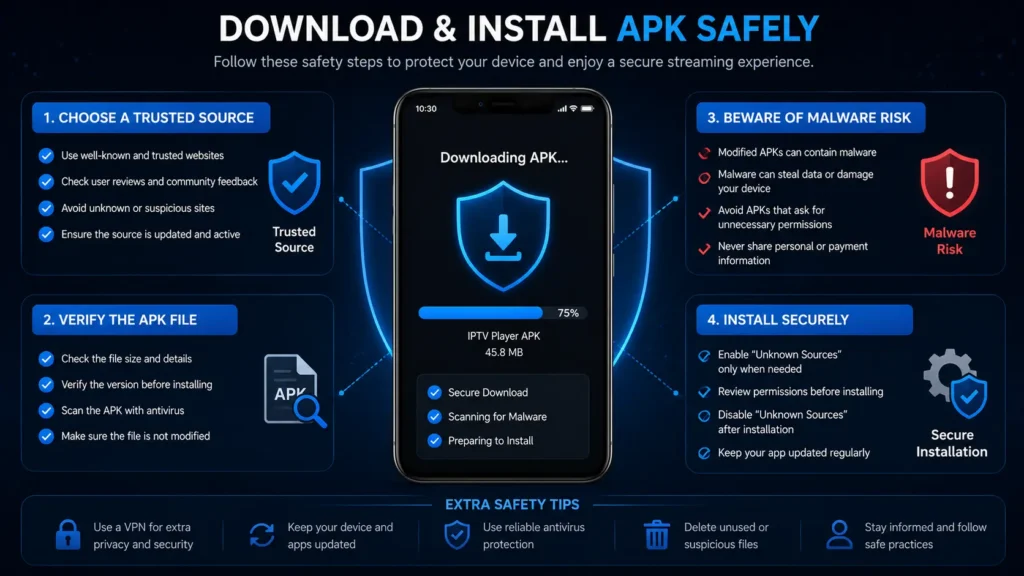
The Android installer can be safe when it comes from a trusted source and has not been modified. The risk comes from fake APK websites, cracked versions, aggressive ads, and files that pretend to be the real app but include malware or tracking scripts.
A safe installation starts with checking where the file comes from. Avoid any page that promises “premium unlocked,” “mod APK,” “lifetime free IPTV,” or “no login required.” These claims are usually a red flag. A legitimate IPTV player should not need a cracked file to work.
You should also keep Google Play Protect enabled on your Android device and avoid giving unnecessary permissions. For example, a media player may need network access, but it should not ask for strange permissions that do not match its purpose.
Safety checklist
- Use official stores when available.
- Avoid mod, cracked, or unknown APK files.
- Scan suspicious files before installing them.
- Keep Android and the app updated.
- Do not enter IPTV login details into fake apps.
- Use a separate strong password for your IPTV account.
- Delete the file if your device warns you that it may be harmful.
Is IPTV Smarters Pro APK Legal?
The APK itself is an installer for a media player. A media player can be legal, but the content you add inside it is what matters. If your IPTV provider has the rights to distribute the content you watch, using a player to access that content is generally not the issue.
If a provider sells unauthorized premium channels, live sports, pay-per-view events, or copyrighted movies without permission, that can create legal and safety risks. The app cannot make an illegal service legal. Always use legitimate content sources and avoid suspicious offers that look too cheap or too good to be true.
A good rule is to treat the player like a video app, not like a content provider. The player opens the door, but your provider decides what comes through that door.
IPTV Smarters Pro APK vs Official App Store Version
Many users search for the Android installer because they cannot find the app in their local store, their TV box does not include Google Play, or their Android TV device blocks certain apps. Still, the official app store version is usually the easier and safer option when it is available.
| Option | Best for | Pros | Cons |
| Official app store version | Most users | Safer, easier updates, simpler installation | May not be available in every region or device store |
| APK installation | Android TV boxes, unavailable regions, manual setup | More flexible, can work when the store option is missing | Needs more caution, manual updates, higher fake-file risk |
| Alternative IPTV player | Users who cannot install the app | Can solve compatibility problems | Interface and features may be different |
If you can install the app from your official store, start there. If you cannot, the APK method may help, but only if you use a trusted source and follow safe installation steps.
Before You Download the APK
Before downloading any Android installer, prepare your device and your IPTV account details. This saves time and prevents common errors during setup.
What you need
- An Android phone, tablet, Android TV, Google TV, or Android TV box.
- A stable internet connection.
- Enough free storage on the device.
- A valid IPTV subscription or playlist.
- Xtream Codes API details or an M3U URL.
- Optional: an EPG URL if your provider uses separate guide data.
- A remote or keyboard for TV devices, because entering long URLs can be slow.
If you do not have your provider login details yet, installing the app will not load channels. You can open the app, but the content area will stay empty until you add a valid playlist or account.
How to Download IPTV Smarters Pro APK Safely
A safe download process is more important than a fast one. Many fake pages use similar names to attract users searching for IPTV Smarters Pro APK, then add extra buttons, pop-ups, or modified files that may not be trustworthy. For safer options across different devices, follow our IPTV Smarters Pro Download guide.
Start by checking whether the app is available in your official device store. If it is not available, use only a trusted source that clearly identifies the app, version, file type, and developer information. Avoid pages with too many fake download buttons or promises of free premium access.
Safe download rules
- Do not download from random social media comments.
- Avoid shortened links when you do not know the destination.
- Avoid pages that force you to install unrelated apps first.
- Check the file name and version before installing.
- Do not install if your device gives a serious security warning.
- Keep the downloaded file only if the installation works correctly.
After downloading, you can continue with installation based on your device type. Android phones are usually easier, while TV devices may require more steps.
How to Install IPTV Smarters Pro APK on Android Phone
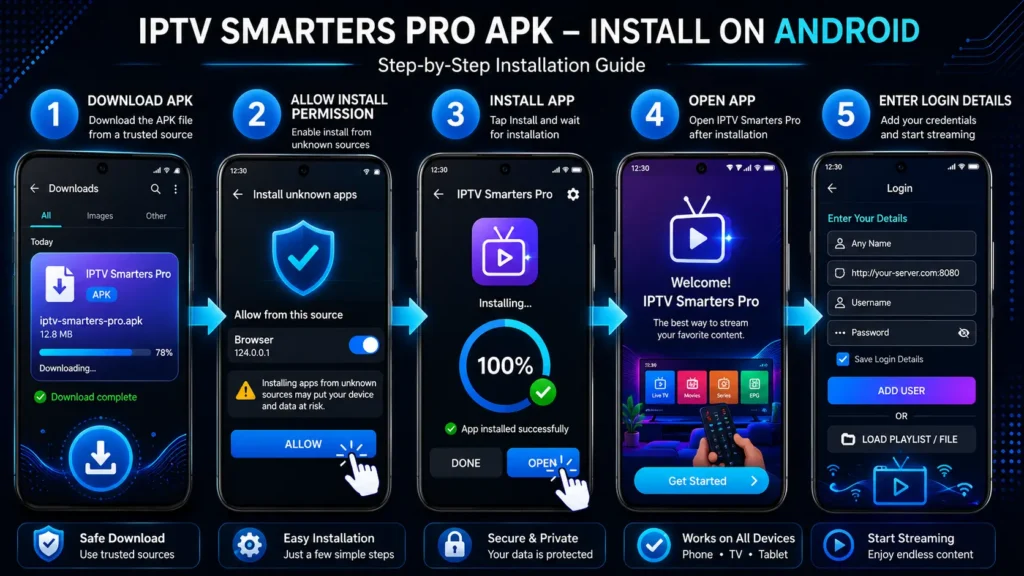
Installing the Android installer on a phone is usually straightforward. The exact wording may change depending on your Android version, but the process is similar on most devices.
1. Download the APK file from a trusted source.
2. Open your Downloads folder or browser download list.
3. Tap the APK file.
4. If Android blocks the installation, allow installation from that trusted source only.
5. Tap Install and wait for the process to finish.
6. Open the app after installation.
7. Choose Xtream Codes API or M3U Playlist.
8. Enter your IPTV provider details carefully.
9. Wait for live TV, movies, series, and guide data to load.
After installation, go back to your security settings and disable unknown source permission if you no longer need it. This helps keep your phone safer.
How to Install the APK on Android TV or Google TV
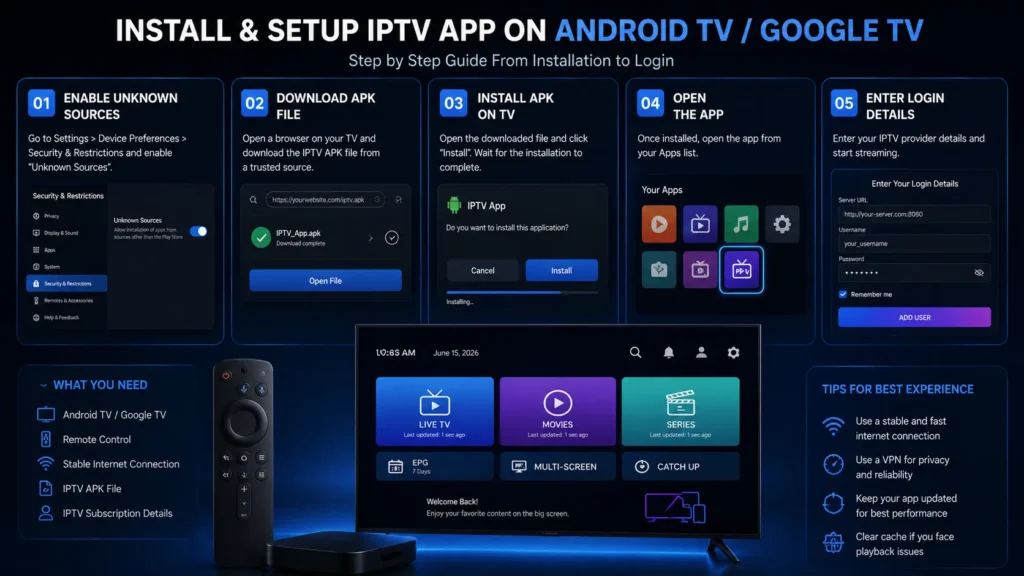
Android TV and Google TV devices often need more steps because downloading files directly from a TV is not as simple as downloading on a phone. You may need a downloader app, browser, file manager, or USB method depending on your device. If you are using an Amazon device instead, follow our guide to install IPTV Smarters on Firestick.
1. Connect your Android TV or Google TV device to a stable internet connection.
2. Check the official app store first to see if the app is available.
3. If not available, use a trusted method to transfer or download the APK file.
4. Open your file manager or downloader tool.
5. Allow installation from that app only if required.
6. Install the APK and wait for confirmation.
7. Open the player from your apps list.
8. Enter your provider details using Xtream Codes API or M3U.
9. Test one live channel and one movie or series item.
If typing with a remote is difficult, copy your login details exactly from your provider message. One wrong character in the server URL, username, or password can cause login failure.
How to Install IPTV Smarters Pro APK on TV Box
Android TV boxes are popular for IPTV because they are affordable and flexible. However, not all boxes are equal. Some have old Android versions, weak storage, poor Wi-Fi, or outdated firmware. These problems can affect installation and playback.
1. Make sure your TV box has enough free storage.
2. Restart the device before installation if it is slow.
3. Download or transfer the APK from a trusted source.
4. Open the file using a file manager.
5. Allow installation from trusted sources if needed.
6. Install and open the app.
7. Add your IPTV login details.
8. Test playback quality and adjust settings if needed.
If the app installs but runs slowly, the problem may be the TV box hardware rather than the APK. In that case, clearing storage, using Ethernet, or switching to a better device can help.
How to Set Up IPTV Smarters Pro APK with Xtream Codes API
Xtream Codes API is often the easiest setup method because it usually organizes live TV, movies, series, and EPG data automatically. Your IPTV provider should give you a server URL, username, and password. If the app rejects these details, follow our IPTV login error guide to verify the credentials and server information.
1. Open the app.
2. Choose login with Xtream Codes API or a similar option.
3. Enter any profile name you want, such as Home IPTV.
4. Enter the server URL exactly as provided.
5. Enter your username.
6. Enter your password.
7. Tap Add User or Login.
8. Wait for the app to download categories and guide data.
9. Open Live TV and test a channel.
If login fails, check for spaces before or after your credentials. Also confirm that the subscription is active and that the provider server is online.
How to Set Up IPTV Smarters Pro APK with M3U Playlist
M3U setup is another common method. Instead of using a server URL, username, and password separately, your provider may give you one long playlist URL. This URL loads your channel list inside the player.
1. Open the app and choose M3U Playlist or Load Your Playlist.
2. Add a profile name.
3. Paste the full M3U URL exactly.
4. Add the EPG URL if your provider gives one separately.
5. Save the playlist.
6. Wait for categories to load.
7. Test live TV, movies, and series sections.
M3U URLs can be long, and missing even one character may prevent the playlist from loading. On TV devices, it can be easier to copy the link using a keyboard app or a remote-control mobile app. If the playlist loads without displaying content, follow our IPTV no channels guide for more detailed checks.
Xtream Codes API vs M3U Playlist
Both setup methods can work well. The best option depends on what your provider supports and how you prefer to manage your account.
| Setup method | Requires | Best for | Common issue |
| Xtream Codes API | Server URL, username, password | Beginners and organized libraries | Wrong server URL or expired login |
| M3U Playlist | Playlist URL, sometimes EPG URL | Users who already have a playlist link | Long URL typing errors |
| Local playlist file | M3U file on device | Advanced users | File access or format problems |
For most beginners, Xtream Codes API is easier because the app can organize categories more automatically. M3U is still useful when your provider only offers playlist links.
Common APK Installation Problems and Fixes
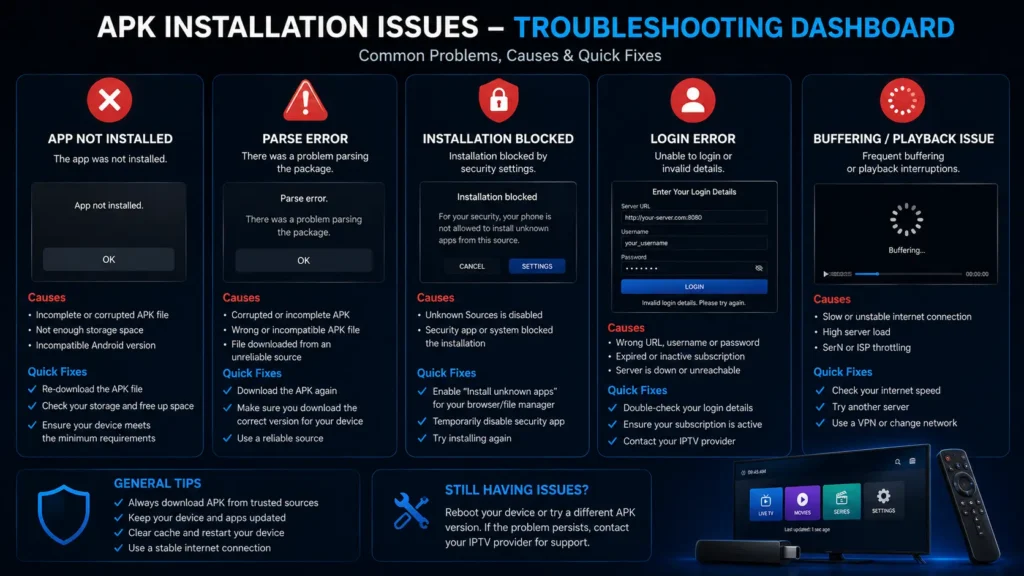
APK installation issues are common, especially on older Android boxes or devices with strict security settings. Most problems can be fixed by checking permissions, storage, Android version, and file integrity.
| Problem | Possible cause | Fix |
| App not installed | Old Android version, corrupted file, conflict with existing app | Delete old version, download again, check compatibility |
| Parse error | File is incomplete or not compatible | Download again from a trusted source and verify Android version |
| Install blocked | Unknown source permission is disabled | Allow installation from the trusted app only |
| App opens then crashes | Low storage, old firmware, bad version | Clear storage, restart device, try compatible version |
| Login failed | Wrong credentials or expired account | Check server URL, username, password, and subscription status |
| No channels | Playlist did not load or account inactive | Refresh playlist and contact provider if needed |
If you are still having problems after installation, check our IPTV Smarters Pro not working guide for broader troubleshooting steps.
IPTV Smarters Pro APK Not Working: Quick Fixes
If the app installs but does not work correctly, do not delete everything immediately. Start with simple checks. Many issues are related to device performance, internet connection, or provider account status.
1. Restart your device.
2. Check if your internet is working with another app.
3. Clear the app cache.
4. Confirm your IPTV account is active.
5. Re-enter your login details carefully.
6. Try another network or VPN server if your ISP blocks traffic.
7. Test the same account on another device.
8. Reinstall the app only if other fixes do not work.
If only one channel fails, the problem is probably the stream or provider server. If every channel fails, the issue may be your login, playlist, network, or app installation.
Best Settings After Installing the APK
After installation, a few settings can make the player smoother. The best settings depend on your device and internet speed, but the recommendations below work well for many users.
- Use a stable internet connection, preferably Ethernet for TV boxes.
- Refresh playlist and EPG data after first login.
- Try an external player if built-in playback has audio or subtitle issues.
- Clear cache regularly on low-storage devices.
- Use favorites to avoid scrolling through large channel lists.
- Lower stream quality if your connection is unstable.
- Keep parental control enabled if children use the device.
Do not change too many settings at once. Test one adjustment at a time so you can identify what improves or worsens playback. If buffering continues after optimizing the settings, follow our IPTV buffering guide for more detailed connection and streaming fixes.
Should You Use IPTV Smarters Pro APK in 2026?
You should use the APK method only when it makes sense for your device. If the app is available from your official app store, that is usually the easiest option. If your Android TV, Google TV, or TV box cannot access the store version, the APK method can be a practical alternative.
The key is to stay safe. Avoid cracked files, use trusted sources, keep your device updated, and connect the app only to legitimate IPTV services. A good installation file can give you access to the player, but your real streaming quality still depends on your provider, internet speed, and device performance.
For the best experience, combine a safe installation method with a stable IPTV provider, correct login details, and simple playback settings. If you are comparing services, check our IPTV plans or request a trial before committing.
FAQ: IPTV Smarters Pro APK
What is IPTV Smarters Pro APK?
It is an Android installer file for the IPTV Smarters player. It lets you install the app manually on Android-based devices.
Does the APK include channels?
No. The installer does not include channels, playlists, movies, or subscriptions. You need your own IPTV provider details.
Is the APK safe to install?
It can be safe if downloaded from a trusted source. Avoid mod, cracked, or suspicious files.
Is it legal to use?
The app is a player. Legality depends on the content source you add inside it. Always use legitimate providers.
Why does Android block the installation?
Android blocks manual installs by default for security. You may need to allow installation from a trusted source.
Why do I see “app not installed”?
Common reasons include old Android version, corrupted file, not enough storage, or conflict with an existing version.
Can I install it on Android TV?
Yes, if your device supports the app version. Android TV installation may require a file manager or downloader method.
Can I install it on Google TV?
Yes, many Google TV devices can install Android apps, but availability and manual installation steps depend on device settings.
Can I use it on Firestick?
Firestick uses Fire OS, which is based on Android, but the process is different. Read our Firestick installation guide for detailed steps.
What is better: APK or app store version?
The app store version is usually safer and easier. The APK method is useful when the store version is not available for your device.
How do I set it up after installing?
Open the app, choose Xtream Codes API or M3U Playlist, then enter the details given by your IPTV provider.
Why is the app not loading channels?
Your playlist may be wrong, your account may be expired, the provider server may be down, or your internet connection may be unstable.
Do I need a VPN?
A VPN is optional. It may help with privacy or network restrictions, but a slow VPN can also cause buffering.
How often should I update the APK?
Update only when you need bug fixes, compatibility improvements, or security updates. Use trusted sources only.
Can I use multiple playlists?
Some versions support multiple playlists or profiles. Availability depends on the app version and platform.
What should I do if the APK keeps crashing?
Restart the device, clear cache, check storage, update Android if possible, and reinstall a compatible version if needed.