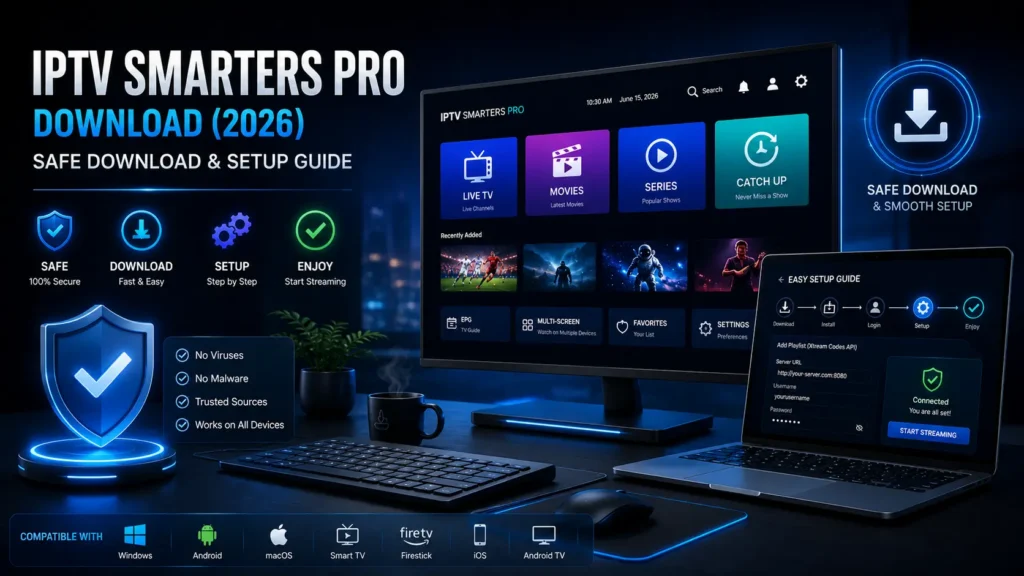
Want to use IPTV Smarters Pro PC without getting lost between fake downloads, confusing setup steps, and app errors? This guide explains the safest ways to download, install, and set up the player on a computer in 2026.
IPTV Smarters Pro PC can be one of the most comfortable ways to watch IPTV because you get a bigger screen, keyboard control, easier playlist management, and better multitasking than on a phone. But the right setup depends on your computer, your IPTV provider, and the version of the app you choose.
In this guide, you will learn what the PC version is, how it differs from mobile and TV setups, how to install it safely, how to add Xtream Codes API or M3U details, which settings matter most, and how to fix the most common problems.
Quick answer: IPTV Smarters Pro PC is useful if you want to watch your IPTV playlist on a Windows computer or laptop. The app is only a media player, so you still need valid login details from your IPTV provider.
Table of Contents
Key Takeaways
- IPTV Smarters Pro PC is best for users who want a larger screen, mouse control, and easier playlist management.
- You need your own IPTV provider details, such as Xtream Codes API, M3U URL, username, password, and server URL.
- Always download the app from official or trusted sources and avoid cracked installers or suspicious EXE files.
- Most PC issues come from wrong login details, firewall restrictions, unstable internet, outdated software, or provider server problems.
- For a better experience, keep your system updated, use a stable connection, and choose the correct player settings.
What Is IPTV Smarters Pro PC?
IPTV Smarters Pro for PC is a computer-based way to use the popular IPTV player interface on a desktop or laptop. It helps users load their own IPTV playlist, organize live TV, movies, series, catch-up content, favorites, and EPG data inside one interface.
The important point is that the player does not include channels by itself. It does not sell IPTV subscriptions, create streams, or host TV content. You need a separate IPTV service that gives you valid account details.
Many people search for IPTV Smarters Pro PC because they want to watch on a monitor instead of a phone, manage playlists more easily, or test their IPTV account before using it on Firestick, Android TV, or smart TV.
In simple words
| Question | Simple Answer |
| Does the app include channels? | No. You need your own IPTV provider. |
| Can you use it on a computer? | Yes, depending on the available version or method. |
| Is it the same as an IPTV subscription? | No. It is only a player. |
| What login details do you need? | Xtream Codes API, M3U URL, or provider playlist details. |
Is IPTV Smarters Pro PC Safe?
It can be safe when you download the correct app from a trusted source and avoid modified installers. The biggest risks are not from the idea of using a PC player; the real risks come from fake websites, cracked installers, unknown EXE files, and providers that ask for too much personal data.
A safe PC setup should never require you to disable your antivirus permanently, install random browser extensions, or enter payment details into unknown popups. If a download page looks suspicious, close it and use another trusted option.
Safety checklist before installing
- Download only from official stores, official websites, or trusted sources.
- Avoid cracked versions, modded installers, and files shared in random forums.
- Scan unknown files with your antivirus before opening them.
- Check the file name and publisher information when possible.
- Do not enter your IPTV login into websites that are not part of your provider or app.
- Keep Windows, your browser, and your security software updated.
Is It Legal to Use on PC?
Using an IPTV player on a PC is generally legal as a software activity. The legal question depends on the content source you add to the player. If your provider has rights to distribute the channels or media you watch, the player is just a tool.
The app does not make unauthorized streams legal. Avoid services that advertise free premium sports, movies, or paid channels without clear authorization. A safe guide should focus on legal playlists, official sources, and responsible use.
IPTV Smarters Pro PC vs Mobile vs Smart TV
The PC version is not always the same experience as mobile or smart TV. Each device has different strengths. A computer is usually better for typing login details, testing playlists, and managing settings. A TV device is often better for couch viewing.
| Device Type | Best For | Possible Limitations |
| PC or laptop | Large screen, keyboard, testing playlists, multitasking | May require a compatible desktop version or alternative method |
| Android phone | Fast setup, mobile viewing, easy app access | Small screen and battery use |
| Firestick or Android TV | Living room viewing and remote control | Typing login details can be slower |
| Smart TV | Simple TV-only setup | App availability depends on region and model |
System Requirements for a Smooth PC Experience
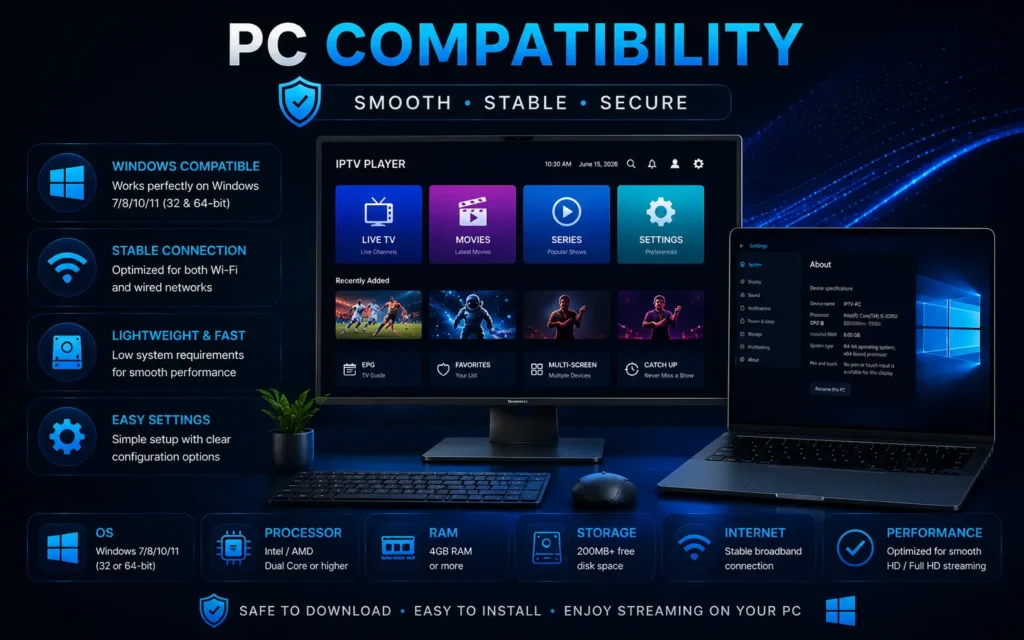
Your PC does not need to be a gaming computer to run an IPTV player, but it should be stable enough for video playback. Weak hardware, outdated drivers, or poor Wi-Fi can create buffering and playback issues even when your IPTV account is active.
| Requirement | Recommended |
| Operating system | Updated Windows version or compatible desktop environment |
| Internet speed | At least 25 Mbps for stable HD streaming, more for 4K |
| Connection | Ethernet or strong Wi-Fi signal |
| Storage | Enough free space for app data and cache |
| Display | HD monitor or TV connected to PC |
| Security | Updated antivirus and firewall settings |
How to Download IPTV Smarters Pro PC Safely
The safest download method is to start with trusted sources instead of typing random download queries and clicking the first result. Search engines can show copied pages, fake buttons, and outdated files, especially for software related to streaming.
Before downloading any installer, check the source, file name, user reviews, and whether the page tries to push extra software. A clean download page should not force you through multiple popups or unrelated offers.
Safe download rules
- Use official app stores or trusted official sources when available.
- Avoid websites that use words like crack, mod, unlimited free, or premium unlocked.
- Do not download files with strange names or compressed archives from unknown pages.
- Avoid pages with many fake download buttons.
- Keep one clean copy of your installer and delete suspicious duplicates.
How to Install IPTV Smarters Pro PC
The installation process depends on which PC method is available for your device. Some users install a desktop version, some use a store version, and others use an Android emulator. Choose the safest method that works for your computer.
General installation steps
- Download the app from a trusted source.
- Open the installer or app page.
- Follow the setup instructions on screen.
- Allow only the permissions required for normal app use.
- Open the player after installation.
- Choose your login method: Xtream Codes API or M3U Playlist.
- Enter your provider details carefully.
- Wait for channels, movies, series, and EPG data to load.
- Test a live channel and adjust settings if needed.
Method 1: Use a Desktop App if Available
If a trusted desktop version is available for your PC, this is usually the cleanest method. It avoids extra tools and gives a direct app experience. Make sure you download the correct version for your operating system and avoid unofficial copies.
After installation, keep the app updated. Old desktop builds can cause login errors, playlist loading problems, or playback issues if your provider changes server settings.
Method 2: Use an Android Emulator
Some PC users run Android apps through an emulator. This method can work, but it adds another layer between your computer and the IPTV app. If the emulator is heavy, your PC may feel slow or video playback may stutter.
Use this method only if you trust the emulator, your PC has enough resources, and you understand that performance can vary. Avoid downloading emulator bundles from unknown websites.
| Method | Best For | Main Risk |
| Desktop app | Clean PC experience | Availability may vary |
| Store app | Easy updates | May not be available in every region |
| Android emulator | Running mobile version on PC | Can be heavy and slower |
| Web player from provider | Quick access without installing app | Depends on provider security and quality |
How to Set Up Xtream Codes API on PC
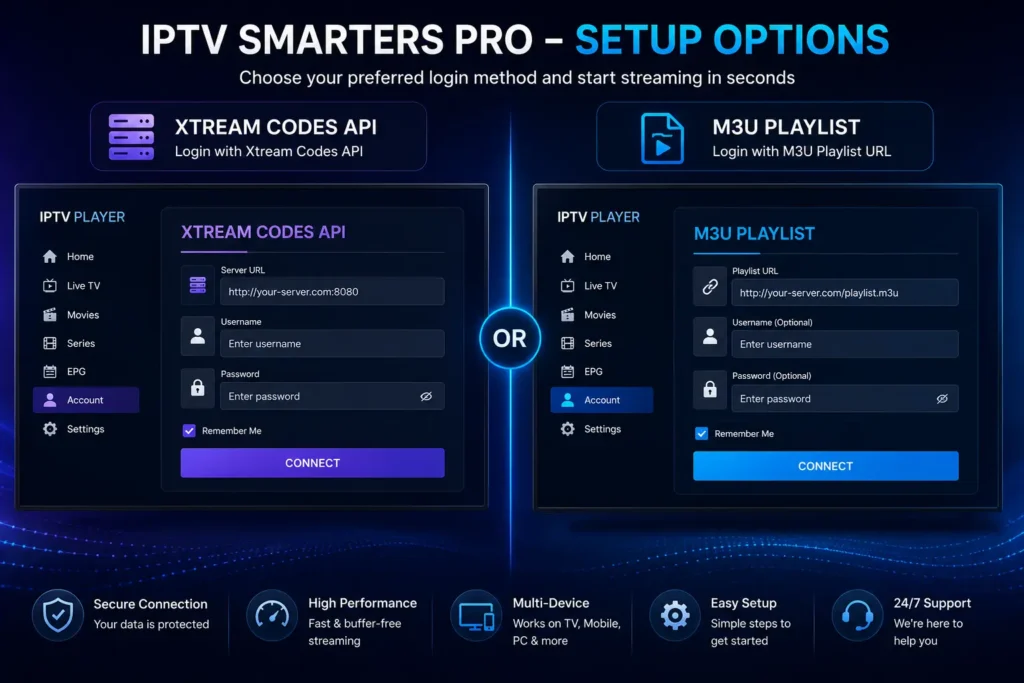
Xtream Codes API is one of the easiest login methods because it usually uses three details from your provider: server URL, username, and password. On PC, typing these details is easier than using a TV remote, which makes setup faster.
Xtream Codes API setup steps
- Open the IPTV player on your PC.
- Select login with Xtream Codes API.
- Enter a profile name such as Home TV or My Playlist.
- Type the server URL exactly as your provider sent it.
- Enter your username and password.
- Click Add User or Login.
- Wait for live TV, movies, series, and EPG data to load.
- Test several channels before changing advanced settings.
Common mistakes to avoid
- Adding a space before or after the server URL.
- Using http when your provider gave https, or the opposite.
- Mixing old and new login details.
- Typing the wrong username or password.
- Using expired subscription details.
How to Set Up an M3U Playlist on PC
M3U setup is another common method. Instead of entering server, username, and password separately, you paste one playlist URL or upload a playlist file. This can be useful if your provider gives you a direct M3U link.
M3U setup steps
- Open the app on your computer.
- Choose the M3U Playlist option.
- Enter a playlist name.
- Paste the M3U URL from your IPTV provider.
- Add the EPG URL if your provider gives one.
- Save the playlist.
- Wait for the app to load categories.
- Test live channels and refresh EPG if needed.
Xtream Codes API vs M3U on PC
| Setup Method | Pros | Cons |
| Xtream Codes API | Easy login, organized categories, often automatic EPG | Needs exact server URL, username, and password |
| M3U URL | Simple link-based setup, works with many players | EPG may require a separate link |
| Local playlist file | Can work offline for saved lists | Harder to update automatically |
Best Settings for PC Streaming
After setup, do not change every setting at once. Start with default settings, test your channels, then adjust only what is needed. Most users only need to optimize playback, EPG refresh, and cache behavior.
Recommended settings to check
- Use a stable video player option if the app provides more than one.
- Refresh playlist and EPG after your provider updates channels.
- Clear app cache if menus become slow.
- Use Ethernet instead of weak Wi-Fi when possible.
- Avoid running many downloads or heavy apps while streaming.
- Keep display scaling normal if the interface looks too big or too small.
How to Fix IPTV Smarters Pro PC Not Working
If the PC app is not working, do not reinstall immediately. Start with simple checks. Many problems are caused by login details, network restrictions, firewall settings, or provider downtime.
Quick fix checklist
- Restart the app.
- Restart your PC.
- Check your internet connection.
- Confirm your IPTV subscription is still active.
- Re-enter your login details carefully.
- Temporarily test another network if possible.
- Check if Windows Firewall or antivirus is blocking the app.
- Update or reinstall the app only after basic checks fail.
How to Fix Buffering on PC
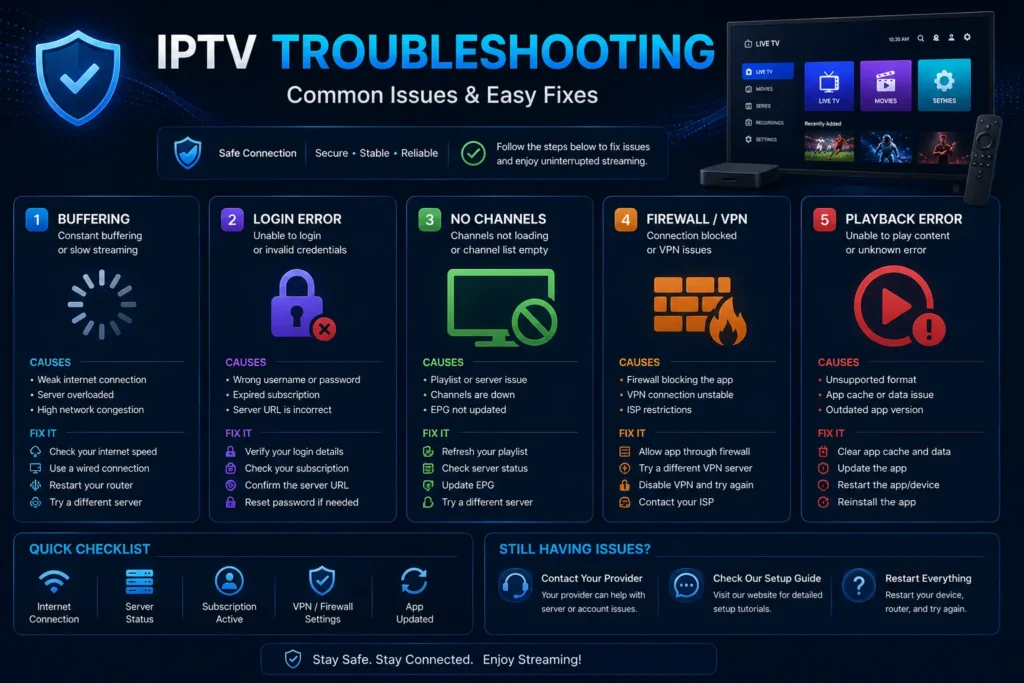
Buffering on a computer can happen even when the app is installed correctly. The cause may be weak Wi-Fi, ISP throttling, provider server load, VPN speed, or stream quality that is too high for your connection. For more detailed connection checks and playback fixes, follow our IPTV buffering guide.
| Problem | Possible Cause | Fix |
| Buffering every few seconds | Weak Wi-Fi or overloaded server | Use Ethernet, restart router, test another channel |
| Only one channel buffers | Provider stream issue | Try another channel or contact provider |
| Works with VPN but not without | ISP or network restriction | Test a reliable VPN server |
| Works without VPN but buffers with VPN | Slow VPN server | Change server or turn VPN off |
| PC becomes slow | Low resources or heavy emulator | Close background apps or use lighter method |
How to Fix Login Errors on PC
Login errors usually mean the app cannot verify your details with the provider server. This can happen because of incorrect credentials, an expired account, the wrong server URL, server downtime, or a copied password containing hidden spaces. For complete verification steps and fixes, follow our IPTV login error guide.
Login error fixes
- Copy and paste the server URL exactly.
- Remove spaces before and after username or password.
- Check if your provider changed the portal URL.
- Ask your provider if your account is active.
- Test your login on another device to confirm the issue.
- Try M3U if Xtream Codes API fails, or the opposite.
How to Fix No Channels on PC
If the app opens but no channels appear, the account may not have loaded correctly. It can also happen when categories are hidden, the playlist is expired, the provider server is down, or the M3U link is wrong.
Refresh the playlist, reload the user profile, check your provider account, and test another device. If another device also shows no channels, the problem is probably related to your IPTV provider or subscription. For more detailed checks and solutions, follow our IPTV no channels guide.
Do You Need a VPN on PC?
A VPN is optional. Some users use it for privacy or to test whether their internet provider is slowing IPTV traffic. However, a slow VPN can make buffering worse. The best approach is to test with and without VPN and compare performance.
If you use a VPN, choose a nearby server, avoid free overloaded servers, and make sure your speed is still high enough for HD or 4K streaming.
IPTV Smarters Pro PC vs Windows Guide: What Is the Difference?
This IPTV Smarters Pro PC article focuses on the general computer experience: download options, installation methods, setup, settings, and common fixes. For Windows 10 and Windows 11 details, our IPTV Smarters Pro for Windows guide covers Microsoft Store options, EXE installers, firewall settings, display scaling, and desktop-specific troubleshooting.
That means this PC guide is the broad cluster article, while the Windows article can target users who specifically search for Windows installation and Windows problems.
Should You Use IPTV Smarters Pro on PC in 2026?
Using the player on PC is worth it if you want a larger screen, easier typing, and better control over your IPTV setup. It is also useful for testing provider details before using the same account on Firestick, Android TV, or smart TV.
However, the PC experience depends on the version you install and the quality of your IPTV provider. A clean installation cannot fix weak servers, expired accounts, or illegal content sources. For best results, use a legitimate provider, stable internet, and trusted download sources.
CTA: Need a reliable IPTV service that works with popular IPTV players? Check our IPTV plans or request a trial before setting up your account on PC.
FAQ: IPTV Smarters Pro PC
Can I use IPTV Smarters Pro on PC?
Yes, you can use an IPTV player on a PC depending on the available desktop, Microsoft Store, or alternative installation method. You still need valid IPTV provider details to access content.
Does the PC version include channels?
No. The app does not include channels. You need a separate IPTV provider or legal playlist.
What login details do I need?
Most users need Xtream Codes API details, such as server URL, username, and password. Some users receive an M3U playlist URL instead.
Is it safe to download IPTV Smarters on PC?
It can be safe if you use trusted sources and avoid cracked installers, fake download buttons, and unknown EXE files.
Can I use M3U on a computer?
Yes. If your player supports M3U, you can paste the playlist URL from your IPTV provider and load your content.
Why is the PC app not working?
Common reasons include wrong login details, expired subscription, firewall blocking, outdated software, weak internet, or provider downtime.
Why does it buffer on my computer?
Buffering can come from Wi-Fi problems, overloaded IPTV servers, VPN speed, ISP throttling, or high stream quality.
Do I need a VPN on PC?
A VPN is optional. It can help with privacy or network restrictions, but a slow VPN can reduce streaming quality.
Is PC better than Firestick for IPTV?
PC is better for typing, testing, and multitasking, while Firestick is usually better for living room TV viewing. For complete installation steps, follow our guide to install IPTV Smarters on Firestick.
Should I use Xtream Codes API or M3U?
Xtream Codes API is usually easier and more organized. M3U is useful when your provider gives a direct playlist link.
Can I connect my PC to a TV?
Yes. You can connect your computer to a TV with HDMI and use the TV as a larger screen.
What should I do before contacting my IPTV provider?
Restart the app, check internet, re-enter login details, clear cache, test another device, and confirm your subscription is active.