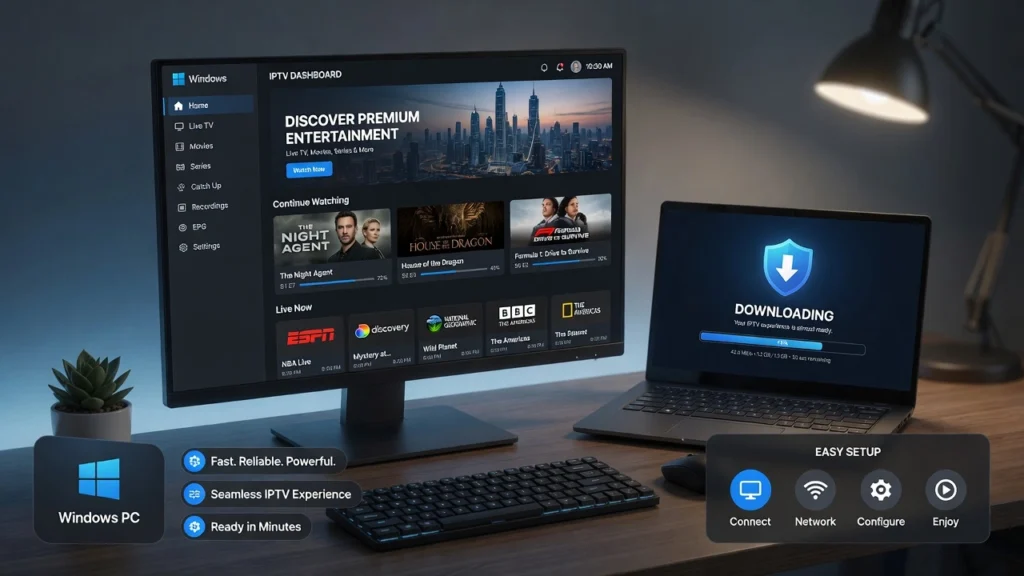
Want to use IPTV Smarters Pro Windows without getting lost between fake downloads, unsupported versions, or confusing setup steps? This 2026 guide explains how the Windows version works, how to install it safely, how to add your IPTV login details, and how to fix the most common problems on a desktop or laptop.
IPTV Smarters Pro Windows can be useful if you prefer a larger screen, keyboard control, and easier playlist management than on a phone. The app itself is only a media player. It does not include channels, subscriptions, live TV packages, or playlists by default.
In this guide, you will learn the safest way to download the Windows version, the difference between Windows and PC setups, how to use M3U or Xtream Codes API, which settings matter most, and when it may be better to use another device.
Quick answer: IPTV Smarters Pro Windows is a media player for Windows computers. To watch content, you still need valid IPTV login details from your provider, such as a server URL, username, password, or M3U playlist.
Key Takeaways
- The Windows version is designed for users who want IPTV on a desktop or laptop.
- The app does not provide channels; your IPTV provider must supply the playlist or login details.
- Always use trusted download sources and avoid cracked or modified installers.
- Xtream Codes API is usually easier for beginners, while M3U gives more flexibility.
- Most Windows issues come from wrong login details, blocked network access, outdated software, or provider-side problems.
Table of Contents
What Is IPTV Smarters Pro Windows?
IPTV Smarters Pro Windows is the desktop version of the popular IPTV player used to organize and play content from a user-provided IPTV service. Instead of watching on a small mobile screen, Windows users can manage playlists, search categories, test live channels, and adjust settings from a computer.
The important point is that the Windows app is not an IPTV provider. It is closer to a media player. Your channels, movies, series, catch-up features, and EPG data depend on the IPTV service you add inside the app.
This is why two users can install the same player but have completely different experiences. One person may have smooth streams and a full TV guide, while another may have buffering or missing channels because the provider or playlist is unstable.
In simple words
The app is the player. Your provider supplies the content. Your Windows computer runs the software and displays the streams.
IPTV Smarters Pro Windows vs IPTV Smarters Pro PC
Many people use “Windows” and “PC” as if they mean the same thing, but in SEO and user intent they are slightly different. A PC guide can include Windows laptops, desktop computers, and sometimes emulator-based setups. A Windows guide focuses more specifically on Windows 10, Windows 11, Microsoft Store options, desktop installation, firewall settings, and Windows troubleshooting.
| Search term | User usually wants | Best content angle |
| iptv smarters pro pc | General computer setup | PC overview, laptop setup, download options |
| iptv smarters pro windows | Windows-specific setup | Windows 10/11, installer safety, firewall, playback fixes |
| iptv smarters for windows | Alternative wording | Same Windows intent, but often less brand-specific |
This article focuses on the Windows-specific setup. For the broader computer version, use the complete PC guide already linked in your cluster structure.
Is IPTV Smarters Pro Windows Safe?
The Windows version can be safe when you download it from trusted sources and use it with legal IPTV content. The biggest risk is not the idea of using a player; the risk usually comes from fake download pages, modified installers, unknown EXE files, and services that promote illegal content.
Avoid installers that promise “cracked premium,” “lifetime free IPTV,” or “all channels included.” A legitimate player does not magically include premium TV channels. If a website promises everything for free, that is a warning sign.
Safety checklist before downloading
- Check the source before downloading any installer.
- Avoid cracked versions, modified files, or suspicious EXE downloads.
- Scan downloaded files with your security software when possible.
- Keep Windows updated before installing new media software.
- Use a trusted IPTV provider with clear support and setup instructions.
- Do not enter payment details inside random installer pages.
Is It Legal to Use IPTV Smarters Pro on Windows?
Using a media player on Windows is generally not the legal problem. The legal question depends on the content source you add. If your provider has the rights to distribute the content you watch, using a player to access it is usually not the issue.
If the provider distributes copyrighted channels, sports events, movies, or premium content without permission, that can create legal and security risks. Always use legitimate services and avoid offers that look too cheap or too vague.
System Requirements for a Smooth Windows Experience
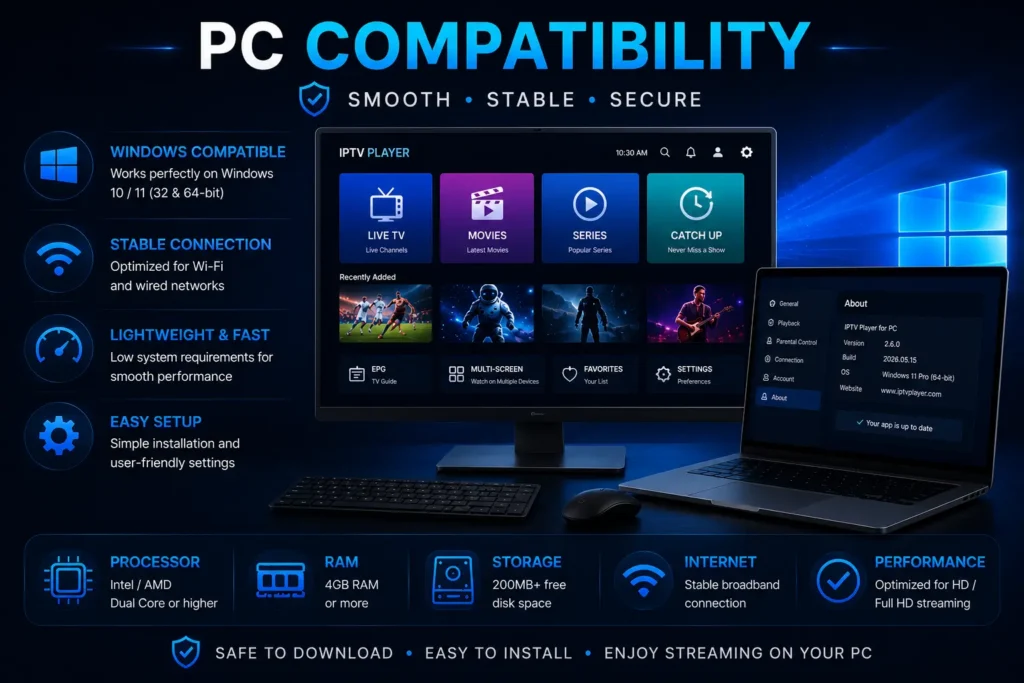
You do not usually need a high-end gaming computer to run an IPTV player, but your device should be stable enough for video playback. A weak connection, old drivers, or low storage can affect performance more than the app itself.
| Requirement | Recommended setup | Why it matters |
| Windows version | Windows 10 or Windows 11 | Better compatibility and security updates |
| Internet speed | 25 Mbps or more for HD/Full HD | Reduces buffering and playback drops |
| RAM | At least 4 GB, 8 GB better | Helps with multitasking and smoother playback |
| Storage | Enough free space for cache and updates | Prevents crashes and slow performance |
| Network | Ethernet or strong Wi-Fi | Improves stream stability |
How to Download IPTV Smarters Pro Windows Safely
The safest approach is to start with trusted sources and avoid random download pages. Search official stores or trusted publisher pages first. If a Windows version is not available in your region, do not rush into the first third-party installer you see.
Before you download anything, check the page name, publisher information, user reviews, file type, and whether the source looks professional. If the download page is full of popups, fake buttons, and “download now” traps, leave it.
Safe download rules
- Use official stores or trusted software sources when possible.
- Do not download from pages full of popups or misleading buttons.
- Avoid files that claim to include free channels.
- Check whether the installer name looks normal and relevant.
- Keep your antivirus or Windows Security active.
- Never disable Windows protection just because a website tells you to.
How to Install IPTV Smarters Pro on Windows 10 or Windows 11
Once you have a safe installer or store version, the installation process is simple. The exact screens may change depending on the version, but the basic flow is usually the same.
- Download the Windows-compatible version from a trusted source.
- Open the installer or app store page.
- Follow the installation prompts.
- Allow standard permissions if they are required for the app to run.
- Open the player after installation.
- Choose your login method: Xtream Codes API or M3U playlist.
- Enter the details given by your IPTV provider.
- Wait for live TV, movies, series, and EPG data to load.
- Test several channels before changing advanced settings.
If Windows blocks the installer, do not automatically bypass the warning. First verify the file source. Windows warnings can appear for new or unsigned files, but they can also protect you from risky software.
How to Set Up Xtream Codes API on Windows
Xtream Codes API is one of the easiest setup methods for Windows users because it usually uses three details: server URL, username, and password. Many IPTV providers also use this method to load live TV, movies, series, and EPG data in a cleaner way.
- Open the app on your Windows computer.
- Choose the Xtream Codes API login option.
- Enter any playlist name you want to recognize later.
- Add the server URL exactly as your provider gave it.
- Enter your username and password without extra spaces.
- Click Add User or Login, depending on the version.
- Wait for the app to sync your categories and content.
Common Xtream login mistakes
- Copying the server URL with an extra space.
- Using http instead of https, or the opposite, when the provider requires a specific format.
- Typing the username or password manually and making a small spelling mistake.
- Using expired login details.
- Trying to log in while the provider server is down.
How to Set Up M3U Playlist on Windows
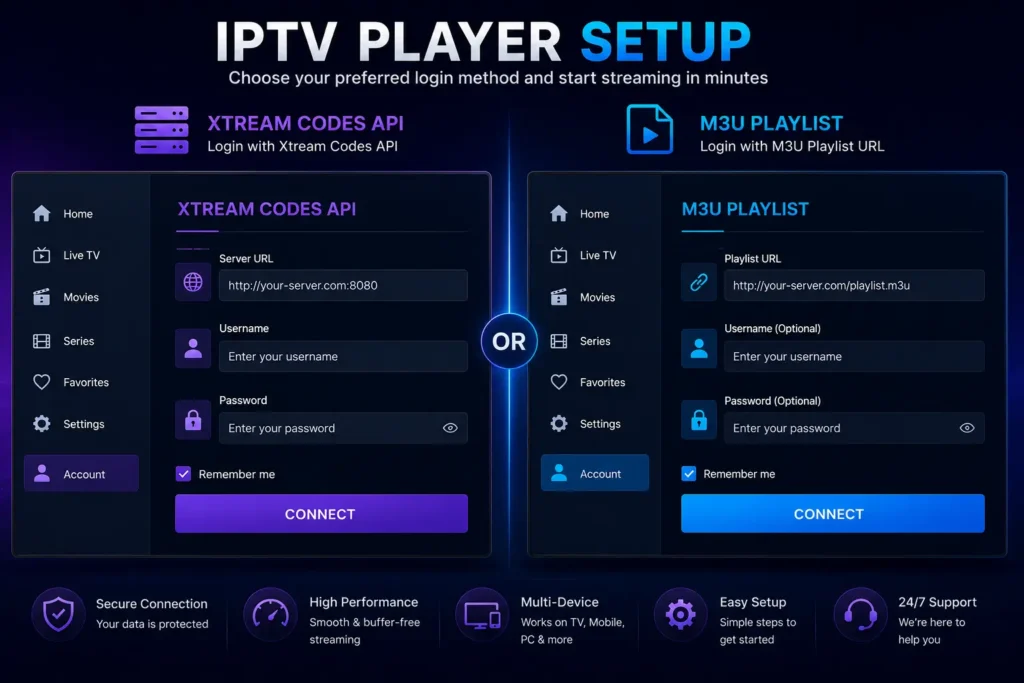
M3U setup uses a playlist URL or file that contains stream links. This method can be useful if your provider gives you an M3U link instead of a full Xtream login.
- Open the app and choose the M3U playlist option.
- Add a playlist name.
- Paste your M3U URL exactly as provided.
- If required, add a separate EPG URL.
- Save the playlist.
- Wait for the app to load categories and channels.
- Test a few streams to confirm the link is working.
If the M3U URL is very long, copy it directly from your provider email or dashboard. One missing character can stop the playlist from loading.
Best Settings for IPTV Smarters Pro on Windows
The best settings depend on your computer, internet speed, and provider quality. Start simple before changing advanced options. If the default player works well, do not over-optimize.
| Setting | Recommended action | When to change it |
| Player option | Start with default player | Change if audio or video does not sync |
| EPG refresh | Refresh after first login | Use when guide data is missing |
| Cache | Clear only when app becomes slow | Use for crashes or loading problems |
| VPN | Test with and without VPN | Use if ISP throttling or blocking is suspected |
| Network | Prefer Ethernet if possible | Use when Wi-Fi causes buffering |
How to Fix Buffering on Windows
Buffering on a Windows computer can be caused by Wi-Fi distance, slow internet, provider overload, VPN speed loss, or device performance issues. Start with the basics before blaming the app, then follow our IPTV buffering guide for more detailed connection and playback fixes.
- Restart your router and computer.
- Test another channel to see if only one stream is affected.
- Use Ethernet instead of weak Wi-Fi if possible.
- Close heavy background apps such as downloads, games, or browser tabs.
- Test with VPN off, then test with VPN on if needed.
- Ask your IPTV provider if their server is overloaded.
Login Error on Windows: What to Check
Login errors usually come from incorrect credentials, expired accounts, provider downtime, or blocked connections. The app can only log in if the provider details are correct and active. For complete verification steps and solutions, follow our IPTV login error guide.
- Check the server URL, username, and password.
- Make sure there are no extra spaces before or after the login details.
- Confirm that your subscription is active.
- Test the same login on another device if possible.
- Ask your provider if the server URL changed.
- Temporarily disable VPN to test the connection, then enable it again if needed.
No Channels Showing on Windows
If the app opens but no channels appear, the playlist may not have loaded correctly. This can happen because of expired links, an incorrect M3U URL, disabled categories, or provider-side updates. For more detailed checks and solutions, follow our IPTV no channels guide.
- Refresh the playlist or reload user data.
- Check if movies or series load while live TV does not.
- Confirm that your provider has not changed your playlist link.
- Try another device to see if the issue is only on Windows.
- Clear cache and log in again if the app keeps showing empty categories.
App Not Working on Windows: Quick Fixes
If the Windows app does not open, freezes, or crashes, the problem may be related to Windows updates, missing permissions, cache problems, or a corrupted installation. For more detailed troubleshooting steps, follow our IPTV Smarters Pro not working guide.
- Close the app completely.
- Restart your computer.
- Check Windows updates.
- Clear app data if the version allows it.
- Reinstall the app from a trusted source.
- Check whether Windows Security or firewall is blocking the app.
- Test your IPTV login on another device before assuming the account is broken.
IPTV Smarters Pro Windows vs Android TV, Firestick, and Mac
Windows is comfortable for users who want a bigger interface, keyboard control, and easier multitasking. However, it is not always the best living room experience. For TV viewing, IPTV Smarters on Firestick, Android TV, or smart TV setups may feel more natural.
| Device | Best for | Main limitation |
| Windows PC | Desktop viewing, testing playlists, multitasking | Less convenient for couch viewing |
| Firestick | TV viewing on a budget | Storage and remote limitations |
| Android TV | Living room setup | App availability depends on device and region |
| Mac | Apple desktop users | Compatibility depends on app version |
| Smart TV | Simple TV setup | Store availability varies by model and country |
Should You Use the Windows Version in 2026?
You should consider the Windows version if you watch IPTV while working on your computer, prefer keyboard search, manage playlists often, or want to test provider quality before using a TV device. It is also useful for people who do not want to depend only on a phone or Firestick.
However, if your goal is relaxed living room viewing, a TV-focused device may still be more comfortable. The best setup depends on your viewing habits, device availability, and provider support.
Final Verdict
IPTV Smarters Pro Windows is a strong option for users who want IPTV on a desktop or laptop in 2026. It gives you a larger screen, easier navigation, and practical playlist control. But like every IPTV player, it depends heavily on your provider, your login details, and your internet connection.
For the best experience, download the app safely, avoid fake installers, use a legal IPTV service, keep Windows updated, and test your setup with both Xtream Codes API and M3U if your provider supports both.
CTA: Need a stable service that works on Windows? Compare our IPTV plans and request a trial before buying to test channels, playback, and login details on your computer.
FAQ: IPTV Smarters Pro Windows
Can I use IPTV Smarters Pro on Windows?
Yes, you can use a Windows-compatible version if it is available from a trusted source. You still need IPTV login details from your provider.
Does the Windows app include channels?
No. The player does not include channels by default. You must add your own legal playlist or provider login.
Is IPTV Smarters Pro Windows free?
Availability and pricing can depend on the version and platform. Always check the store or source you use.
Is the Windows version safe?
It can be safe if downloaded from trusted sources. Avoid cracked installers, fake pages, and suspicious EXE files.
What is the best login method on Windows?
Xtream Codes API is usually easier for beginners, while M3U is useful if your provider gives you a direct playlist URL.
Why does the app buffer on Windows?
Buffering can come from weak Wi-Fi, overloaded IPTV servers, VPN speed loss, or slow internet.
Why does login fail on Windows?
Login can fail because of wrong credentials, expired subscription, server downtime, or a blocked connection.
Can I use VPN with the Windows version?
Yes, but test with and without VPN. A slow VPN can cause buffering, while a good VPN can help if your network blocks IPTV traffic.
Is Windows better than Firestick for IPTV?
Windows is better for desktop viewing and playlist management. Firestick is usually better for living room viewing.
What should I do if no channels appear?
Refresh the playlist, check your subscription, confirm the M3U or Xtream details, and test the account on another device.