Struggling with IPTV setup Firestick? Having trouble with installation, buffering, or finding the best apps on your streaming stick? You are not alone. Many users face slow streaming, confusing steps, or apps that won’t run on their device.
This page walks beginners through each step on the home screen so the device is ready for third-party media apps. We’ll highlight how a reliable VPN like ExpressVPN can protect your online identity and mask your IP address.
Allocate a little time and follow the clear, step-by-step instructions here. A stable internet connection and an updated device version are key to avoiding compatibility problems and getting smooth playback.
Table of Contents
Key Takeaways
- Follow the guide slowly to avoid mistakes and save time.
- Ensure your device is updated before installing any app.
- Use a VPN like ExpressVPN to protect privacy and mask your IP.
- Check your home screen and device settings for third-party installs.
- A stable internet connection improves streaming quality and reduces buffering.
Understanding the Benefits of Premium IPTV Services
A professional streaming provider often outperforms free apps in speed, security, and channel variety.
Why Premium Beats Free Apps
Premium services like IPTVPremium4U give you a real upgrade over free apps. They offer over 10,000+ channels, including sports, movies, and series in HD and 4K.
Free, ad-supported apps often buffer or fail during peak hours. Paid providers use stable servers and regular updates to avoid those issues.
Key Features of Quality Services
A high-quality player helps manage long channel lists and keeps navigation fast. Good providers test compatibility across major streaming devices.
- Stable servers for consistent HD & 4K playback
- Dedicated customer support and frequent updates
- Better privacy and fewer risks than free apps
Choosing a premium service means fewer interruptions and a larger library. IPTVPremium4U stands out as a reliable provider that prioritizes smooth streaming and user experience.
Essential Preparation for Your IPTV Setup Firestick
Start by confirming your Wi‑Fi is strong and stable before you add any new apps.
Check your fire stick storage in settings so the new player installs without errors. Low space causes failed downloads and slow performance.
Review developer options on your device. Enabling the right permissions takes just a few minutes and lets you sideload trusted apps safely.
Confirm compatibility: most modern devices support multiple players, but your chosen service or provider may list specific requirements. Take the time to read those notes.
“A quick check of storage, network, and permissions prevents most setup problems.”
Follow each step slowly and keep a provider support link handy. Professional support teams often offer guides that help users navigate options and avoid common mistakes.
Installing the Downloader App for Sideloading
Installing a reliable downloader app makes sideloading third-party players fast and simple.
Locating the Downloader App
Use the search button on your home screen and type “Downloader” into the app store. The official downloader app appears in search results for most devices and stores, including the google play store on supported devices.
Click install and the app will be added to your device. Open it and enter the URL provided by your provider to download the APK file from a remote computer or web server.
Important: enable apps unknown sources in your settings before installation. This option allows files downloaded from the web to install on your device.
- Manage storage — delete the APK file once the player is installed.
- Check app version and permissions in settings after installation.
- Read the legal disclaimer on this page to ensure you access only public-domain content.
“Using Downloader speeds installation and reduces the time spent moving files from a computer to your device.”
Configuring Firestick Settings for External Apps
To allow trusted third-party players, start by opening Settings from your home screen and finding Developer Options.
Use the search button if the menu layout looks different on your device version. Some units hide Developer Options behind the About section. In that case, click About seven times to reveal the hidden options.
Enable apps unknown sources so the downloader app can install files that are not from the official store. This is the critical step that prevents permission errors during installation.
After enabling the option, return to the menu and confirm the app permissions. Double-check the installation settings and device version notes to keep your device secure.
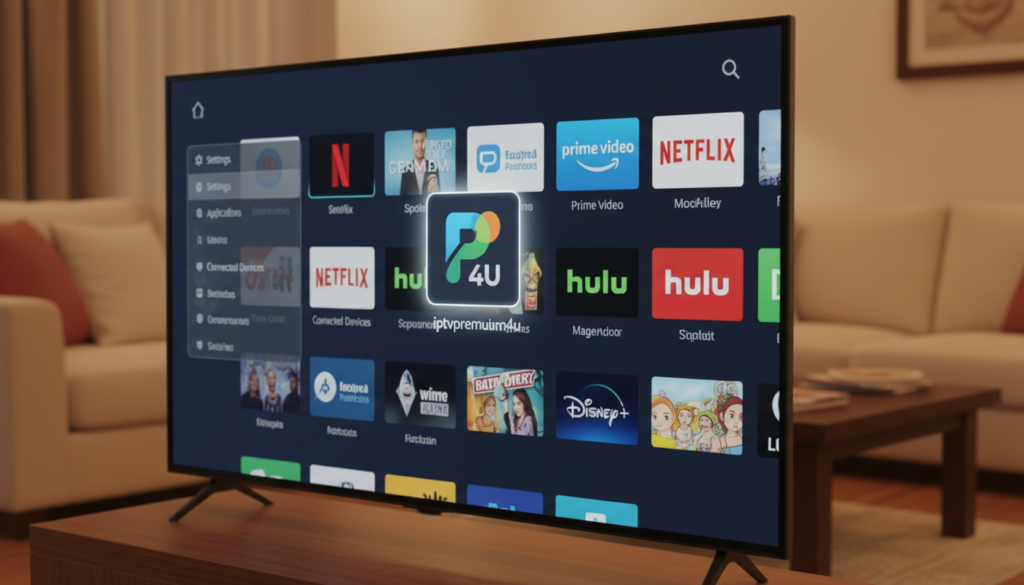
- Navigate Settings > Device (or My Fire TV) to find Developer Options.
- Enable apps unknown sources for the downloader app.
- Verify permissions and security options after install.
“A quick check of Developer Options and permissions avoids most installation errors.”
Downloading and Installing Your Chosen IPTV Player
Begin by opening the downloader app and entering the provided URL to pull the player file.
Once the file finishes downloading, click install and follow the on-screen prompts. The new player appears on your home screen so you can open it from the main menu.
If you use android devices, you can also search the app store or the Google Play Store for official players like the smart iptv app. Make sure apps unknown sources is enabled in settings before sideloading.
- Enter the URL from your provider or type it from your computer link.
- Click install after download and confirm permissions in the device menu.
- Log in with your credentials to connect the player to your service and media list.
- Delete the installation file to free storage once the player runs correctly.
“Always read the app developer disclaimer and follow local laws before using third-party players.”
Why IPTVPremium4U is the Best Choice for Streaming
For a smooth, reliable viewing experience, choose a provider built on stable servers and fast streams.
High Quality Streaming Experience
IPTVPremium4U delivers HD and 4K playback with minimal buffering thanks to optimized servers. The platform prioritizes consistent bitrates so live sports and on-demand movies stay crisp.
Massive Channel Selection
The service offers more than 10,000+ channels, covering sports, movies, and series. You can browse a huge library and find niche channels alongside mainstream picks.

Device Compatibility
IPTVPremium4U works on many popular devices including Smart TV and Android models. It pairs easily with your favorite player and keeps everything running at home without complex changes.
Try IPTVPremium4U now — start your IPTV free trial to test the channel range and speed. Get Premium IPTV Subscription to unlock full access and reliable support when you need it.
Adding Your Playlist and Activating Channels
Begin channel activation on your computer or mobile by entering your device details.
Visit your provider’s activation page on a computer or phone and enter the MAC address shown in the app or device menu.
Provide the URL for your M3U playlist or EPG when prompted. This file or url is usually supplied by the service provider.
Click the send button on the web page and wait a few moments. The playlist links to your player and the channels appear on your home screen automatically.
Note the trial time: activate before it ends or you risk losing playlist data. Also verify your credentials to avoid login errors.
- You can add multiple playlists from different providers to the same app.
- Keep a copy of the url and any login details on your computer for quick access.
“Activation is a simple step that connects your device to the provider server and streams content immediately.”
Optimizing Your Device for Stable Performance
Keep your streaming device lean by clearing app caches and removing unused files regularly. This reduces buffering and keeps the fire stick responsive.
Use the search function in the Google Play Store to find storage managers and optimization tools that work on android devices. These apps can free storage and remove large cache files safely.
Keep system settings and each app updated. Proper installation of updates helps the smart iptv app and other players run without crashes or lag.
Move frequent apps to the front of your home screen using the menu button. This saves time and reduces repeated loading when you launch a favorite app.
- Clear cache for the main player and downloader app once a week.
- Restart the device periodically to refresh temporary files and processes.
- If streams are slow, check your internet and confirm the service URL is correct in the player.
“Regular maintenance keeps devices fast and stable over time.”
Troubleshooting Common Connection Issues
A quick checklist saves time: check provider status, credentials, and app health before deep troubleshooting.
Start simple: confirm the service provider is online and your credentials are correct on the provider page. If the service is down, wait or contact support before changing device settings.
Next, clear the app data in settings. Corrupted media files or a bad file can stop playback. Restart the device after clearing data to refresh processes.
- Reinstall the smart iptv app using the latest url from the official web page if the app store version fails.
- On amazon firestick or android devices, verify apps unknown sources only for trusted installs.
- If issues persist, try another player or check our Best IPTV apps for Firestick article.
For step‑by‑step help, visit the IPTV not working fix and the main IPTV setup guide. Always review the legal disclaimer so your troubleshooting follows provider terms.
“Confirm provider status and clear app data before advanced fixes.”
Conclusion
Finish with a quick test stream to verify channels load and video plays without buffering. A short check ensures your device and player run smoothly.
Setting up your device correctly is the first step toward enjoying a premium streaming experience with thousands of channels. By choosing a reliable service like IPTVPremium4U, you get higher quality and fewer interruptions.
We encourage you to Try IPTVPremium4U now, to see the difference that stable servers and professional support make. Get Premium IPTV Subscription, and Start your IPTV free trial, to unlock the full library and features today.