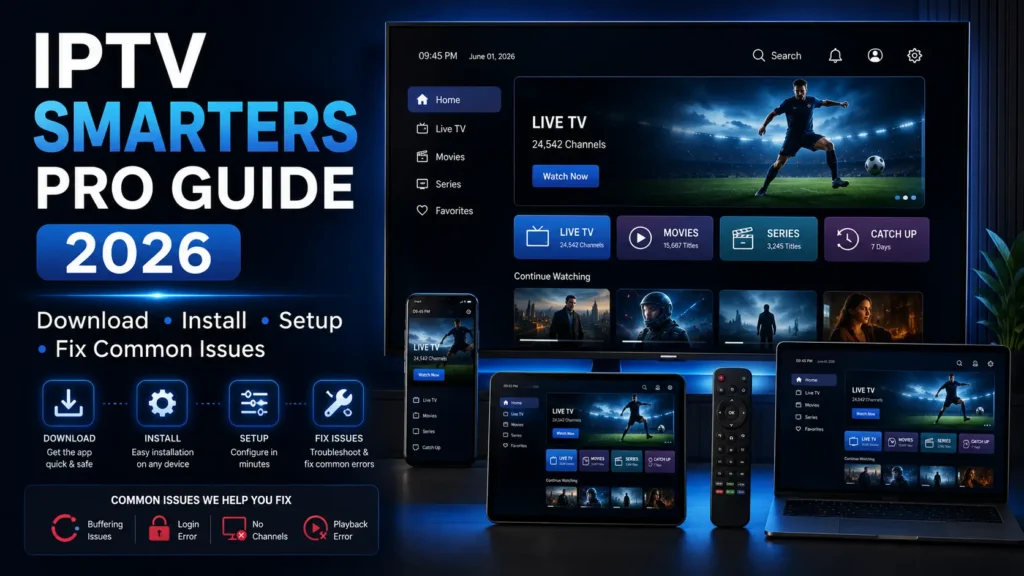
Are you trying to download, install, set up, or fix IPTV Smarters Pro without wasting hours on confusing tutorials? This complete 2026 guide shows you how IPTV Smarters Pro works, which devices it supports, how to add your playlist, how to improve playback, and how to solve the most common issues such as buffering, login errors, no channels, and app not working problems.
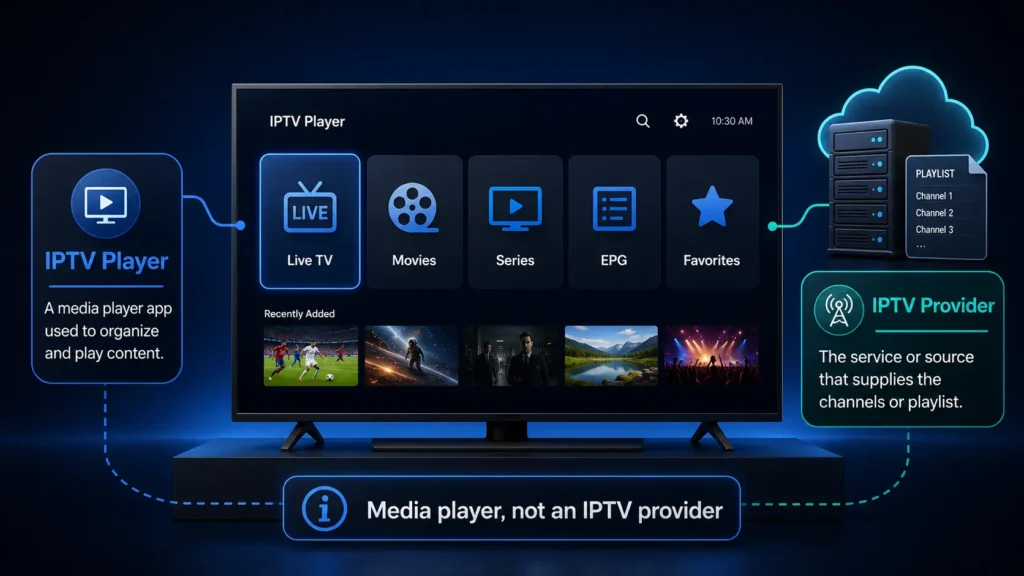
IPTV Smarters Pro is a popular IPTV player used by people who already have their own IPTV subscription or playlist. The app itself does not create channels, sell TV packages, or host live streams. It works as a media player where you can add your own legal M3U playlist or Xtream Codes API login from your IPTV provider.
In this guide, you will learn how to use IPTV Smarters Pro on Firestick, Android TV, Google TV, Android phones, iPhone, iPad, Windows PC, Mac, Samsung TV, LG TV, and other smart TV devices. You will also find practical troubleshooting tables, device tips, setup steps, and expert recommendations to make your streaming experience smoother.
Quick answer: IPTV Smarters Pro is an IPTV player, not an IPTV provider. To use it, you need a valid IPTV service that gives you login details such as Xtream Codes API, M3U URL, or playlist information.
Key Takeaways
- IPTV Smarters Pro is mainly a media player for user-provided IPTV playlists.
- You need an IPTV subscription, M3U link, or Xtream Codes API details to watch content.
- The app can be used on many devices, including Firestick, Android, iOS, Windows, Mac, and smart TVs.
- Most IPTV Smarters Pro problems come from incorrect login details, expired subscriptions, weak internet, overloaded IPTV servers, or outdated app versions.
- For best results, use a stable IPTV provider, a fast internet connection, updated software, and the correct app settings.
Table of Contents
What Is IPTV Smarters Pro?
IPTV Smarters Pro is a streaming player designed to organize and play IPTV content from your own provider. Instead of switching between different apps or links, you can add your playlist inside one interface and access live TV, movies, series, catch-up content, favorites, EPG data, and playback settings from the same place.
The most important thing to understand is this: the Smarters app is not the source of the channels. It is only the player. Your IPTV provider is responsible for giving you the playlist, server URL, username, password, M3U link, or other login information needed to access your subscription.
This distinction matters because many beginners install IPTV Smarters Pro and expect channels to appear automatically. That is not how it works. After installation, you must add your provider details before the app can load your content.
IPTV Smarters Pro in simple words
| Question | Simple answer |
|---|---|
| What does it do? | It plays IPTV playlists and organizes channels, movies, and series. |
| Does it include channels? | No. You need your own IPTV subscription or playlist. |
| Is it a provider? | No. It is a player/app interface. |
| What login details do I need? | Usually Xtream Codes API, M3U URL, username, password, and server URL. |
| Who is it best for? | Users who want a simple IPTV player across multiple devices. |
Is IPTV Smarters Pro Legal?
IPTV Smarters Pro is legal as a media player. Like VLC, TiviMate, or other video players, the app is only a tool used to play content. The legal risk depends on the content source you add inside the app.
If your IPTV provider has the rights to distribute the channels, movies, or live events you watch, then using a player to access that content is generally not the problem. If the provider distributes copyrighted content without permission, that can create legal and safety risks for the user.
Important: IPTV Smarters Pro does not make illegal content legal. Always use legitimate IPTV services and avoid providers that promote pirated sports, movies, or premium channels without authorization.
Is IPTV Smarters Pro Safe?
IPTV Smarters Pro can be safe when downloaded from official app stores or trusted sources. The biggest safety risks usually come from fake APK files, modified apps, unknown download websites, and IPTV providers that ask for unnecessary personal information.
To stay safe, avoid “mod APK,” “cracked premium,” or “free lifetime IPTV” downloads. These versions can contain malware, intrusive ads, tracking code, or unstable software that causes the app to crash.
Safety checklist before using IPTV Smarters Pro
- Download the app from an official store whenever possible.
- Avoid cracked, modified, or unknown APK files.
- Use strong passwords for your IPTV account.
- Do not share your IPTV login details with strangers.
- Keep your device, app, and router updated.
- Use a trusted VPN if privacy is important in your country or network.
- Choose a provider with clear support and transparent service terms.
IPTV Smarters Pro Features
this IPTV player is popular because it gives IPTV users a clean interface and enough flexibility for both beginners and advanced users. The app is especially useful when your provider supports Xtream Codes API or M3U playlists.
| Feature | What it means | Why it helps |
|---|---|---|
| Xtream Codes API login | Login with server URL, username, and password. | Usually easier and more organized than manual playlists. |
| M3U playlist support | Add a playlist URL from your provider. | Works with many IPTV services and media sources. |
| EPG support | Shows TV guide and program schedules. | Makes live TV easier to browse. |
| Live TV, movies, and series | Organizes content into categories. | Improves navigation and user experience. |
| Favorites | Save channels you watch often. | Reduces scrolling and search time. |
| External player support | Use another player for playback if available. | Can help with audio, subtitles, or buffering issues. |
| Multi-screen / multi-user options | Depends on app version and provider. | Useful for families or multi-device setups. |
| Parental controls | Protect access to specific categories. | Helpful for households with children. |
IPTV Smarters Pro Supported Devices
One reason this IPTV player is widely searched is device flexibility. Users want one player that works across TV boxes, phones, tablets, computers, and smart TVs. Windows users can follow our IPTV Smarters Pro Windows guide for a dedicated desktop setup. Availability can change by country and app store, so always check your device store first.
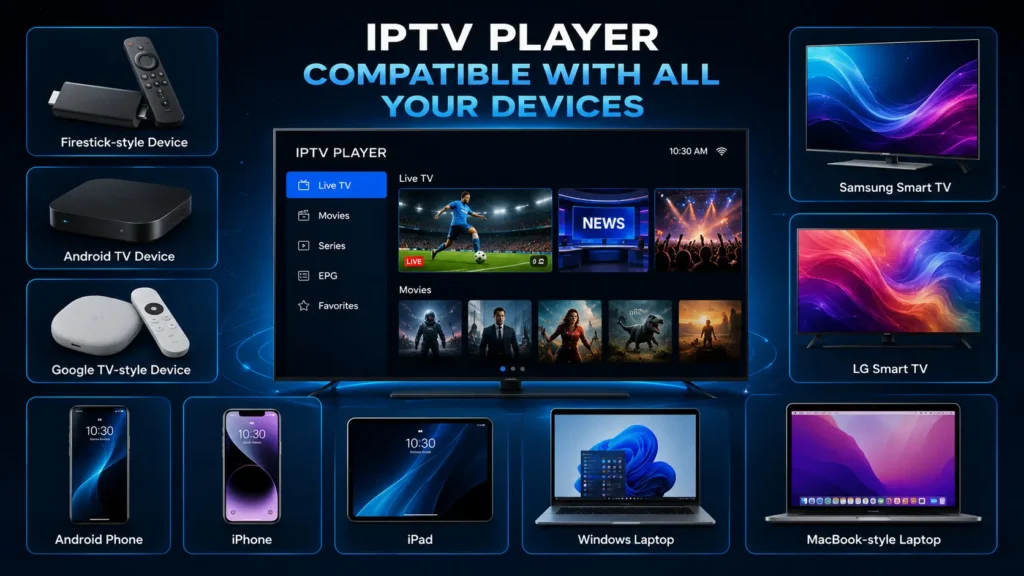
| Device | Support level | Best method |
|---|---|---|
| Amazon Firestick / Fire TV | Very popular | Install from available app store options or use a safe downloader method if needed. |
| Android TV / Google TV | Very common | Install from Google Play or compatible APK source if official store access is unavailable. |
| Android phone / tablet | Common | Use Google Play or a trusted source. |
| iPhone / iPad | Common | Use Apple App Store and check compatibility. |
| Windows PC | Common | Use Microsoft Store or official desktop version when available. |
| Mac | Available depending on version | Use App Store or desktop-compatible version. |
| Samsung Smart TV | Possible | Check Samsung app store availability in your region. |
| LG Smart TV | Possible | Check LG Content Store availability in your region. |
IPTV Smarters Pro System Requirements
The exact requirements depend on the app version and device platform. However, for a smooth IPTV experience, your device should be updated, have enough storage space, and use a stable internet connection.
| Requirement | Recommended |
|---|---|
| Internet speed for SD | At least 10 Mbps stable connection |
| Internet speed for HD | At least 25 Mbps stable connection |
| Internet speed for 4K | 50 Mbps or more, depending on provider quality |
| Wi-Fi | 5 GHz Wi-Fi or strong signal near router |
| Best connection | Ethernet adapter for Firestick/Android TV when possible |
| Storage | Enough free space for app cache and updates |
| Device software | Latest stable OS version available for your device |
How to Download IPTV Smarters Pro
The safest way to download this IPTV player is to search for it inside your device’s official app store. For step-by-step instructions across different devices, follow our IPTV Smarters Pro Download guide. This reduces the risk of fake apps, malware, or outdated versions.
Download options by device
| Device | Where to check first | Important note |
|---|---|---|
| iPhone / iPad / Apple TV | Apple App Store | Check the developer name, reviews, and compatibility before installing. |
| Android phone | Google Play Store | Avoid clone apps with suspicious names or poor reviews. |
| Android TV / Google TV | Google Play Store | If unavailable, use only trusted APK sources. |
| Firestick | Amazon Appstore or safe sideload method | Be careful with unknown APK websites. |
| Windows | Microsoft Store or official desktop download | Avoid random EXE files from unknown websites. |
| Samsung / LG TV | TV app store | Availability depends on country and TV model. |
How to Install the App on Firestick
Firestick is one of the most common devices for IPTV users because it is affordable, portable, and easy to connect to a TV. The installation method depends on whether IPTV Smarters Pro is available in your region through an official store.
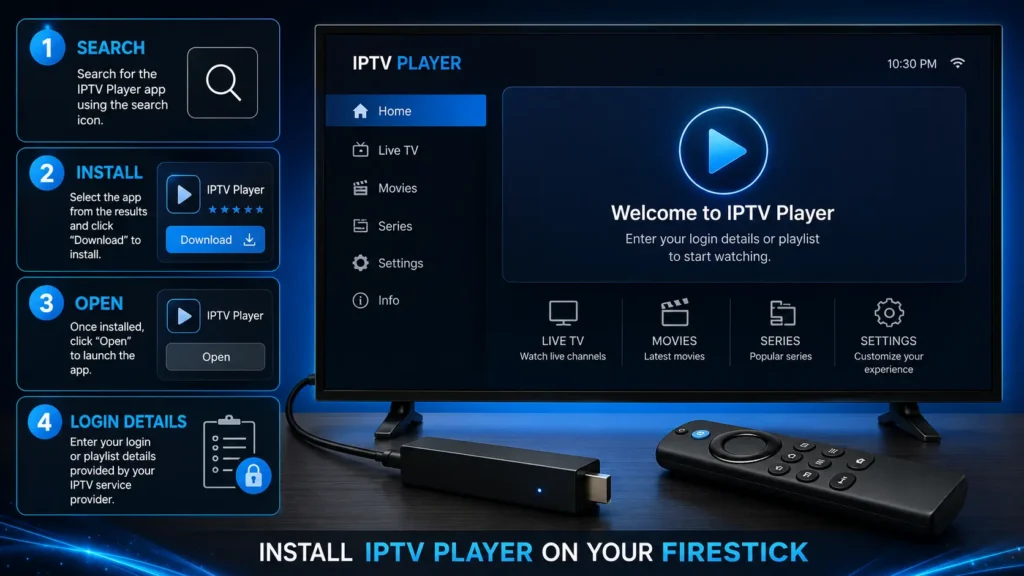
Firestick installation steps
- Turn on your Firestick and connect it to a stable Wi-Fi network.
- Search your app store for IPTV Smarters Pro or a compatible Smarters player.
- Install the app if it is available officially.
- Open the app and accept the basic permissions if required.
- Choose your login method: Xtream Codes API or M3U playlist.
- Enter the details provided by your IPTV service.
- Wait for channels, movies, series, and EPG data to load.
- Add your favorite channels and test playback.
How to Install IPTV Smarters on Firestick
How to Install IPTV Smarters Pro on Android TV or Google TV
On Android TV and Google TV devices, the process is usually simple if the app is available in Google Play. If the app is not available in your country, some users install an APK manually, but this should be done carefully. For safer sideloading steps and setup advice, follow our IPTV Smarters Pro APK guide.
- Open Google Play Store on your Android TV or Google TV.
- Search for IPTV Smarters Pro or a trusted Smarters player.
- Install the app and open it.
- Choose Xtream Codes API or M3U Playlist.
- Enter your IPTV provider details.
- Allow the app to load your content categories.
- Test a live channel and adjust settings if needed.
How to Install IPTV Smarters Pro on iPhone and iPad
For iPhone and iPad users, the easiest method is the Apple App Store. Search carefully because there can be multiple apps with similar names. Check compatibility, reviews, and developer information before installing.
- Open the Apple App Store.
- Search for IPTV Smarters Pro or Smarters Player.
- Check the app details and compatibility.
- Tap Get or Install.
- Open the app and choose your login method.
- Add your IPTV provider details and wait for content to load.
How to Install IPTV Smarters Pro on Windows PC
Windows users often search for IPTV Smarters Pro PC or IPTV Smarters Pro Windows because watching IPTV on a larger monitor is more comfortable for some users. You can check the Microsoft Store or the official desktop version if available.
- Open Microsoft Store or your trusted official source.
- Search for Smarters IPTV or IPTV Smarters Pro.
- Install the Windows-compatible version.
- Launch the app from your Start menu.
- Log in with Xtream Codes API or M3U playlist.
- Test playback and adjust player settings.
How to Install IPTV Smarters Pro on Mac
Mac users should first check the Apple App Store or the official desktop version. For a complete installation walkthrough, follow our IPTV Smarters Pro Mac guide. Availability can depend on the app version, macOS version, and whether the app supports Apple Silicon or Intel Macs.
- Open the App Store on your Mac or visit the official app source.
- Search for IPTV Smarters Pro or Smarters Player.
- Check whether your macOS version is supported.
- Install and open the app.
- Add your IPTV login details.
- Test a live channel, movie, and series category.
How to Install IPTV Smarters Pro on Samsung TV and LG TV
Samsung and LG smart TV installation depends heavily on region and TV model. Some users find IPTV Smarters Pro or similar Smarters apps inside the Samsung Smart Hub or LG Content Store, while others may need an alternative IPTV player available for their TV. For Samsung-specific installation steps and compatibility tips, follow our IPTV Smarters Samsung TV guide.
| Smart TV | What to do | If unavailable |
|---|---|---|
| Samsung TV | Search the Samsung app store for IPTV Smarters Pro or Smarters Player. | Use Firestick, Android TV box, or another supported IPTV player. |
| LG TV | Search the LG Content Store. | Use Firestick, Chromecast with Google TV, Android box, or compatible player. |
How to Set Up IPTV Smarters Pro with Xtream Codes API
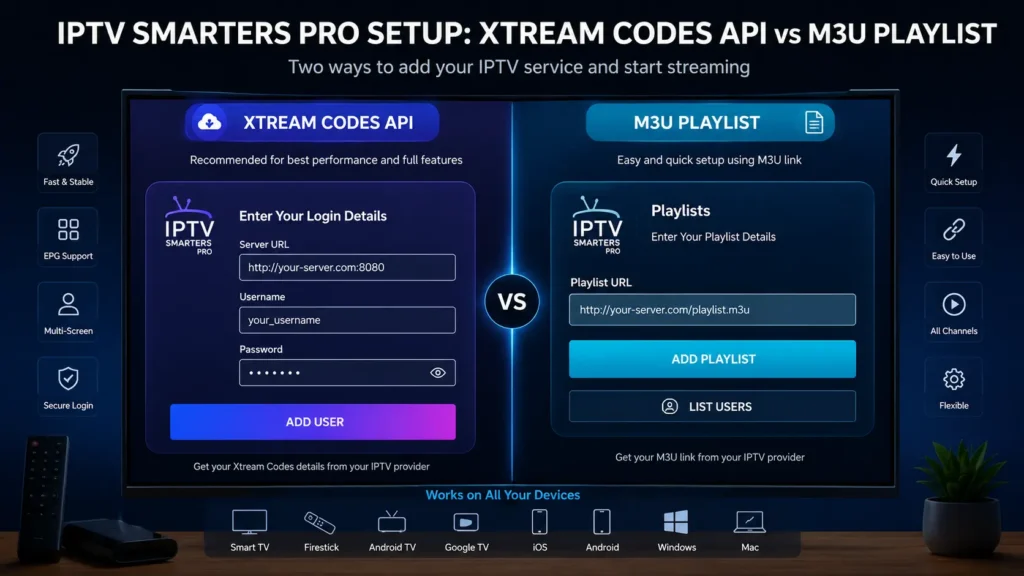
Xtream Codes API is usually the easiest setup method because it automatically organizes live TV, movies, series, and EPG data if your provider supports it. Your IPTV provider should give you three details: server URL, username, and password.
Xtream Codes setup steps
- Open IPTV Smarters Pro.
- Choose Login with Xtream Codes API or similar option.
- Enter any playlist name, such as My IPTV.
- Enter the server URL provided by your IPTV service.
- Enter your username and password exactly as provided.
- Click Add User or Login.
- Wait for live TV, movies, series, and EPG to download.
- Open a channel and test playback.
Pro tip: Copy and paste your username, password, and server URL instead of typing them manually. Many login errors happen because of one missing letter, space, slash, or capital letter.
How to Set Up the Smarters app with M3U Playlist
M3U is another common setup method. Instead of entering a server URL, username, and password separately, you usually add one long playlist URL. This link may contain your login information inside the URL.
M3U setup steps
- Open IPTV Smarters Pro.
- Choose Load Your Playlist or File/URL.
- Select M3U URL if the app asks for playlist type.
- Enter a playlist name.
- Paste your M3U link from your IPTV provider.
- Save the playlist and wait for content to load.
- Open live TV, movies, or series to test playback.
Xtream Codes API vs M3U Playlist
| Method | Best for | Pros | Cons |
|---|---|---|---|
| Xtream Codes API | Most beginners | Cleaner categories, easier login, usually better EPG organization. | Requires server URL, username, and password. |
| M3U URL | Users with playlist links | Simple one-link setup, works with many players. | Can be long, easy to copy incorrectly, EPG may need extra setup. |
| Local playlist file | Advanced users | Works offline for playlist storage. | Harder to update and manage. |
IPTV Smarters Pro Login Guide
If IPTV Smarters Pro asks for login details, do not enter your email unless your provider specifically gave you an email login. Most IPTV logins use a username, password, and server URL. The server URL can look like a web address and may include a port number.
| Login field | What to enter |
|---|---|
| Any Name / Playlist Name | A simple name like Home IPTV or My Playlist. |
| Username | The IPTV username given by your provider. |
| Password | The IPTV password given by your provider. |
| Server URL | The portal/server URL from your provider. |
| M3U URL | The full playlist link if using M3U setup. |
Best IPTV Smarters Pro Settings for Smooth Streaming
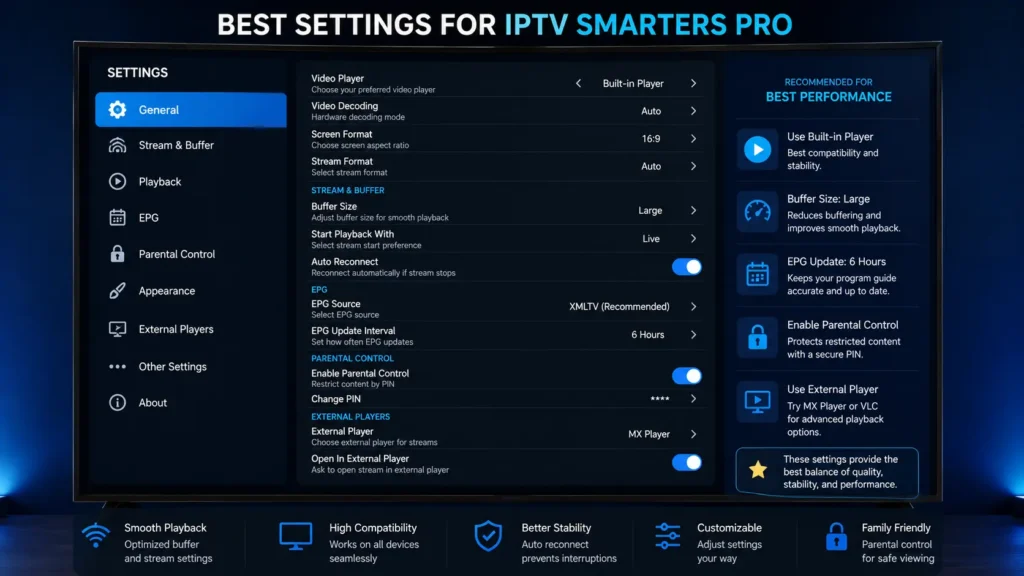
There is no single perfect setting for every user because streaming quality depends on your internet speed, IPTV provider, device power, and network stability. However, the settings below work well for many users.
| Setting | Recommended action | Why it helps |
|---|---|---|
| Stream format | Test default first, then change if channels fail. | Some providers work better with one format. |
| External player | Enable if built-in player has audio or subtitle problems. | Can improve compatibility. |
| EPG refresh | Refresh manually if TV guide is missing. | Updates program guide data. |
| Buffer size | Increase slightly if your app supports it. | Can reduce small interruptions. |
| Auto-start on boot | Optional for TV boxes. | Useful if device is dedicated to IPTV. |
| Parental controls | Enable for restricted categories. | Protects children from unsuitable content. |
| Clear cache | Use when app becomes slow. | Removes temporary files and improves performance. |
How to Fix IPTV Smarters Pro Buffering
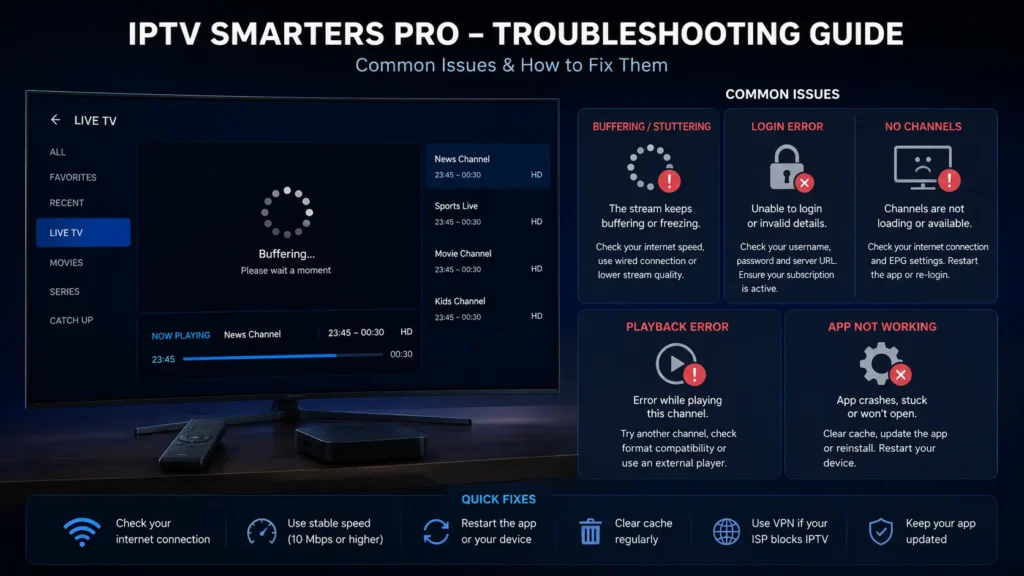
Buffering is one of the most common IPTV Smarters Pro problems, but the app is not always the cause. It can happen because of weak Wi-Fi, overloaded IPTV servers, ISP throttling, expired playlists, low-quality providers, or too many users on the same internet connection. For more detailed speed and playback fixes, follow our IPTV buffering guide.
Buffering troubleshooting table
| Problem | Likely cause | Fix |
|---|---|---|
| Channel loads then stops | Provider server congestion | Test another channel or contact provider. |
| All channels buffer | Weak internet or Wi-Fi | Restart router, move closer, use Ethernet. |
| Only 4K channels buffer | Speed not enough for 4K | Use HD/Full HD or improve connection. |
| Buffering at night | Peak-hour server overload | Test provider quality during busy hours. |
| Works on mobile data but not Wi-Fi | Router/ISP issue | Restart router or test VPN. |
| App slow after weeks of use | Cache buildup | Clear cache and restart device. |
How to Fix IPTV Smarters Pro Login Error
A login error usually means the app cannot authenticate your IPTV account. This can happen because of incorrect credentials, an expired subscription, a wrong server URL, provider downtime, or an account already being used on too many devices. For more detailed solutions, follow our IPTV login error guide.
- Check username and password letter by letter.
- Make sure the server URL includes the correct http or https and port if provided.
- Confirm your subscription is still active.
- Ask your provider if your account is locked to one device.
- Restart the app and your device.
- Try mobile hotspot to see if your internet provider is blocking the connection.
- Contact your IPTV provider if the same details fail on multiple devices.
How to Fix IPTV Smarters Pro No Channels
If IPTV Smarters Pro opens but shows no channels, the playlist may not have loaded correctly. This can happen when the subscription has expired, the provider server is down, the M3U link is incorrect, or the channel categories were not refreshed. For more detailed fixes, follow our IPTV no channels guide.
| Symptom | What it means | Solution |
|---|---|---|
| No live TV category | Playlist did not load | Refresh playlist or re-add account. |
| Movies show but live TV empty | Provider category issue | Ask provider to refresh your account. |
| Only some categories missing | Provider playlist problem | Check if categories are hidden or unavailable. |
| EPG missing but channels work | TV guide not synced | Refresh EPG or request EPG URL. |
How to Fix IPTV Smarters Pro App Not Working
When the app is not working at all, start with basic fixes before changing your IPTV account. Many app issues are solved by clearing the cache, updating the app, restarting the device, or reinstalling it. For more advanced solutions, follow our IPTV Smarters Pro not working guide.
- Force close IPTV Smarters Pro.
- Restart your device.
- Clear the app cache.
- Check if your device storage is almost full.
- Update the app if an update is available.
- Update your device software.
- Reinstall the app if the issue continues.
- Test your IPTV login on another device.
IPTV Smarters Pro Playback Error Fix
Playback errors can appear when a specific stream is offline, the provider changed the stream URL, the video format is not supported, or your device cannot decode the stream properly.
| Playback error cause | Fix |
|---|---|
| Unsupported stream format | Try another player or change stream format settings. |
| Provider stream offline | Test another channel and contact provider. |
| Device decoder issue | Use external player if supported. |
| Weak internet | Restart router and test speed. |
| VPN conflict | Switch VPN server or disable VPN temporarily. |
IPTV Smarters Pro EPG Setup
EPG stands for Electronic Program Guide. It shows TV schedules so you can see what is currently playing and what comes next. If your provider supports EPG, it may load automatically with Xtream Codes API. With M3U setup, you may need a separate EPG URL.
- Open settings inside the app.
- Find the EPG or TV Guide section.
- Refresh EPG data.
- If using M3U, add the EPG URL from your provider if required.
- Wait a few minutes for data to sync.
- Restart the app if the guide still does not appear.
Smarters Pro VPN: Do You Need One?
A VPN is not mandatory for every Smarters Pro user, but it can help in some situations. Users often use a VPN for privacy, to avoid ISP throttling, or to test whether their network is blocking IPTV traffic.
However, a VPN can also reduce speed if you choose a slow server. If your IPTV works better without a VPN, the VPN may be the problem. If it works better with a VPN, your ISP or network may be limiting streaming traffic.
| Situation | VPN recommendation |
|---|---|
| Your IPTV works normally | VPN optional. |
| IPTV buffers only on home Wi-Fi | Test a VPN or mobile hotspot. |
| Some channels are blocked | Try a different VPN server. |
| VPN makes streams slower | Switch server or disable VPN. |
| You value privacy | Use a reputable paid VPN. |
the Smarters app Hidden Features and Tips
Many users only use the application for basic channel watching, but the app can be more useful when you customize it correctly.
- Create favorites lists for your most-watched channels.
- Use search instead of scrolling through thousands of channels.
- Refresh playlist data after your provider updates categories.
- Clear cache once in a while if the app becomes slow.
- Use parental controls when children can access the device.
- Test external player options if subtitles, audio, or playback quality are not working well.
- Keep a backup of your provider login details in a safe place.
IPTV Smarters Pro vs TiviMate vs XCIPTV
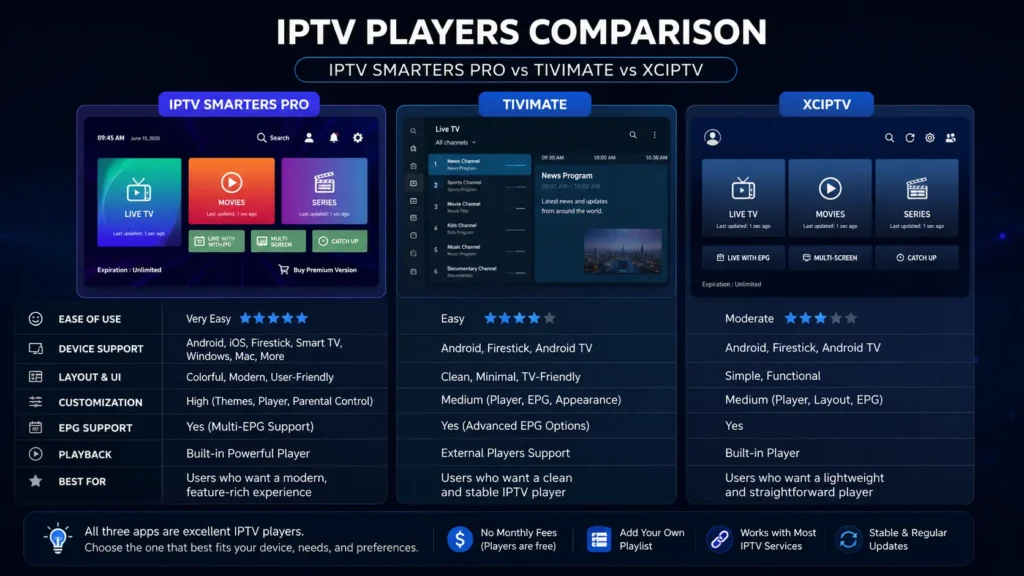
IPTV Smarters Pro is not the only IPTV player. Depending on your device and preferences, you may also compare it with TiviMate, XCIPTV, or other IPTV players. The best choice depends on your device, your provider, and how advanced you want the interface to be.
| Player | Best for | Strength | Limitation |
|---|---|---|---|
| IPTV Smarters Pro | Beginners and multi-device users | Simple setup, Xtream and M3U support, familiar interface. | Some versions/features vary by platform. |
| TiviMate | Android TV power users | Premium TV-style interface and strong playlist management. | Best experience usually requires premium version. |
| XCIPTV | Users who want alternative interface | Good layout and provider compatibility. | Availability and features vary by version. |
| VLC | Basic playlist playback | Free and flexible media player. | Not designed as a full IPTV TV-guide interface. |
Best IPTV Provider for IPTV Smarters Pro
Because this media player is only the player, your streaming quality depends heavily on your IPTV provider. A good provider should give stable servers, clear setup details, responsive support, EPG data, and a playlist that works well with Xtream Codes API or M3U.
| Provider quality factor | Why it matters |
|---|---|
| Stable servers | Reduces buffering and channel downtime. |
| Xtream Codes API support | Makes setup easier and cleaner. |
| EPG support | Improves live TV navigation. |
| Fast support | Helps when login or no channel issues happen. |
| Trial option | Lets you test before buying a long plan. |
| Multiple device compatibility | Useful if you watch on TV, phone, and PC. |
| Clear legal terms | Reduces risk and builds trust. |
Final Verdict: Is Smarters Pro Worth Using in 2026?
this IPTV player is still one of the most useful IPTV players for users who want a simple way to manage playlists, live TV, movies, series, and EPG data across multiple devices. It is especially useful for beginners because the interface is easier to understand than many advanced IPTV players.
The app is not perfect, and it will not fix a poor IPTV provider. If your provider has weak servers, expired links, missing EPG data, or unstable channels, the application cannot solve everything. But with a reliable provider, updated device, stable internet connection, and correct settings, it can deliver a smooth and organized IPTV experience.
If you want a beginner-friendly IPTV player for Firestick, Android TV, iPhone, Windows, Mac, or smart TV, IPTV Smarters Pro is a strong option to consider. Just make sure you download it safely, use legitimate content sources, and keep your login details secure.
Need IPTV service that works with this streaming player? Check our IPTV plans, request a trial if available, and follow our setup guides to get started safely and quickly. IPTV Premium Plans
FAQ: IPTV Smarters Pro
What is IPTV Smarters Pro?
IPTV Smarters Pro is an IPTV player that lets you add your own IPTV playlist or provider login details to watch live TV, movies, series, and other media inside one app.
Does IPTV Smarters Pro include channels?
No. this media player does not include channels by itself. You need a separate IPTV provider or legal playlist.
Is IPTV Smarters Pro free?
Some versions may be free to install, while certain features or platforms may include paid options. Always check the app store listing for your device.
Is IPTV Smarters Pro legal in the USA?
The app itself is a media player. The legality depends on whether the content source you add has the rights to distribute that content.
Is IPTV Smarters Pro safe?
It can be safe when downloaded from official stores or trusted sources. Avoid cracked APKs, fake apps, and suspicious download websites.
How do I download IPTV Smarters Pro?
Search your official device app store first, such as Apple App Store, Google Play, Microsoft Store, Samsung app store, LG Content Store, or Amazon Appstore.
How do I install IPTV Smarters Pro on Firestick?
Search the official store first. If unavailable, use only a safe and trusted installation method, then log in with your IPTV provider details.
What is Xtream Codes API?
Xtream Codes API is a login method that usually uses a server URL, username, and password to load your IPTV content inside the app.
What is an M3U playlist?
An M3U playlist is a URL or file that contains streaming links. IPTV Smarters Pro can load M3U links provided by your IPTV service.
Why is IPTV Smarters Pro not working?
Common causes include wrong login details, expired subscription, weak internet, outdated app, full device storage, provider downtime, or playlist errors.
Why does IPTV Smarters Pro keep buffering?
Buffering can be caused by weak Wi-Fi, slow internet, overloaded provider servers, ISP throttling, VPN issues, or high-quality streams that need more bandwidth.
Why does IPTV Smarters Pro show no channels?
No channels usually means the playlist did not load, the account expired, categories are hidden, or the provider server is having problems.
Can I use IPTV Smarters Pro on Windows PC?
Yes, Windows-compatible Smarters players are available depending on store availability and app version. Check Microsoft Store or trusted official sources.
Can I use IPTV Smarters Pro on Mac?
Mac support depends on the app version and macOS compatibility. Check the Apple App Store or the official desktop version if available.
Can I use IPTV Smarters Pro on Samsung TV?
It depends on your region and TV model. Check the Samsung app store. If unavailable, use Firestick, Android TV box, or another compatible IPTV player.
Does IPTV Smarters Pro support EPG?
Yes, many versions support EPG. EPG may load automatically with Xtream Codes API or require a separate EPG URL with M3U setup.
Do I need a VPN for IPTV Smarters Pro?
A VPN is optional. It can help with privacy or network restrictions, but a slow VPN can also cause buffering.
What is the best alternative to IPTV Smarters Pro?
Popular alternatives include TiviMate, XCIPTV, VLC, and other IPTV players. The best option depends on your device and preferences.
Can I use multiple playlists?
Some versions support multiple playlists or users. Availability depends on the app version and platform.
What should I do before contacting my IPTV provider?
Restart your device, check your internet, verify login details, clear cache, update the app, and test another device if possible.