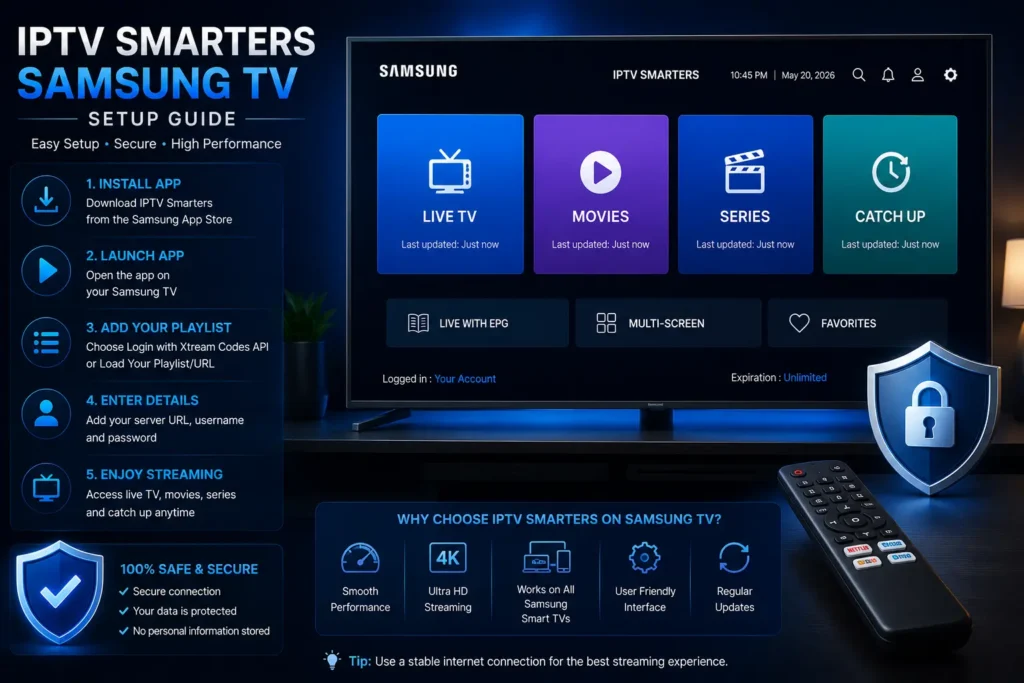
Want to install IPTV Smarters on Samsung TV without wasting time on confusing app store results, fake download pages, or setup errors? This 2026 guide explains the safest way to install and set up the player on Samsung Smart TV, plus what to do if the app is not available on your TV model.
IPTV Smarters Samsung TV can be useful when you want to watch your IPTV playlist directly on a big screen without using a phone or computer. However, Samsung TVs use the Tizen operating system, so the installation process is not always the same as Android TV, Firestick, Windows, or Mac.
In this guide, you will learn how Samsung TV compatibility works, how to check the app store, how to add Xtream Codes API or M3U playlist details, which settings matter most, and how to fix common problems like login errors, buffering, no channels, and app not opening issues.
Quick answer: IPTV Smarters Samsung TV works only if a compatible Smarters app is available for your Samsung Smart TV model or region. If it is not available, the easiest solution is usually to use Firestick, Android TV box, or another external streaming device connected to your Samsung TV.
Key Takeaways
- IPTV Smarters Samsung TV is a player setup for Samsung Smart TVs, not an IPTV provider.
- You still need valid IPTV login details from your provider, such as Xtream Codes API or M3U playlist.
- Availability can depend on your TV model, Samsung app store region, and app version.
- Samsung TVs do not work like Android devices, so APK installation is usually not the normal method.
- If the app is not available, Firestick or Android TV box is often the easiest alternative.
- For all-device setup details, keep the complete IPTV Smarters Pro guide open while following this
Table of Contents
What Is IPTV Smarters Samsung TV?
IPTV Smarters Samsung TV refers to using a Smarters-style IPTV player on a Samsung Smart TV. The app is designed to let you add your own IPTV subscription details and organize live TV, movies, series, catch-up content, and EPG data inside one TV-friendly interface.
The important point is that the player does not include channels by itself. It does not sell IPTV subscriptions, create TV packages, or host streams. It simply gives you an interface where you can add the login details supplied by your IPTV provider.
This is why some users install the app and see an empty screen. The app needs your playlist, server URL, username, password, or M3U link before it can load channels. If you need a broader overview of how the player works on all devices, read our complete IPTV Smarters Pro guide.
In simple words
Think of IPTV Smarters Samsung TV as a media player for your Samsung Smart TV. Your provider supplies the content access, and the app helps you organize and play that content on your TV screen.
| Item | Explanation |
| App role | Media player and playlist interface |
| Content source | Your IPTV provider or legal playlist |
| Login methods | Xtream Codes API or M3U Playlist |
| Best use case | Watching IPTV on a Samsung Smart TV screen |
| Main limitation | App availability can change by model and region |
Is IPTV Smarters Available on Samsung TV?
Availability depends on your Samsung TV model, software version, country, and app store region. Some users may find a compatible Smarters player in the Samsung app store, while others may not see it at all. This is normal because smart TV app availability often changes by region.
If you cannot find the app in the Samsung Smart Hub, do not immediately trust random download websites. Samsung TVs do not normally install Android APK files like Android TV boxes. A file that works on Android may not work on Samsung Tizen.
If the app is not available on your TV, the safer path is to use another supported device. You can use our IPTV Smarters Pro Download guide to compare download options across devices, or use a Firestick, Android TV box, Windows PC, or Mac connected to the same TV.
Is IPTV Smarters Samsung TV Safe?
IPTV Smarters Samsung TV can be safe when installed from an official Samsung app store or another trusted source available on your TV. The risk usually comes from fake websites, unknown files, cracked versions, and providers that ask for suspicious personal information.
Because Samsung TVs use their own app environment, you should be extra careful with claims like “Samsung APK download” or “free premium IPTV app.” Most of these pages target users who are confused between Android APK files and Samsung TV apps.
For Android-based devices, our IPTV Smarters Pro APK guide explains safe APK rules in more detail. For Samsung TV, the safest rule is simple: start with the TV app store first, and avoid random download pages that promise modified or cracked versions.
Safety checklist before installing
- Check your Samsung TV app store first.
- Avoid cracked, modified, or unofficial installer files.
- Do not enter IPTV login details into unknown apps.
- Use a provider with clear support and valid setup instructions.
- Keep your TV software updated.
- Use a strong Wi-Fi connection or Ethernet where possible.
- Never assume that an Android APK will work on a Samsung Tizen TV.
Is It Legal to Use IPTV Smarters on Samsung TV?
The app itself is a media player. Using a media player on Samsung TV is not the issue. The legal question depends on the playlist or service you add inside the app.
If your IPTV provider has the rights to distribute the channels, movies, or live events you watch, then using a player to access that content is generally not the problem. If the provider sells copyrighted content without permission, that can create legal and safety risks.
Avoid services that promise every premium channel, sports event, and movie for an unrealistic price with no company information or support. A safe setup starts with a legitimate provider, not only with the app.
Samsung TV Compatibility and Requirements
Before trying to install IPTV Smarters Samsung TV, check whether your television is a Samsung Smart TV with access to Smart Hub or the Samsung app store. Older models may have fewer apps, limited memory, slower processors, or outdated software.
A smooth IPTV experience also depends on your internet connection. Even if the app opens correctly, weak Wi-Fi or overloaded provider servers can cause buffering, freezing, or playback errors.
| Requirement | Recommended setup |
| TV type | Samsung Smart TV with app store access |
| Software | Updated Samsung TV firmware |
| Internet | Stable Wi-Fi or Ethernet connection |
| Provider details | Xtream Codes API or M3U playlist |
| Storage | Enough free space for app and cache |
| Remote control | Working Samsung remote for login and navigation |
Samsung TV vs Android TV vs Firestick
Samsung TV setup is different from Android TV and Firestick setup. Android TV devices and IPTV Smarters on Firestick usually allow more flexible app installation methods, while Samsung Smart TVs depend more on the Samsung app store and Tizen compatibility.
If IPTV Smarters Samsung TV is available in your app store, using it directly on the TV can be convenient. If it is not available, an external device can be easier and more stable.
For desktop users, our IPTV Smarters Pro PC guide and IPTV Smarters Pro Windows guide explain computer-based setups. For Apple users, the IPTV Smarters Pro Mac guide can help if you prefer watching from a Mac connected to your TV.
| Device | Best for | Main limitation |
| Samsung TV app | Direct big-screen watching | Availability depends on TV model and region |
| Android TV box | Flexible IPTV app installation | Quality depends on box performance |
| Firestick | Easy TV setup and portable use | Storage and app availability can vary |
| Windows PC | Keyboard control and multitasking | Needs computer connected or nearby |
| Mac | Apple desktop setup | App availability depends on macOS support |
How to Install IPTV Smarters on Samsung TV
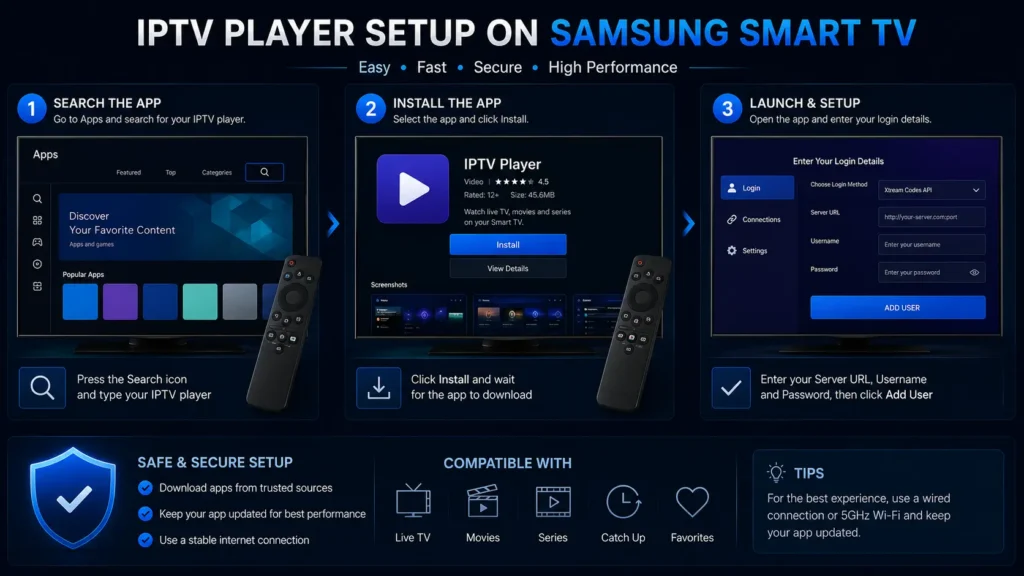
The safest way to install IPTV Smarters on Samsung TV is through the Samsung app store if the app is available for your TV model and country. Do not start with random download websites or files that claim to be Samsung-compatible.
- Turn on your Samsung Smart TV.
- Make sure the TV is connected to the internet.
- Open Smart Hub or the Samsung app store.
- Use the search option and type IPTV Smarters, Smarters Player, or a similar trusted app name.
- Open the app listing and check the details carefully.
- Install the app if it is available.
- Open the app from your apps list.
- Choose your login method, such as Xtream Codes API or M3U Playlist.
- Enter the details provided by your IPTV service.
- Wait for channels, movies, series, and EPG data to load.
If you cannot find the app, do not force an unsafe installation. Many users search for IPTV Smarters download Samsung TV options, but availability depends on the Samsung Smart TV model, region, and app store. For safer alternatives, use our IPTV Smarters Pro Download guide or choose an external device that supports the app more easily.
What to Do If IPTV Smarters Is Not in the Samsung App Store
If the app is not listed in the Samsung app store, your TV model, region, or software version may not support it. This does not always mean your IPTV subscription is bad. It usually means the app is not available for that Samsung TV environment.
In that case, the most practical option is to use an external device. Firestick, Android TV box, Google TV, Windows PC, or Mac can all be connected to your Samsung TV through HDMI, depending on your preferred setup.
This approach is often better than trying unknown files. It keeps your TV safer and gives you more app options.
How to Set Up Xtream Codes API on Samsung TV
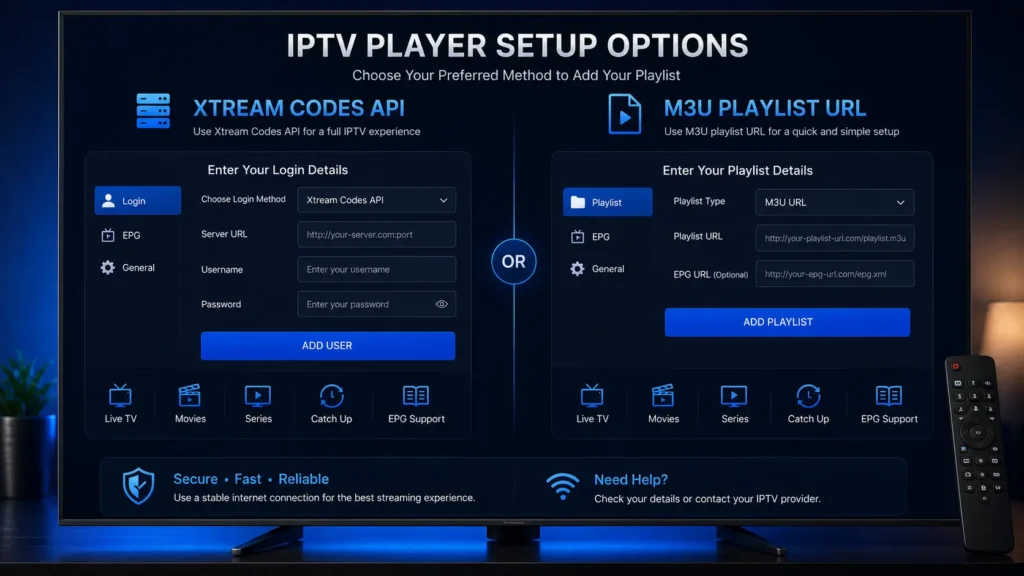
Xtream Codes API is one of the easiest login methods if your provider supports it. Instead of typing a long M3U link with a TV remote, you usually enter a server URL, username, and password.
- Open the IPTV player on your Samsung TV.
- Choose Login with Xtream Codes API or a similar option.
- Enter any playlist name you want.
- Type the server URL exactly as your provider gave it to you.
- Enter your username and password carefully.
- Confirm and wait for the app to load categories.
- Check live TV, movies, series, and EPG sections.
- Test a few channels before changing settings.
If your login fails, check every character in the server URL, username, and password. Many IPTV Login Error problems come from small typing mistakes, expired accounts, or provider server issues.
How to Set Up M3U Playlist on Samsung TV
M3U setup can work well, but it can be harder to type on a TV remote because M3U links are often long. If your provider gives both Xtream Codes API and M3U, Xtream Codes is usually easier on Samsung TV.
- Open the app on your Samsung TV.
- Choose Add Playlist or M3U Playlist.
- Enter a playlist name.
- Carefully type or paste the M3U URL if the app allows it.
- Confirm the playlist.
- Wait for channels and categories to load.
- Refresh the playlist if categories do not appear.
- Test live TV and VOD playback.
If no channels appear after adding the playlist, the M3U URL may be incorrect, expired, blocked, or not supported by the app version. Our IPTV No Channels guide explains the most common causes in more detail.
Best Settings for IPTV Smarters Samsung TV
After setting up IPTV Smarters Pro Samsung TV, do not change every setting at once. Start with basic playback first, then adjust the app settings only if you notice buffering, audio problems, subtitle issues, or EPG problems.
| Setting | Recommended action |
| Player option | Use default first, then test alternatives if playback fails |
| EPG refresh | Refresh after first login or provider update |
| Favorites | Add important channels for faster access |
| Parental control | Enable if children use the TV |
| Cache | Clear if the app becomes slow |
| Internet | Use Ethernet if Wi-Fi is unstable |
If Samsung TV playback is unstable, avoid making too many changes at once. Change one setting, test the app, then continue.
How to Fix Buffering on Samsung TV
Buffering on Samsung TV can happen because of weak Wi-Fi, overloaded IPTV servers, high stream quality, ISP throttling, or a slow app response on older TV models.
- Restart your Samsung TV and router.
- Move the router closer to the TV if using Wi-Fi.
- Use Ethernet if your TV supports it.
- Test another channel to see if the issue is provider-specific.
- Lower stream quality if the app offers that option.
- Close other apps running on the TV.
- Clear app cache if available.
- Contact your provider if many channels buffer at the same time.
For more advanced speed and playback checks, follow our IPTV Buffering guide. It covers internet speed, server load, VPN testing, and device-level fixes.
Login Error on Samsung TV
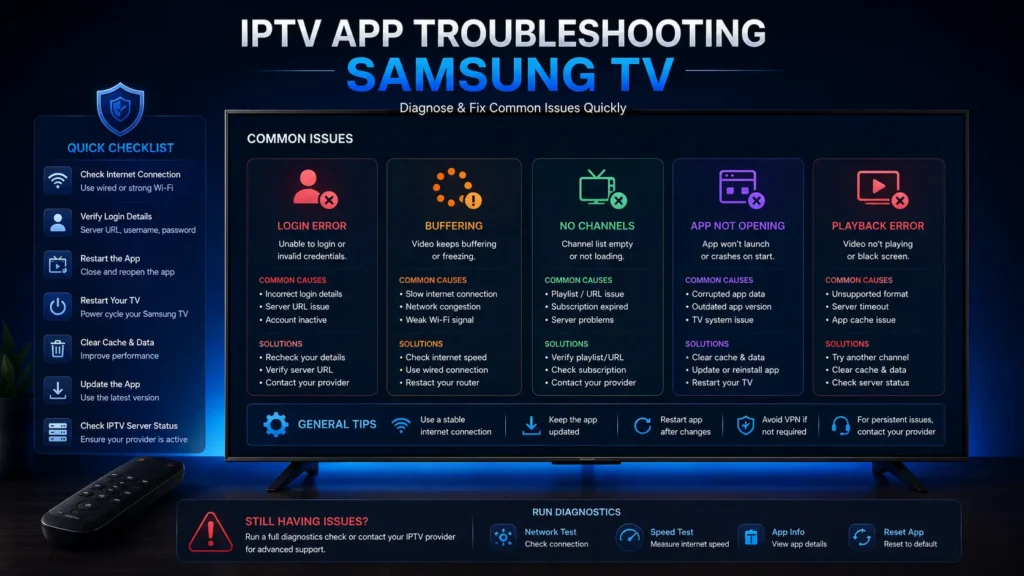
Login errors are common on smart TVs because typing with a remote is easy to mess up. One wrong character in the server URL, username, or password can stop the app from loading your account.
Check whether your provider account is active, whether the server URL includes the correct format, and whether your subscription allows Samsung TV or multi-device use. If your account works on another device but not on Samsung TV, the issue may be app compatibility or TV typing error.
If the problem continues, use our IPTV Login Error guide before changing the app. It will help you separate provider problems from device problems.
No Channels Showing on Samsung TV
If the app opens but no channels appear, the playlist may not have loaded correctly. This can happen with expired subscriptions, hidden categories, wrong playlist links, provider downtime, or app sync problems.
- Refresh the playlist.
- Restart the app.
- Check whether your subscription is active.
- Test the same login on another device.
- Ask your provider whether your playlist includes live TV categories.
- Check if parental controls or category filters are hiding channels.
- Reinstall the app only after basic checks fail.
If no channels appear after several tests, read our IPTV No Channels guide for a deeper troubleshooting path.
App Not Working on Samsung TV
If IPTV Smarters Samsung TV is not opening, freezing, or crashing, start with TV-level fixes before changing your subscription.
- Close the app completely.
- Restart the Samsung TV.
- Check your internet connection.
- Update the TV software.
- Update the app if an update is available.
- Clear app data or cache if your TV offers the option.
- Delete and reinstall the app if needed.
- Test your IPTV login on another device.
If the same login fails everywhere, the problem is probably your provider, not the Samsung TV. If it works elsewhere but not on the TV, check app compatibility or use our IPTV Smarters Pro not working guide for more fixes.
Playback Error on Samsung TV
A playback error usually means the app can load your playlist but cannot play a specific stream. This can happen because the stream is offline, the format is unsupported, the provider changed the stream URL, or the TV cannot decode the video correctly.
Try another channel from the same category, then try another category. If only one channel fails, the issue is probably that stream. If all channels fail, check your login, internet, and provider status.
EPG Not Loading on Samsung TV
EPG means Electronic Program Guide. It shows channel schedules and upcoming programs. On Samsung TV, EPG may load slowly if your provider sends large guide data or if the app has limited memory.
- Open the EPG or TV Guide section.
- Refresh guide data.
- Wait several minutes after first login.
- Restart the app if the guide remains empty.
- Ask your provider whether EPG is included.
- Check whether your M3U setup needs a separate EPG URL.
If you use Xtream Codes API, EPG may load automatically. If you use M3U, your provider may need to give you a separate EPG link.
Best Alternatives If IPTV Smarters Does Not Work on Samsung TV
If IPTV Smarters Samsung TV is not available or does not work well on your model, do not waste hours trying unsafe downloads. Use a supported external device or another compatible IPTV player.
| Alternative | Why it can help |
| Firestick | Simple TV setup and easy HDMI connection |
| Android TV box | More flexible app installation options |
| Google TV device | Modern interface and broad app support |
| Windows PC | Good for testing playlists and keyboard login |
| Mac | Useful if you prefer Apple desktop setup |
| Another Samsung-compatible player | Can work if Smarters app is unavailable |
Need a stable service that works across Samsung TV and external devices? Compare our IPTV plans, then request a trial before buying to test playback, login, and channel stability on your setup.
Final Verdict: Should You Use IPTV Smarters Samsung TV in 2026?
IPTV Smarters Samsung TV is a good option if the app is available on your Samsung Smart TV and your provider gives reliable Xtream Codes API or M3U details. It can give you a clean big-screen IPTV experience without needing a computer.
However, Samsung TV support can be inconsistent because app availability depends on model, region, and software version. If the app is not available or does not work well, an external device like Firestick or Android TV box may be easier and more stable.
For the best result, use a trusted app source, avoid suspicious downloads, keep your TV updated, and choose a provider that offers clear setup support.
FAQ: IPTV Smarters Samsung TV
Can I install IPTV Smarters on Samsung TV?
You can install it only if a compatible Smarters app is available in your Samsung TV app store for your model and region.
Is IPTV Smarters Samsung TV free?
The app may be free or paid depending on the version and platform. You still need your own IPTV subscription or playlist to watch content.
Does IPTV Smarters include channels on Samsung TV?
No. The app does not include channels by itself. You need login details or a playlist from your IPTV provider.
Can I install an APK on Samsung TV?
Samsung Smart TVs generally use Tizen, not Android. Android APK files are not normally the right installation method for Samsung TVs.
Why can I not find IPTV Smarters in the Samsung app store?
The app may not be available for your TV model, region, or software version. App availability changes over time.
What is the best alternative if the app is unavailable?
Firestick, Android TV box, Google TV, Windows PC, or Mac can be easier alternatives for running IPTV players on your Samsung TV screen.
How do I log in on Samsung TV?
Use Xtream Codes API if your provider supports it. Enter the server URL, username, and password exactly as provided.
Why does IPTV Smarters Samsung TV keep buffering?
Common causes include weak Wi-Fi, provider server load, high stream quality, outdated TV software, or network restrictions.
Why are no channels showing?
Your playlist may not have loaded, your account may be expired, categories may be hidden, or the provider server may be down.
Is IPTV Smarters legal on Samsung TV?
The app is a media player. The legality depends on whether the content source you add has permission to distribute the content.
Can I use M3U on Samsung TV?
Yes, if the app version supports M3U playlists. Xtream Codes API is usually easier because M3U links are long to type with a TV remote.
Should I use a VPN on Samsung TV?
A VPN is optional. It may help with privacy or network restrictions, but it can also reduce speed if the server is slow.
How do I update the app?
Open the Samsung app store or app management area and check whether an update is available for your installed app.
Can I use the same IPTV account on Samsung TV and other devices?
It depends on your provider. Some allow multiple devices, while others limit one connection at a time.
What should I do before contacting support?
Restart the TV, check internet, verify login details, refresh playlist, test another device, and check whether your subscription is active.