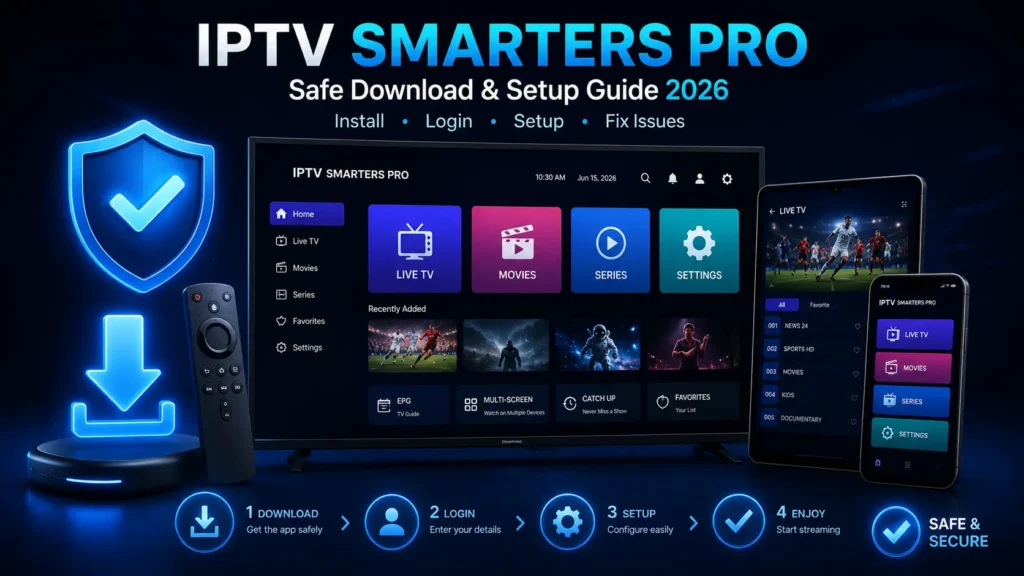
Are you trying to find the right IPTV Smarters Pro download option without ending up on a fake app page or a risky file website? This guide explains the safe way to get the app in 2026, which devices it works on, how to install it, and what to do after the download is complete.
Before you install anything, it is important to understand one point: IPTV Smarters Pro is an IPTV player, not an IPTV service provider. The app does not include channels, subscriptions, movies, or live TV by itself. To watch content, you need your own legal IPTV provider details, such as Xtream Codes API login, an M3U playlist, or a playlist URL.
This guide is written for users who want a clean, safe, and practical installation process on Android phones, Android TV, Google TV, Firestick, Windows PC, Mac, iPhone, iPad, Samsung TV, LG TV, and TV boxes. You will also find troubleshooting tips, safety checks, and setup advice after installation.
Quick answer: The safest way to download IPTV Smarters Pro is to use your official device app store whenever available. If you must use another installation method, avoid cracked files, modded versions, fake APK pages, and websites that promise free premium IPTV access.
Table of Contents
Key Takeaways
- The app is a media player; it does not provide TV channels by itself.
- Official app stores are the safest download option when available on your device.
- Android TV boxes and Firestick devices may require a different installation method depending on country and store availability.
- You need Xtream Codes API, M3U URL, or valid login details from your IPTV provider after installation.
- Avoid mod APKs, cracked apps, and random download websites because they can create security and privacy risks.
What Is IPTV Smarters Pro?
IPTV Smarters Pro is a player app that helps users organize and watch IPTV playlists from their own provider. It can load live TV categories, movies, series, catch-up content, EPG data, and favorites inside one interface, depending on what your provider supports.
The app is useful because many IPTV providers give users login details but not always a comfortable player interface. With the right setup, this IPTV player can make navigation easier across different devices.
However, the app is not a channel seller. If you install it without a playlist or login details, you will not see channels automatically. You still need a valid provider before the player can load content.
For a full overview of features, setup, devices, and fixes, read our complete IPTV Smarters Pro guide.
Is IPTV Smarters Pro Free to Download?
In many cases, the app can be free to install, but availability and features may depend on your platform, region, and the version listed in your device store. Some versions may offer paid features, in-app options, or platform-specific differences.
Always check the store listing before installing. The download page should show the developer information, device compatibility, recent updates, privacy details, and user reviews when available.
Is IPTV Smarters Pro Safe to Download?
The download can be safe when you use official app stores or trusted sources. The biggest risks usually come from fake websites, unknown APK files, modified installers, and pages that use the app name to promote illegal subscriptions.
A safe download process should avoid suspicious popups, forced browser notifications, fake “virus scan” banners, and files that ask for permissions unrelated to video playback.
Safety checklist before downloading:
- Use the official app store first when possible.
- Avoid “mod APK,” “cracked premium,” and “lifetime free IPTV” claims.
- Check app reviews and update dates.
- Do not enter payment details on unknown app clone websites.
- Scan manually downloaded files with trusted security software.
- Keep your Android, Firestick, Windows, Mac, or TV software updated.
IPTV Smarters Pro Download Options by Device
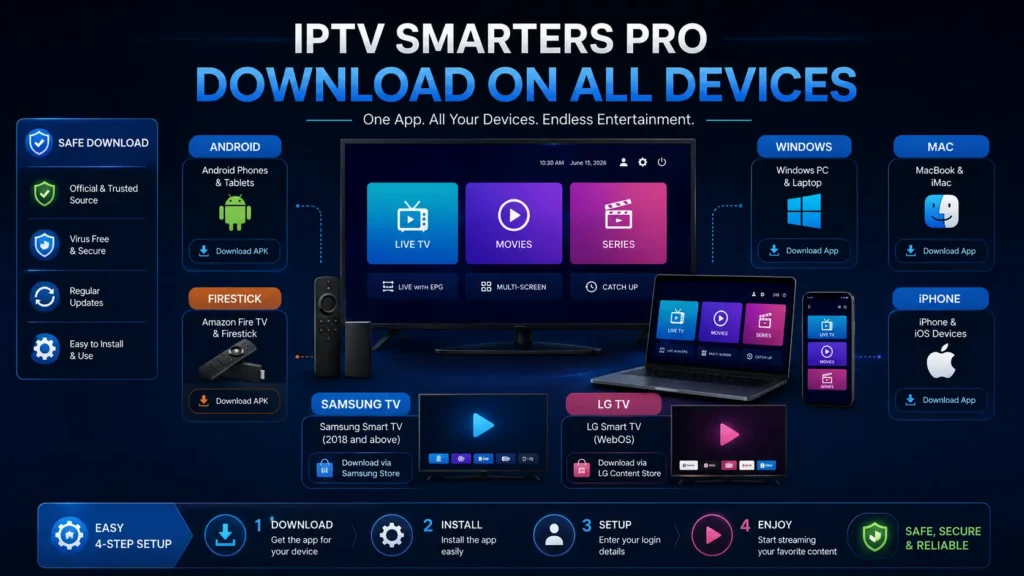
Your best download method depends on the device you use. Some platforms support direct app store installation, while others may require a manual method if the app is not available in your region. Windows users can follow our IPTV Smarters Pro for PC guide for device-specific download and setup steps.
| Device | Best download method | Notes |
| Android phone or tablet | Google Play or trusted official source | Use official store first when available. |
| Android TV or Google TV | Google Play on TV or trusted installer | Manual APK should be used carefully. |
| Firestick or Fire TV | Amazon Appstore if available, otherwise safe installation method | Availability can change by region. |
| Windows PC | Microsoft Store or official desktop source | Check compatibility before installing. |
| Mac | Apple App Store or official desktop source | Check macOS version support. |
| iPhone or iPad | Apple App Store | Avoid unofficial iOS installation methods. |
| Samsung TV | Samsung app store if available | Availability depends on TV model and region. |
| LG TV | LG Content Store if available | Availability depends on WebOS version and region. |
How to Download IPTV Smarters Pro on Android
Android users usually have the easiest installation path because many IPTV players are available through Google Play or Android-compatible sources. The safest method is to search inside Google Play first.
- Open Google Play Store on your Android phone or tablet.
- Search for IPTV Smarters Pro or a compatible Smarters player.
- Check the app name, developer, reviews, and update date.
- Tap Install if the app is available in your region.
- Open the app after installation.
- Choose your login method: Xtream Codes API, M3U Playlist, or other supported option.
- Enter the details from your IPTV provider and wait for content to load.
If the app is not available in your store, do not rush to install the first file you find online. Use a trusted source only and avoid modified versions.
How to Download IPTV Smarters Pro on Android TV or Google TV
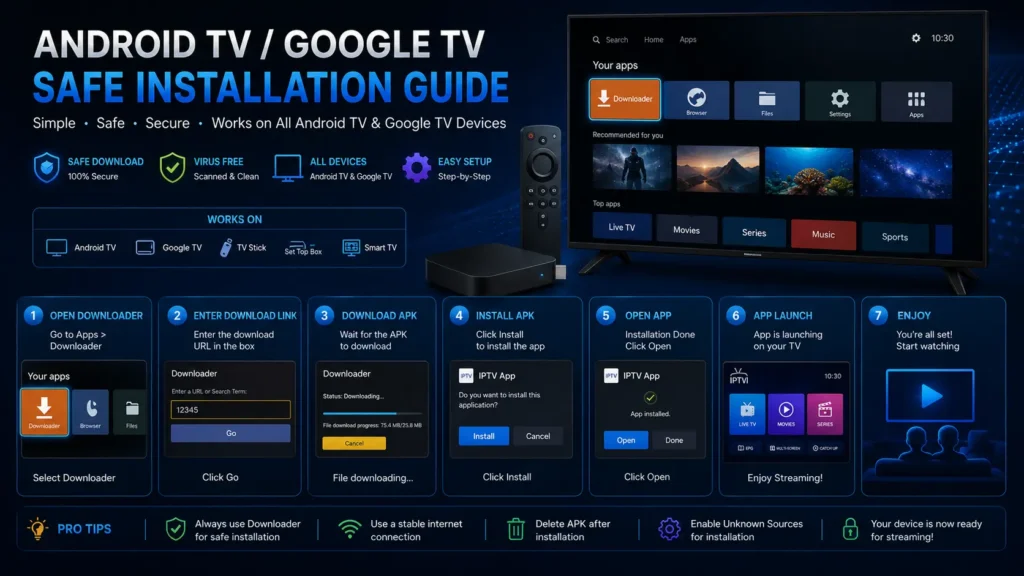
Android TV and Google TV devices are popular for IPTV because they are built for TV screens and remote control navigation. The download process is similar to Android phones, but the interface is optimized for television.
- Turn on your Android TV or Google TV device.
- Open Google Play Store from the TV home screen.
- Search for a Smarters-compatible IPTV player.
- Install the app if it appears officially.
- Open it and accept required basic permissions.
- Add your provider login details.
- Test a live channel, movie category, and EPG if available.
If store installation is not available, some users use a manual installer. Be careful with unknown files because TV devices often stay connected to personal accounts and home networks.
How to Download IPTV Smarters Pro on Firestick
Firestick users often search for IPTV apps because the device is affordable and easy to use on any TV. Start by checking official availability before using another method.
- Open your Firestick home screen.
- Go to the app search area.
- Search for the Smarters player name.
- Install the app if it appears in the official store.
- Open the app after installation.
- Enter your IPTV login details from your provider.
- Test playback and adjust settings if needed.
Need a detailed Firestick tutorial? Read our guide on how to install IPTV Smarters on Firestick.
You can also check Amazon Fire TV support for general device help.
How to Download IPTV Smarters Pro on Windows PC
Many users prefer a Windows PC because it offers a larger screen, keyboard search, and easier playlist management. The best option is to check the Microsoft Store or use a trusted desktop version. For complete installation and setup steps, follow our IPTV Smarters Pro for Windows guide.
- Open Microsoft Store on your Windows computer.
- Search for IPTV Smarters, Smarters Player, or a compatible IPTV player.
- Check app details and recent update information.
- Install the Windows version if available.
- Open the app from the Start menu.
- Choose Xtream Codes API or M3U setup.
- Enter your provider details and test playback.
If you use a desktop installer outside the store, download only from a trusted source and avoid bundled software.
How to Download IPTV Smarters Pro on Mac
Mac users should first check the Apple App Store or the official source for a macOS-compatible version. Availability can depend on the macOS version, region, and whether the app supports your Mac model. For complete installation and setup steps, follow our IPTV Smarters Pro for Mac guide.
- Open the App Store on your Mac.
- Search for IPTV Smarters Pro or a Smarters-compatible player.
- Check compatibility with your macOS version.
- Install the app if available.
- Open it and choose your login method.
- Add Xtream Codes API or M3U details from your IPTV provider.
- Test live TV, movies, and series categories.
How to Download IPTV Smarters Pro on iPhone or iPad
For iPhone and iPad, the safest download option is the Apple App Store. Avoid unofficial installation methods because iOS devices contain personal data, payment information, and account access.
- Open the Apple App Store.
- Search for IPTV Smarters Pro or a Smarters-compatible player.
- Check the developer details and reviews.
- Tap Get or Install.
- Open the app after installation.
- Enter your IPTV provider details.
- Wait for channels, movies, series, and EPG data to sync.
For general app safety and store access, you can check the official Apple App Store page.
How to Download IPTV Smarters Pro on Samsung TV or LG TV
Smart TV availability changes by country, model, and app store policy. Samsung and LG users should first check the built-in app store on the TV.
- Open Samsung Smart Hub or LG Content Store.
- Search for Smarters, IPTV player, or the exact app name.
- Check if your TV model supports the app.
- Install it if available.
- Open the app and enter your provider details.
- Test playback and EPG.
If the app is not available on your smart TV, you can use a Firestick, Android TV box, Google TV device, or another supported streaming device instead. Samsung users can also follow our IPTV Smarters on Samsung TV guide to check compatible installation options.
IPTV Smarters Pro App Store Version vs APK Version
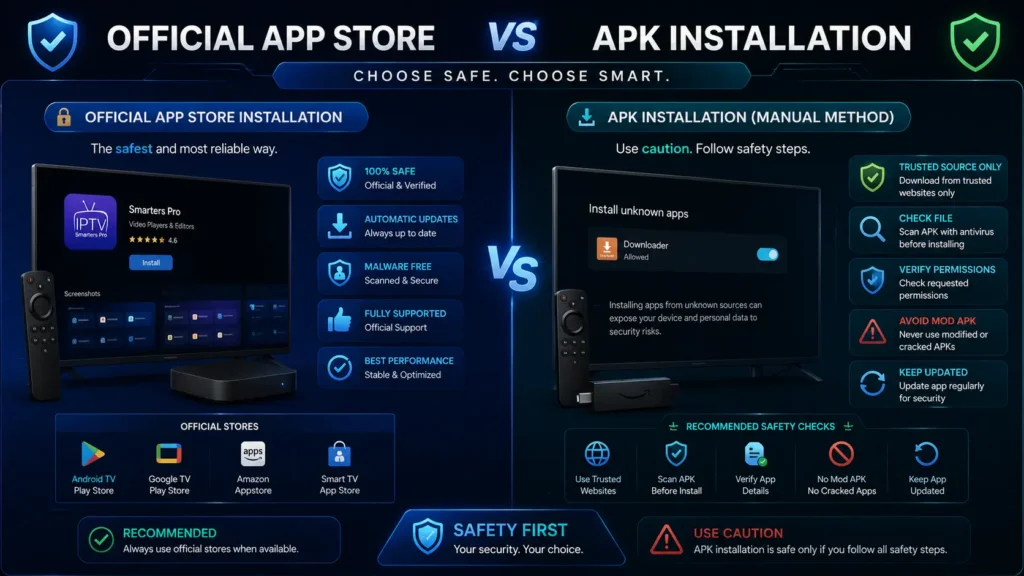
Users often ask whether they should install the app store version or an APK file. The safest answer is simple: use the official app store version whenever available. APK installation can be useful on some Android-based devices, but it requires more caution.
| Option | Best for | Risk level | Recommendation |
| Official app store version | Most users | Low | Best choice when available. |
| APK from trusted source | Android TV boxes or regions with no store listing | Medium | Use only if you understand the risk. |
| Mod APK or cracked version | Not recommended | High | Avoid completely. |
| Fake download website | Not recommended | High | Avoid because of malware and privacy risk. |
If your goal is Android installation specifically, the APK guide explains safe steps in more detail.
What to Do After Downloading IPTV Smarters Pro
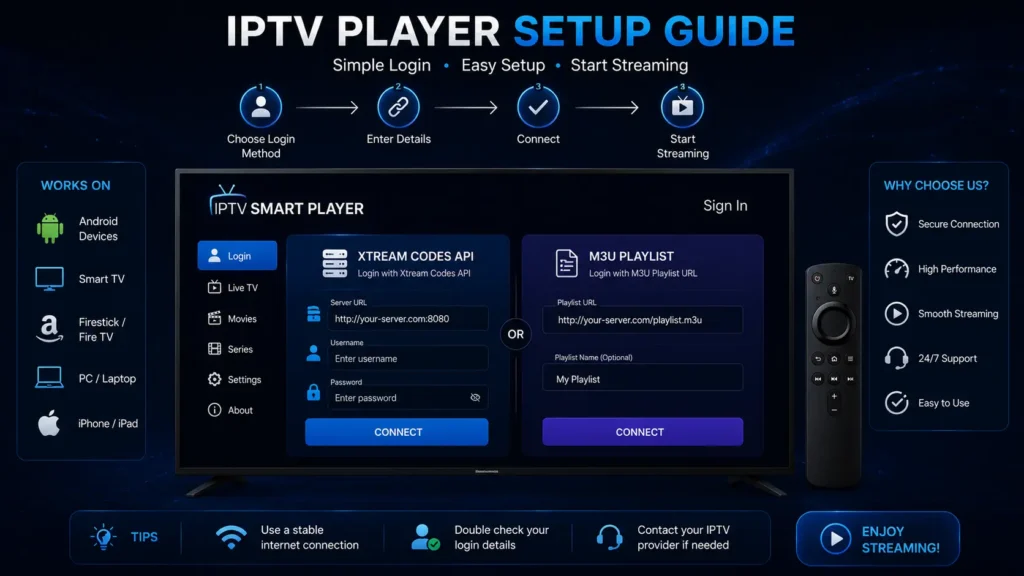
After installation, the next step is setup. You need login information from your IPTV provider. The app may offer different login choices depending on the version and platform.
Common setup methods include:
- Xtream Codes API: usually uses server URL, username, and password.
- M3U Playlist: usually uses a playlist URL or file.
- Local playlist: used when you have a playlist saved on your device.
Most users prefer Xtream Codes API because it can organize live TV, movies, series, and EPG data more cleanly when the provider supports it.
How to Set Up Xtream Codes API After Download
Xtream Codes API is one of the easiest ways to load your IPTV content if your provider supports it. Before starting, make sure you have the exact server URL, username, and password.
- Open the app.
- Choose the Xtream Codes API login option.
- Enter any profile name you want.
- Paste the server URL from your provider.
- Enter your username and password exactly as provided.
- Tap Add User, Login, or Save depending on the app version.
- Wait for live TV, movies, series, and EPG to load.
- Test several channels before changing settings.
If login fails, check uppercase letters, spaces, expired subscription, server URL format, and provider status before reinstalling the app.
How to Set Up an M3U Playlist After Download
M3U setup is another common method. It usually requires a direct playlist URL from your provider. Some services may also provide a separate EPG URL.
- Open the app.
- Choose M3U Playlist or Load Your Playlist/File URL.
- Enter a playlist name.
- Paste your M3U URL carefully.
- Add the EPG URL if your provider gives one.
- Save and wait for categories to load.
- Refresh the playlist if channels do not appear.
M3U links are sensitive. If you copy a link with missing characters, extra spaces, or expired tokens, the playlist may not load.
Common Download and Installation Problems
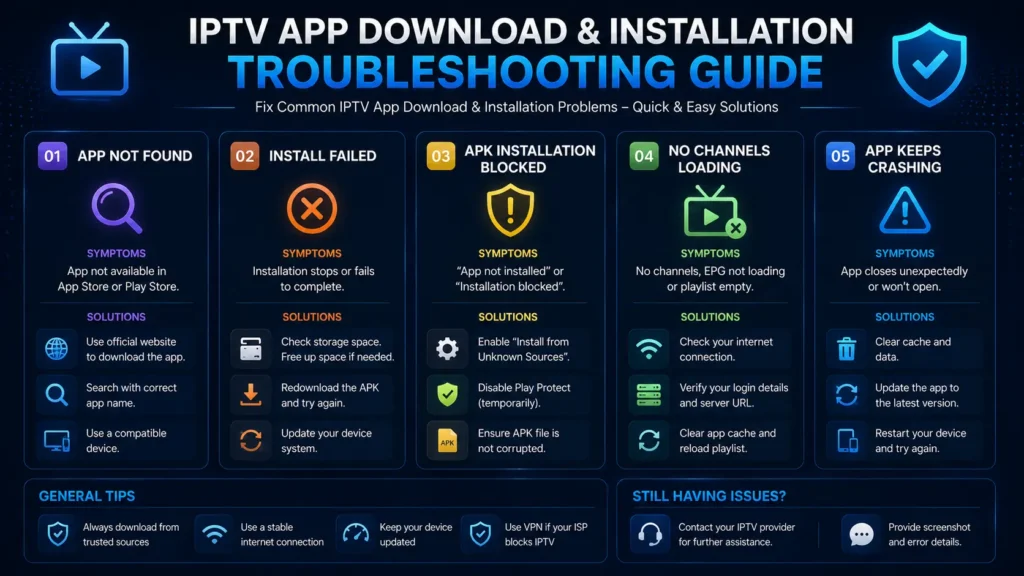
If the download or installation fails, the cause is usually device compatibility, app store availability, low storage, blocked installation permissions, or a file problem.
| Problem | Likely cause | Fix |
| App not found in store | Not available in your region or device | Check another official store or supported device. |
| Install button missing | Device not compatible | Update device software or use another device. |
| APK will not install | Unknown sources blocked or corrupt file | Enable permissions carefully and use a trusted file. |
| App crashes after install | Old version, low storage, device conflict | Clear cache, update app, or reinstall. |
| No channels after login | Playlist not loaded or subscription issue | Refresh playlist and contact provider if needed. |
| Buffering after setup | Internet or provider server issue | Test speed, restart router, lower quality, or contact provider. |
IPTV Smarters Pro Download Not Working: Quick Fixes
If the download is not working, do not immediately blame the app. Start with basic checks first because many problems come from device settings or app store restrictions.
- Restart your device.
- Check your internet connection.
- Update your device software.
- Clear app store cache if possible.
- Check if your device has enough storage.
- Try another official store or supported device.
- Avoid using random download websites.
- If the app installs but does not open, clear cache or reinstall.
If the installed app opens but fails to load content, read our IPTV Smarters Pro not working guide.
Best Settings After Installation
Once the app is installed, a few settings can improve stability and usability. The exact menu names may change depending on version, but the idea stays the same.
- Refresh playlist and EPG after adding your account.
- Use favorites to organize important channels.
- Clear cache if the interface becomes slow.
- Test internal and external player options if playback fails.
- Use parental controls when children can access the device.
- Use a stable internet connection, preferably wired for TV boxes if possible.
- Keep the app and device updated.
Safe Download Tips for 2026
Because many fake IPTV pages use popular app names to attract visitors, safety matters. A fake download can create more problems than a normal installation error.
- Do not download files from pages full of popups and fake buttons.
- Avoid websites that force browser notifications before download.
- Do not trust pages promising free premium channels.
- Never install files that ask for strange permissions.
- Keep a backup of your IPTV provider details in a safe place.
- Use official app stores when possible.
- Be careful with shortened links shared on forums or social media.
Should You Download IPTV Smarters Pro in 2026?
The app is still a practical option if you want a simple IPTV player that works across several devices. It is especially useful for beginners who need a clear interface for live TV, movies, series, EPG, and playlist management.
However, your experience depends heavily on your IPTV provider. A good player cannot fix unstable servers, expired subscriptions, missing channels, or poor-quality streams. For the best results, use a reliable provider, a stable internet connection, and safe installation sources.
Looking for a service that works smoothly with IPTV players? Check our IPTV plans or request a trial before choosing a subscription.
FAQ: IPTV Smarters Pro Download
Where can I download IPTV Smarters Pro safely?
The safest option is your official device app store when the app is available. If you use another method, avoid cracked files, fake APK pages, and unknown download websites.
Does the app include channels after download?
No. The app does not include channels by itself. You need your own IPTV provider login, M3U playlist, or Xtream Codes API details.
Can I download it on Android?
Yes, Android users can usually install a compatible IPTV player from Google Play or a trusted Android source, depending on region and device compatibility.
Can I install it on Firestick?
Yes, many Firestick users install Smarters-compatible players. Start with the official store when available and use safe installation methods only.
Can I use it on Windows PC?
Yes, Windows users can check Microsoft Store or a trusted desktop version. Always verify compatibility before installing.
Can I download it on Mac?
Mac support depends on app availability and macOS compatibility. Check the Apple App Store or trusted official source first.
Is an APK version safe?
An APK can be safe only when it comes from a trusted source. Modded or cracked APK files are risky and should be avoided.
Why can I not find the app in my store?
Store availability can change by country, platform policy, device model, and app version. Try another supported device if needed.
Why does the app show no channels after install?
Usually because no playlist was added, login details are wrong, the subscription expired, or the provider server is down.
What login details do I need after download?
Most providers give either Xtream Codes API details, an M3U URL, or playlist information. Without these, the player cannot load content.
Is it legal to download the app?
The player itself is a media app. Legal risk depends on whether the content source you add has proper rights to distribute the content.
Do I need a VPN after installing it?
A VPN is optional. It can help with privacy or network restrictions, but a slow VPN can also cause buffering.
What should I avoid when searching for downloads?
Avoid mod APKs, fake premium versions, popups, forced notifications, and websites promising free paid channels.
Which setup method is better: Xtream Codes API or M3U?
Xtream Codes API is often easier for beginners because it can organize categories and EPG more cleanly. M3U is useful when your provider gives a playlist URL.
What is the best next step after installing the app?
Add your provider details, refresh playlist and EPG, test several channels, then adjust playback settings if needed.