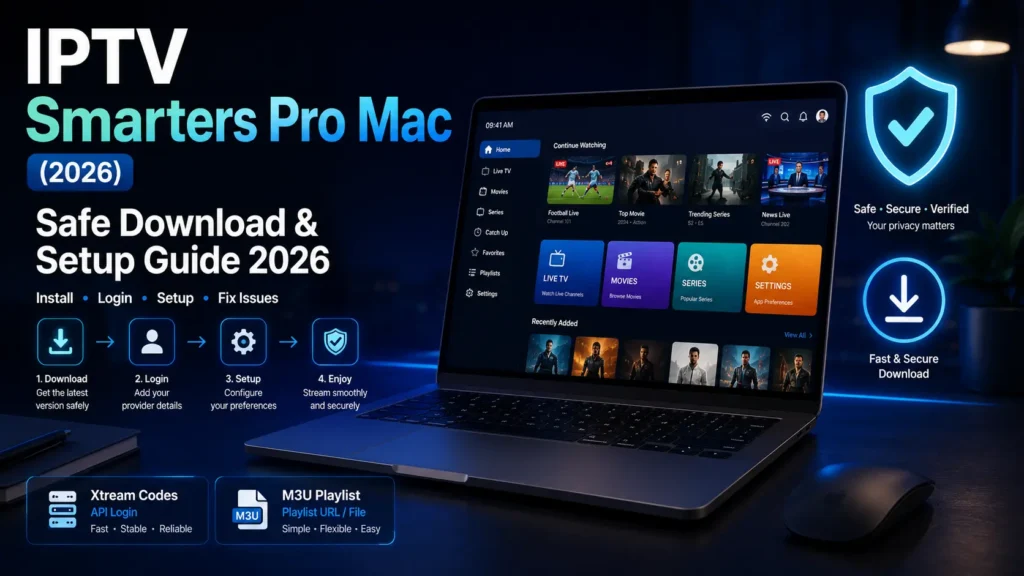
Want to use IPTV Smarters Pro Mac without getting lost between fake downloads, confusing setup steps, and app compatibility problems? This safe 2026 guide explains how to download, install, and set up IPTV Smarters Pro Mac with M3U playlist or Xtream Codes API details.
The Mac setup is useful if you prefer watching IPTV on a larger screen, using a keyboard, managing playlists more comfortably, or testing your provider before adding the same account to a TV device. However, Mac users need to be careful because app availability can change depending on region, macOS version, and the source you use.
This guide focuses on safe installation, legal and responsible use, correct login setup, smooth playback settings, and the most common Mac-specific fixes. If you need the full overview for every device, start with our complete IPTV Smarters Pro guide, then come back here for the Mac-specific steps.
Quick answer: IPTV Smarters Pro Mac is a media player setup for macOS users. The app does not include channels by itself. You still need valid IPTV login details, such as an M3U URL or Xtream Codes API information, from your own IPTV provider.
Key Takeaways
- IPTV Smarters Pro Mac is useful for watching and managing IPTV playlists on a computer.
- You need a valid IPTV service, M3U playlist, or Xtream Codes API details before you can watch content.
- The safest download method is to use official stores, official sources, or trusted provider instructions.
- Most Mac issues come from wrong login details, provider downtime, outdated software, weak Wi-Fi, or unsupported app versions.
- If the app is not available for your Mac, you can still use alternative IPTV players or another device setup.
Table of Contents
What Is IPTV Smarters Pro Mac?
IPTV Smarters Pro Mac refers to using the IPTV Smarters player experience on a Mac computer or MacBook. The main purpose is simple: the app gives you a clean interface where you can add your own IPTV playlist, organize live TV, access movies or series if your provider supports them, refresh EPG data, and control playback from one place.
The important point is that the player is not an IPTV provider. It does not create subscriptions, sell channels, or host streams. It only plays the content linked to your own IPTV account. This is why the setup requires provider details before anything can load.
For many users, the Mac setup is more comfortable than using a small phone screen. You can type login details more easily, manage long playlists, test channels, and use your laptop as a second screen when your TV is already busy.
In simple words
Think of the app as a media player for your IPTV service. Your provider gives you the login details, and the Mac player gives you the interface to watch and manage them.
Is IPTV Smarters Pro Available for Mac?
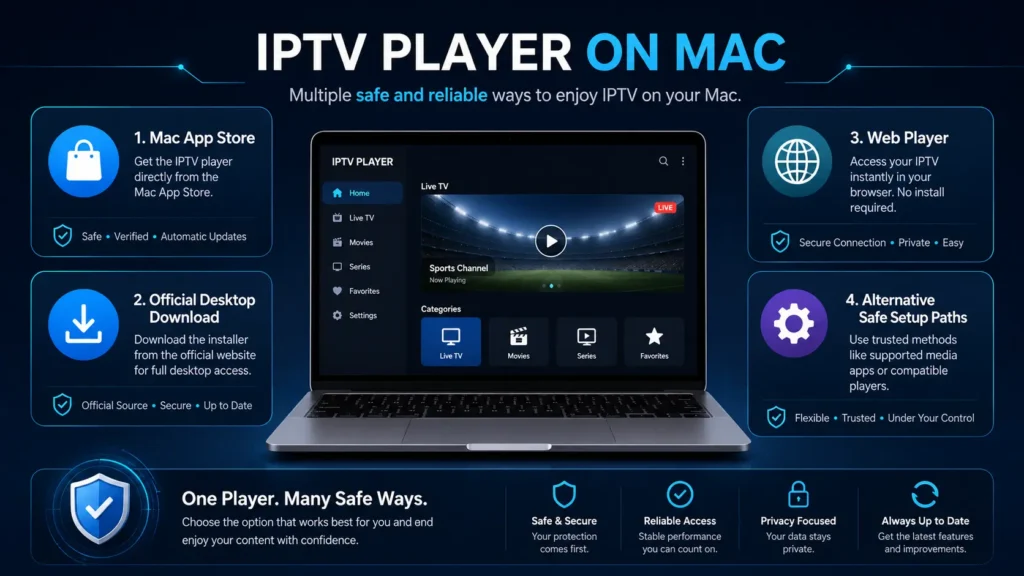
Availability can vary by region, macOS version, and app store listing. Some users may find a Smarters-style app in the Mac App Store, while others may need to check the official website or use a trusted alternative IPTV player for Mac.
Before installing anything, check the Mac App Store first. If you cannot find a compatible version, avoid random download websites that promise “premium unlocked,” “cracked,” or “lifetime free” versions. These files can be unsafe and can also create problems with macOS security controls.
If your goal is only to download the app on another device, our IPTV Smarters Pro Download guide explains the broader download options for Android, Firestick, PC, and smart TVs.
| Download Option | Best For | Safety Level |
| Mac App Store | Users who want the simplest and safest installation path | High |
| Official app source | Users who need a desktop installer when available | High if verified |
| Provider instructions | Users whose provider recommends a specific player | Depends on provider quality |
| Random third-party download sites | Not recommended | Low |
| Cracked or modified installers | Never recommended | Very risky |
Is IPTV Smarters Pro Mac Safe?
The Mac setup can be safe when you download the app from a trusted source and use legitimate provider details. The risk usually comes from unsafe downloads, fake installers, suspicious login pages, and providers that do not clearly explain their service.
Mac computers include security features that may block unknown apps or warn you before opening an installer. Do not ignore these warnings unless you fully trust the source. If a website asks you to disable important security settings, that is a red flag.
Safety checklist before installing
- Check the Mac App Store or official source first.
- Avoid cracked, modded, or unlocked versions.
- Do not download from pages filled with fake buttons and popups.
- Scan unknown installers before opening them.
- Keep macOS updated.
- Use strong login details and do not share your IPTV account publicly.
- Choose a provider with clear support and setup instructions.
Is It Legal to Use IPTV Smarters Pro on Mac?
The app itself is a media player, so the legal question depends on the content source you add. Using a player is not the same thing as owning legal rights to the channels or movies loaded inside it.
If your IPTV provider has permission to distribute the content, then using a media player to access your account is usually not the issue. If your provider sells unauthorized premium channels, live sports, or movies without rights, that can create legal and security risks.
For responsible use, avoid providers that advertise unrealistic “all premium channels forever” claims, no-name payment pages, or fake support. The safer path is to use transparent services, legal content sources, and clear subscription terms.
IPTV Smarters Pro Mac vs Windows vs Mobile Setup
Mac, Windows, and mobile setups all serve the same basic purpose, but the user experience is different. IPTV Smarters Mac is usually better for a larger screen, playlist management, typing, and testing, while mobile is better for portability. For users checking IPTV Smarters Pro MacBook compatibility, performance depends mainly on the macOS version and the installation method. Windows is often useful for users who want a desktop setup with broader compatibility options.
If you are comparing computer setups, our IPTV Smarters Pro PC guide explains the wider computer workflow, while our IPTV Smarters Pro Windows guide focuses only on Windows-specific steps and fixes.
| Setup Type | Best For | Main Advantage | Main Limitation |
| Mac | MacBook and iMac users | Comfortable screen and keyboard control | Availability can vary |
| Windows PC | Desktop and laptop users | Broad computer compatibility | Installer source matters |
| iPhone or iPad | Portable viewing | Easy app store access | Smaller screen |
| Android TV or TV Box | Living room viewing | TV-friendly experience | Remote typing can be slower |
| Firestick | TV users who want a small streaming device | Affordable and popular | Sideloading may be needed in some cases |
System Requirements for a Smooth Mac Experience
The exact requirements depend on the version you install. However, most IPTV playback issues on Mac are related to software compatibility, old macOS versions, weak Wi-Fi, low storage, or overloaded provider servers.
For a smoother setup, update macOS, close heavy background apps, use a stable connection, and make sure your device has enough free storage. IPTV streams can require consistent bandwidth, especially for HD or full HD channels.
| Requirement | Recommendation |
| macOS version | Use a recent supported macOS version when possible |
| Internet speed | At least 15 Mbps for HD; more for multiple streams |
| Connection type | Strong Wi-Fi or Ethernet adapter if available |
| Storage | Keep enough free space for cache and app updates |
| Provider details | Valid M3U URL or Xtream Codes API login |
| Security | Download only from trusted sources |
How to Download IPTV Smarters Pro on Mac Safely
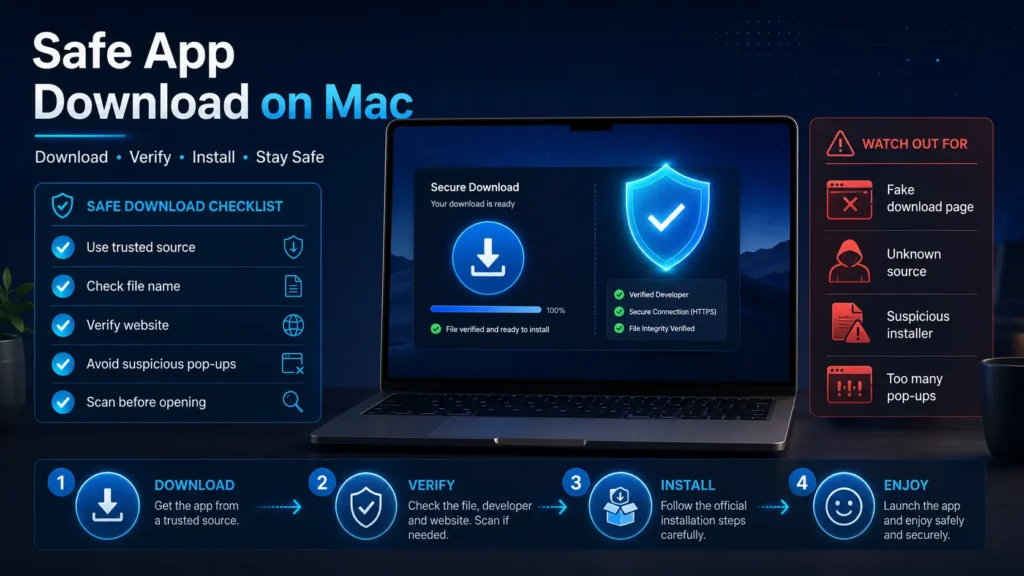
The safest download process starts with official stores and trusted sources. Do not click the first download button you see on Google, because many pages use misleading buttons, fake file names, or aggressive ads.
Start by checking the Mac App Store. If the app is not available there, check the official website or the instructions from your IPTV provider. If a source looks suspicious, skip it and use another trusted IPTV player instead.
Safe download steps
- Open the Mac App Store and search for the app name or a compatible Smarters player.
- Check the app details, developer information, reviews, and compatibility.
- If not available, check the official app source or your provider instructions.
- Avoid websites that mention cracked premium access, lifetime free channels, or modified installers.
- Download only one installer from a source you trust.
- Keep the file name and source saved in case you need support later.
If you are trying to install the Android version instead of a Mac version, use our IPTV Smarters Pro APK guide because the APK workflow is different from a normal Mac installation.
How to Install IPTV Smarters Pro on Mac
Once you have a trusted download source, installation is usually simple. The exact steps depend on whether the app comes from the Mac App Store or as a desktop installer.
Mac App Store installation
- Open the Mac App Store.
- Search for the compatible app.
- Check compatibility with your macOS version.
- Click Get or Install.
- Open the app from Launchpad or Applications.
- Choose your login method and add your provider details.
Desktop installer installation
- Download the installer only from a trusted source.
- Open the file and follow the installation prompt.
- Move the app to Applications if required.
- Open the app and allow basic permissions only when needed.
- Enter your IPTV login details.
- Test a live channel and check playback quality.
How to Set Up Xtream Codes API on Mac
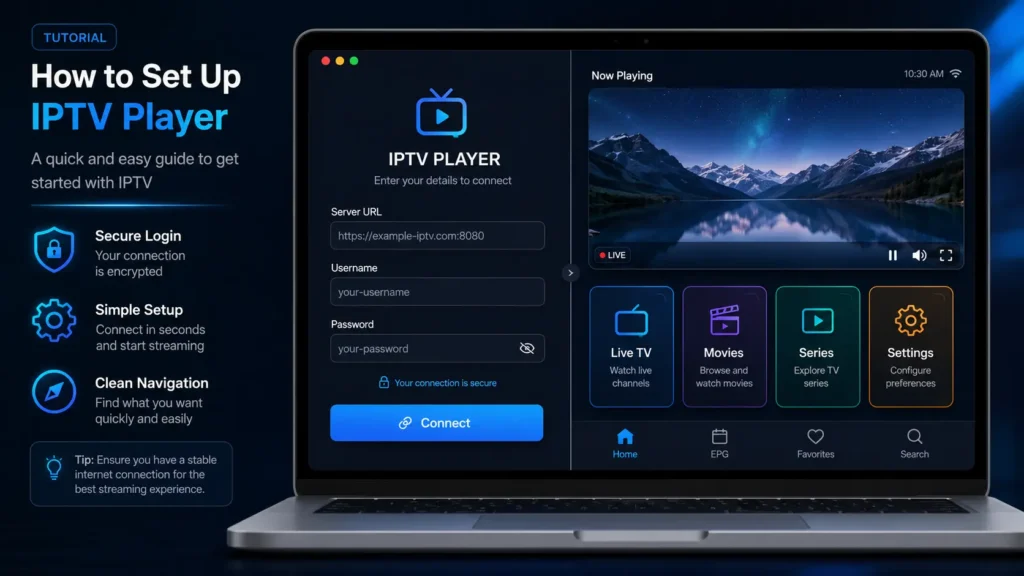
Xtream Codes API is one of the easiest login methods because it usually requires three details: server URL, username, and password. Your IPTV provider should give you these details after subscription or trial activation.
- Open the app on your Mac.
- Choose the Xtream Codes API login option.
- Enter any playlist name you want, such as My IPTV.
- Paste the server URL exactly as your provider gave it.
- Enter your username and password carefully.
- Click Add User, Login, or Connect.
- Wait for live TV, movies, series, and EPG data to load.
- Test different categories before changing settings.
If your login fails, check for spaces, wrong capital letters, expired account status, or server maintenance. Our IPTV Login Error guide can help if the same credentials keep failing.
How to Set Up an M3U Playlist on Mac
M3U setup is useful when your provider gives you a playlist URL instead of a server URL, username, and password. The app uses that playlist link to load channels and categories.
- Open the app and choose the M3U playlist option.
- Enter a playlist name.
- Paste your M3U URL exactly.
- Add the EPG URL if your provider gives one separately.
- Save the playlist and wait for it to load.
- Refresh the playlist if categories do not appear.
- Test several channels to confirm the playlist works.
If no channels appear after setup, the M3U link may be wrong, expired, blocked, or missing categories. Our IPTV No Channels guide explains the common causes in more detail.
Best Settings for Smooth Playback on Mac
After installation, do not change every setting at once. Start with default settings, test playback, then adjust only what needs improvement. This helps you know which setting actually fixed the issue.
| Setting | Recommended Action | Why It Helps |
| Player option | Test default player first, then external player if available | Some streams work better with different decoding |
| EPG refresh | Refresh after adding or updating playlist | Fixes missing or outdated guide data |
| Favorites | Save your most-watched channels | Reduces scrolling time |
| Cache | Clear cache if the app becomes slow | Removes temporary app data |
| Internet connection | Use stable Wi-Fi or Ethernet adapter | Reduces buffering |
| VPN | Test with and without VPN | Identifies throttling or VPN slowdown |
If buffering continues even after settings changes, read our IPTV Buffering guide for deeper network and provider-side fixes.
How to Fix Buffering on Mac
Buffering on Mac can be caused by weak Wi-Fi, slow internet, VPN slowdown, provider server overload, high stream quality, or background apps using bandwidth. The app is not always the real cause. For more detailed connection and playback fixes, follow our IPTV buffering guide.
Quick buffering fixes
- Restart your router and Mac.
- Move closer to the Wi-Fi router or use an Ethernet adapter.
- Close downloads, cloud sync tools, and heavy browser tabs.
- Test a different channel to see if the issue is stream-specific.
- Try a different VPN server or turn VPN off for testing.
- Lower stream quality if your provider offers multiple options.
- Ask your provider if their server is overloaded.
Login Errors on Mac: What to Check
Login errors usually come from incorrect details, expired subscriptions, the wrong server URL, provider downtime, or blocked access. Before reinstalling the app, verify the basics and follow our IPTV login error guide for complete troubleshooting steps.
- Copy and paste credentials instead of typing manually.
- Check that the server URL starts correctly with http or https if required.
- Remove extra spaces before and after username or password.
- Confirm your subscription or trial is still active.
- Ask your provider whether Mac access is supported.
- Test the same login on another device.
If the same details fail on multiple devices, the problem is probably your account or provider server, not your Mac.
No Channels Showing on Mac
When no channels appear, the app may have logged in but failed to load the playlist. This can happen because of expired accounts, empty playlists, provider maintenance, blocked URLs, or an incorrect playlist format. For more detailed checks and solutions, follow our IPTV no channels guide.
- Refresh the playlist or reload user data.
- Check whether movies or series load even if live TV does not.
- Log out and log in again.
- Test the same M3U or Xtream details on another device.
- Ask your provider to reset or refresh your account.
- Check if categories are hidden inside app settings.
App Not Working on Mac: Quick Fixes
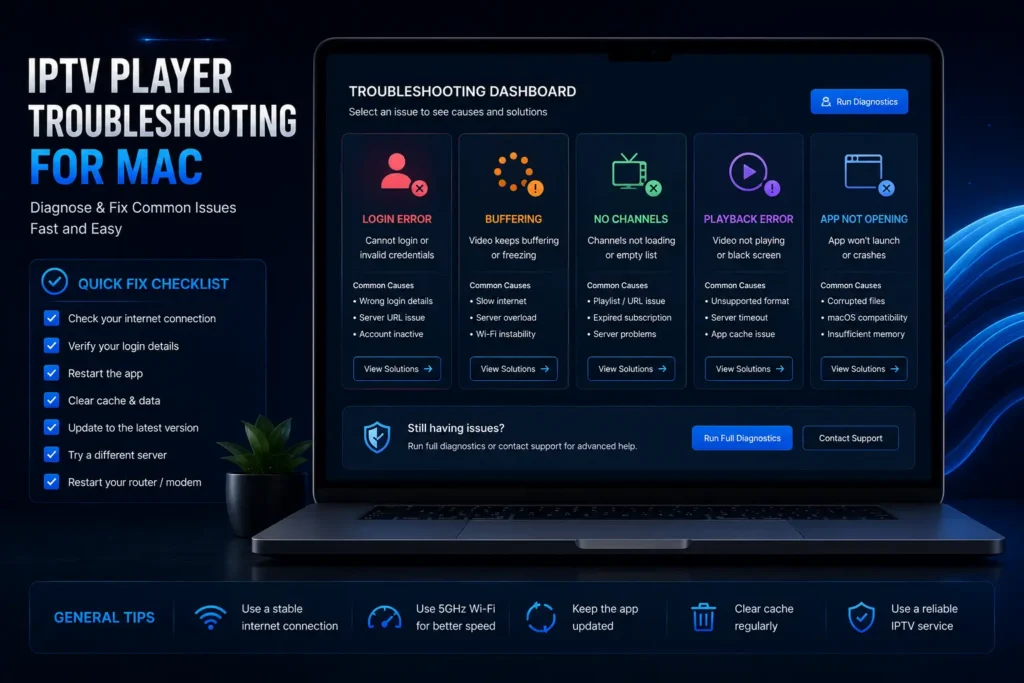
If the app does not open, crashes, freezes, or closes by itself, start with basic Mac fixes before changing provider details.
- Restart your Mac.
- Update macOS if an update is available.
- Close the app completely and reopen it.
- Remove and reinstall the app from the same trusted source.
- Check storage space.
- Disable conflicting VPN or firewall settings temporarily for testing.
- Try another IPTV player if IPTV Smarters Pro Mac remains unstable.
If you need a broader troubleshooting workflow, compare these steps with our IPTV Smarters Pro not working guide and test each fix one by one.
Best IPTV Smarters Pro Mac Alternatives
If you cannot find a stable Mac version or your provider does not support it properly, you can still watch IPTV through another Mac-compatible player. The best alternative depends on your playlist format and your comfort level.
| Alternative | Best For | Notes |
| VLC | Simple M3U playback | Good for basic streams, less IPTV-style interface |
| Web player from provider | Quick access without installing apps | Depends on provider quality |
| Dedicated IPTV player for Mac | Better playlist interface | Check reviews and source safety |
| Windows PC setup | Users with another computer | See the Windows guide if you use Windows |
| Android TV or Firestick | TV-first viewing | Better living room experience |
Should You Use IPTV Smarters Pro on Mac in 2026?
The Mac setup is worth considering if you want a bigger screen, easier typing, and better playlist control than a phone. It is also useful for testing your IPTV subscription before setting it up on a TV device.
However, it is not always the best option for every user. If app availability is limited in your region or your Mac version is unstable, a Windows PC, Android TV box, Firestick, or another player may be easier.
Need a stable service that works across devices? Compare our IPTV plans and choose the setup that fits your Mac, TV, or mobile device. You can also request a trial before buying to test channels, playback, and login details.
FAQ: IPTV Smarters Pro Mac
Can I use IPTV Smarters Pro on Mac?
Yes, you may be able to use a Mac-compatible version depending on availability, region, and macOS compatibility. Always check trusted sources first.
Does IPTV Smarters Pro Mac include channels?
No. The app is only a media player. You need your own IPTV provider, M3U playlist, or Xtream Codes API login details.
What is the safest way to download IPTV Smarters Pro Mac?
Check the Mac App Store, official app sources, or trusted provider instructions. Avoid cracked installers and random download pages.
Can I use Xtream Codes API on Mac?
Yes, if the app version supports it and your provider gives you a server URL, username, and password.
Can I use an M3U playlist on Mac?
Yes, many IPTV players support M3U playlist URLs. You may also need an EPG URL for TV guide data.
Why is IPTV Smarters Pro Mac buffering on Mac?
Common causes include weak Wi-Fi, overloaded provider servers, VPN slowdown, high-quality streams, or background apps using bandwidth.
Why do I see no channels on Mac?
Your playlist may not have loaded, your account may be expired, your provider server may be down, or the playlist format may be wrong.
Is a VPN required for Mac?
A VPN is optional. It may help with privacy or network restrictions, but a slow VPN can also increase buffering.
What is the best Mac alternative?
VLC, a web player, or another Mac-compatible IPTV player can work depending on your provider and playlist format.
Should I use Mac or Firestick for IPTV?
Mac is better for testing and playlist management, while Firestick is usually better for living room viewing on a TV. For complete setup steps, follow our IPTV Smarters on Firestick guide.